 Artisan Outlet
 user manual
Welcome to Artisan Outlet
Artisan Outlet turns a WordPress site into an online shop for rural artisans and handloom weavers. Every craft comes with the family who made it and how it was made. Customers pay by UPI or cash on delivery, and orders, shipping and the money owed between the shop and each artisan are all kept in the plugin. No WooCommerce is needed. Its add-on, Artisan Outlet Mobile, adds a phone app that customers can install, and in which artisans run their own orders.
What you can do with it
Show the craft and its story
Photos, price and stock, the making process step by step, care, and the artisan behind each piece.
☺Introduce the artisans
Family story, tradition timeline, generations, awards, workshop photos and video, and up to three ways to reach them.
₹Sell with UPI or COD
Pay with a UPI app or QR code and give the UTR, or pay cash when the parcel arrives.
▤Run the orders
Confirm payments, ship with tracking numbers, keep the customer informed, cancel and refund.
📱Let artisans ship
Artisans who ship themselves are paid directly and run their orders from the phone app.
⇄Settle up fairly
Commission and payouts per order, each confirmed by the side that receives the money.
Two plugins, one manual
| Plugin | What it adds |
|---|---|
| Artisan Outlet 2.8.0 the core plugin | The catalogue (crafts, artisans, craft types), cart and checkout, UPI and cash on delivery, its own order database, shipping and tracking, emails, settlements with artisans, the sales report, website shortcodes and a REST API. Everything is under the Artisan Outlet menu in the dashboard. |
| Artisan Outlet Mobile 2.6.0 the add-on | A phone app (a web app that can be added to the home screen) at yoursite.com/craft-app/, with an artisan section where artisans confirm payments, ship orders and settle up. Needs Artisan Outlet 2.6.0 or later. |
Who uses it
| Person | Where they work | What they do |
|---|---|---|
| Customer | The website shop or the phone app | Browse, buy, pay, give the payment reference, track the order. No account is needed. |
| Store staff | The dashboard (Store staff role, or an administrator) | Look after the catalogue and orders: confirm payments, ship, settle up with artisans. |
| Artisan | The artisan section of the phone app | Confirm payments, pack and ship (if they ship themselves), pay commission, confirm payouts. |
| Administrator | The dashboard | Everything staff can do, plus Settings and plugins. |
Three ideas to know first
- One artisan per order. A cart holds one artisan’s crafts. Adding another artisan’s piece asks whether to empty the cart and start again, so each order goes from one maker to one customer.
- Two ways an artisan can sell. Either the website ships (customers pay the shop, which ships and later pays the artisan their share) or the artisan ships (customers pay the artisan’s own UPI ID; the artisan ships and later pays the shop its commission). See How orders work.
- UPI is confirmed by a person. The customer pays from any UPI app and types in the transaction reference (UTR). Whoever received the money checks their bank and taps Money received or Not received.
Getting started
Installing
Install both plugins, check two WordPress settings, and put the shop on a page. Then work through Settings, add artisans and crafts.
What you need
- WordPress 6.2 or newer and PHP 7.4 or newer.
- Pretty permalinks: Settings → Permalinks set to anything except “Plain”. The phone app and the craft and artisan pages need it.
- A UPI ID for the shop. A business or merchant UPI ID is recommended: some UPI apps limit payment links and QR codes for personal IDs.
Installing the plugins
- Upload Artisan Outlet. Plugins → Add New Plugin → Upload Plugin, choose
artisan-outlet-2.8.0.zip, Install Now, Activate. - Upload Artisan Outlet Mobile (
artisan-outlet-mobile-2.6.0.zip) the same way and activate it. If the core plugin is missing or older than 2.6, the add-on shows a notice and stays switched off. - Check what was created. Activation creates the order tables and two pages: Cart & Checkout (
/checkout/) and Track your order (/track-order/). It also adds two roles, Store staff and Artisan, and the Artisan Outlet menu. - Put the shop on a page. Create a page called “Shop” containing the shortcode
[ao_outlet]. Add it, the checkout page and the tracking page to your site’s menu. - Set a Site Icon in Appearance → Customize → Site Identity (block themes: Settings → General). The phone app uses it as its home-screen icon.
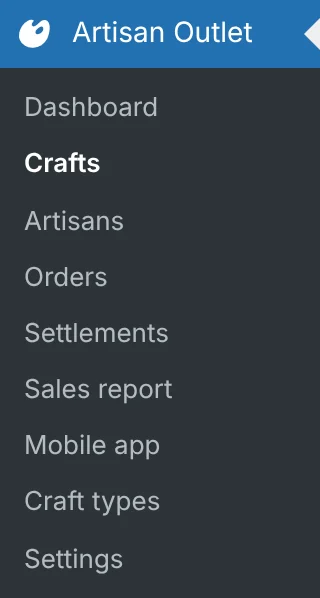
The Artisan Outlet menu
| Dashboard | What needs doing now, and this month’s figures. |
| Crafts, Artisans | The catalogue. |
| Orders | Every order, with a count of payments to verify on the menu. |
| Settlements | Money between the shop and each artisan. |
| Sales report | Sales and commission per artisan, with a CSV download. |
| Mobile app | Opens the Mobile app tab of Settings. |
| Craft types | Handloom, Terracotta and so on. |
| Settings | Administrators only. |
Roles
| Role | Can do |
|---|---|
| Administrator | Everything, including Settings. |
| Store staff | Orders, settlements, the sales report, crafts and artisans, and uploading photos. Not Settings, not plugins. |
| Artisan | Only the artisan section of the phone app. These accounts are created from the artisan’s page; see App login. |
Getting started
Settings
Artisan Outlet → Settings has seven tabs. Each tab saves on its own with Save Changes, so changing one tab never touches another.
Store
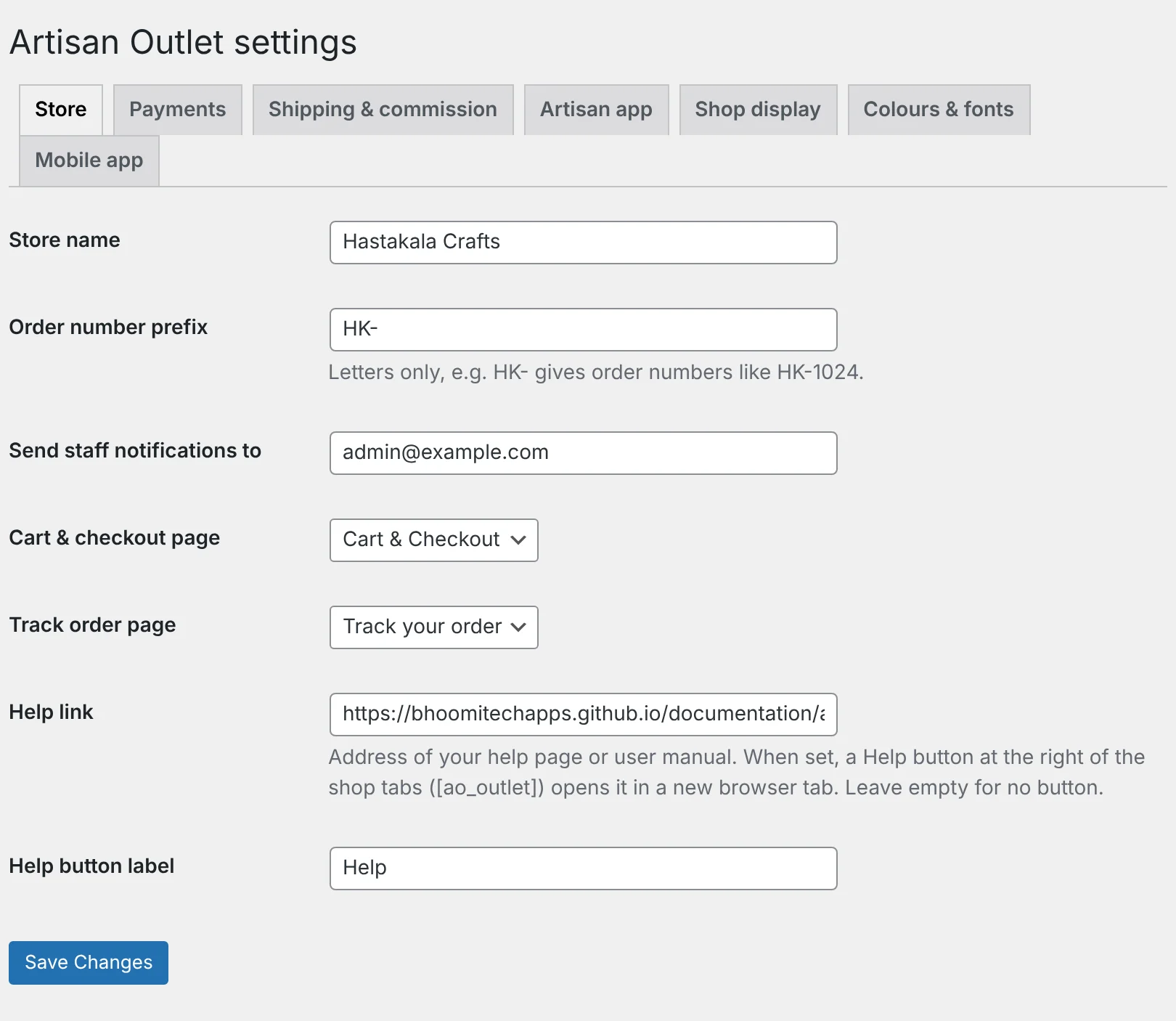
- Order number prefix: letters only.
HK-gives order numbers such asHK-1,HK-2. - Send staff notifications to: the email address for new orders, payments to verify and settlements.
- Cart & checkout page and Track order page: the two pages created on activation. Change them only if you made your own pages with
[ao_checkout]and[ao_track_order]. - Help link: the address of your help page or user manual, starting with
https://(orhttp://). When it is set, a Help button appears at the right of the shop’s tabs and opens it in a new browser tab. Leave it empty for no button. An address the plugin can’t accept is refused with a message and the old one is kept. - Help button label: the button’s text, “Help” by default.
Payments
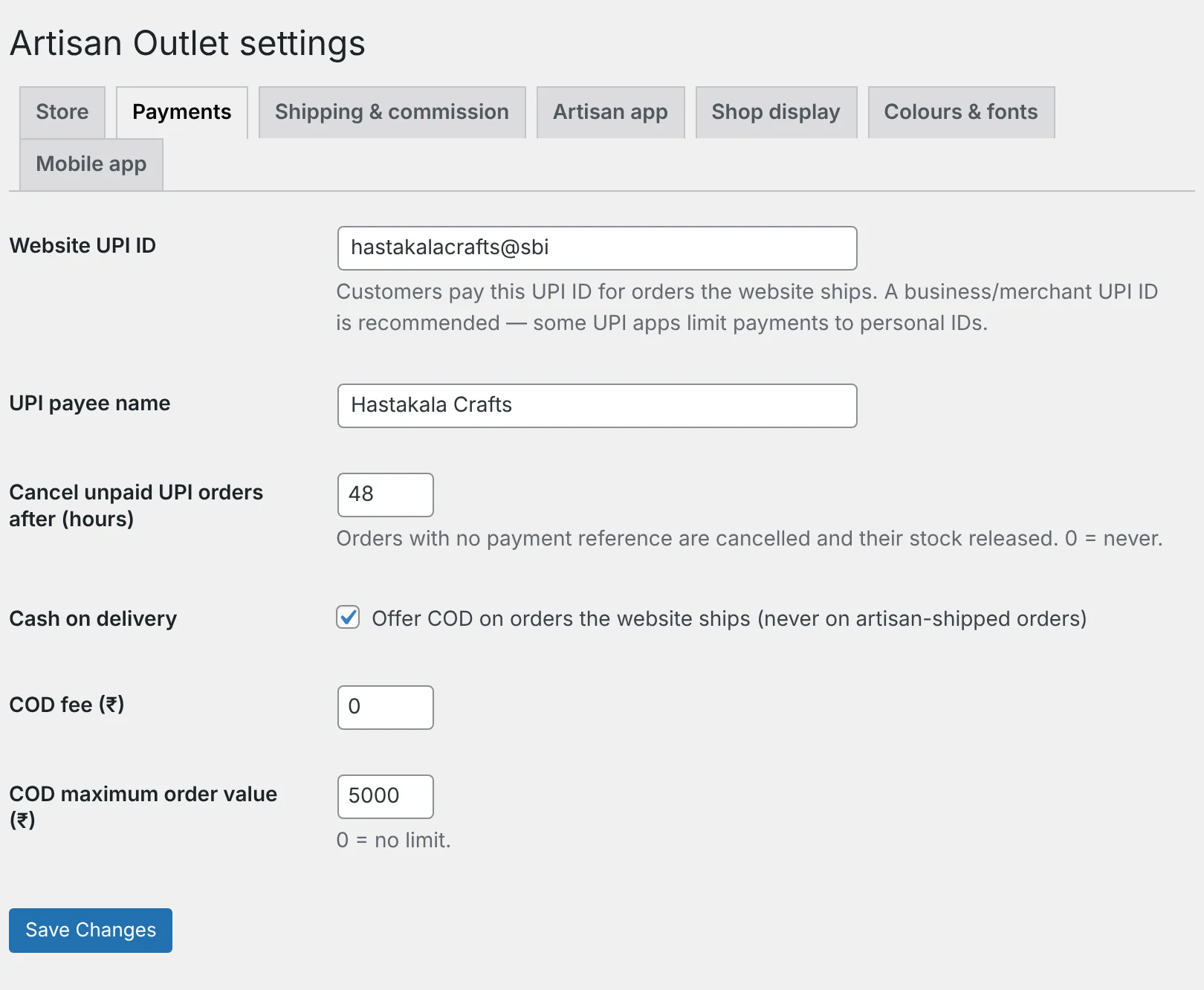
- Website UPI ID: customers pay this ID for orders the website ships. It must look like
name@bank, or it isn’t saved. - UPI payee name: shown to the customer beside the ID.
- Cancel unpaid UPI orders after (hours): orders with no payment reference are cancelled automatically and their stock released, counted from when the order was placed. Default 48; 0 = never.
- Cash on delivery: offered only on orders the website ships, never on orders an artisan ships. Add a COD fee and a COD maximum order value (0 = no limit) if you want.
Shipping & commission
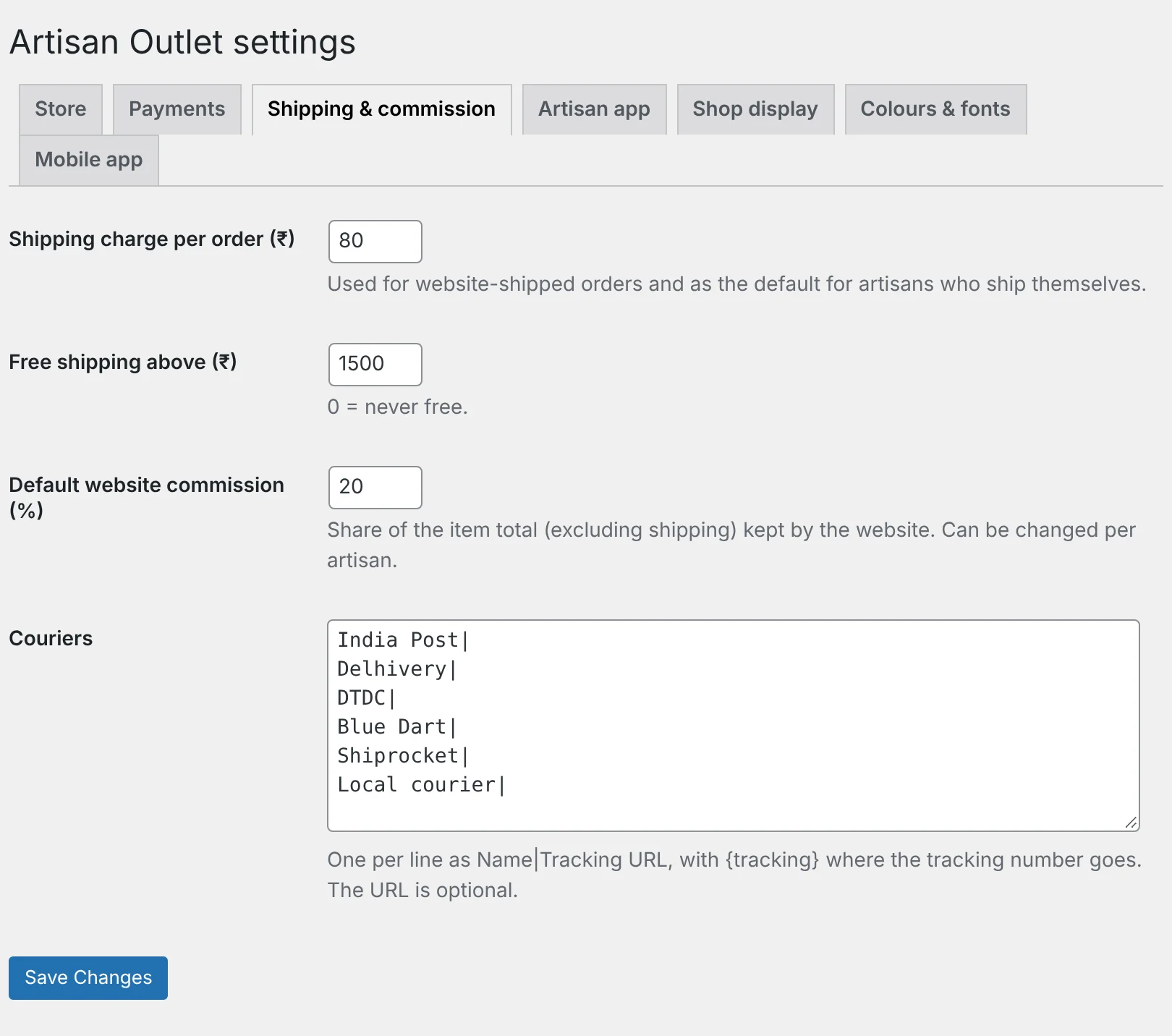
- Shipping charge per order: for website-shipped orders, and the default for artisans who ship themselves (each can have their own; see Selling & payment).
- Free shipping above: orders whose items total reaches this amount ship free, whoever ships them. 0 = never free.
- Default website commission (%): the shop’s share of the items total, not counting shipping. It can be changed per artisan.
- Couriers: one per line. Add a tracking address after a
|with{tracking}where the tracking number goes, and customers get a Track on courier site link, for exampleIndia Post|https://www.indiapost.gov.in/…?id={tracking}.
Artisan app
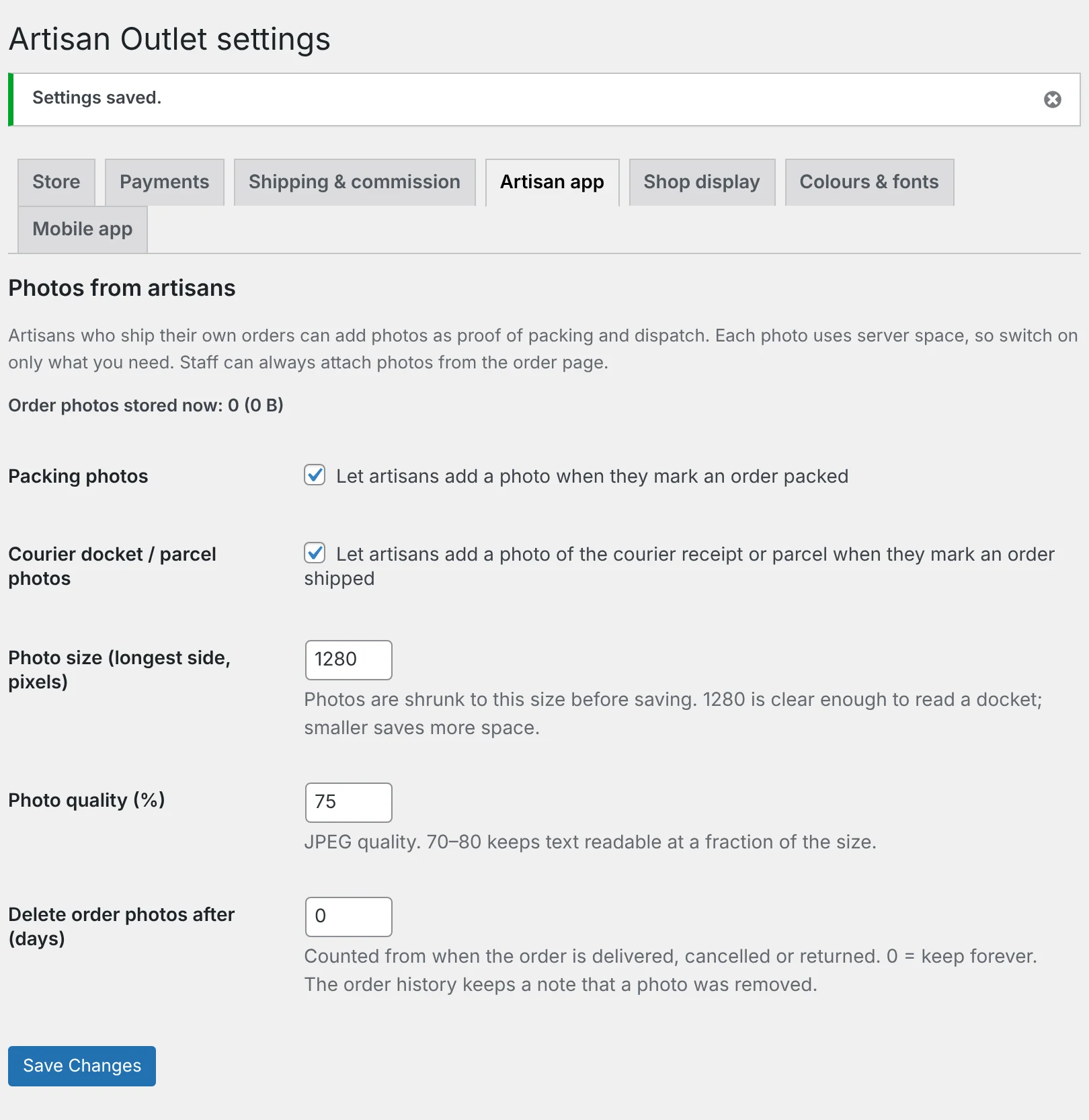
Photos that artisans take as proof of packing and dispatch. Both switches start off: when off, the app shows no photo button and the server refuses photos for that step.
- Packing photos and Courier docket / parcel photos: switch on the steps you want.
- Photo size (longest side, default 1280 px) and Photo quality (default 75%): photos are shrunk on the server. In testing a 1.9 MB phone photo became about 164 KB.
- Delete order photos after (days): counted from when the order is delivered, cancelled or returned; 0 keeps them. The order history notes the removal.
- The tab shows how many order photos are stored now and how much space they use. Staff can always add photos from the order page.
Shop display
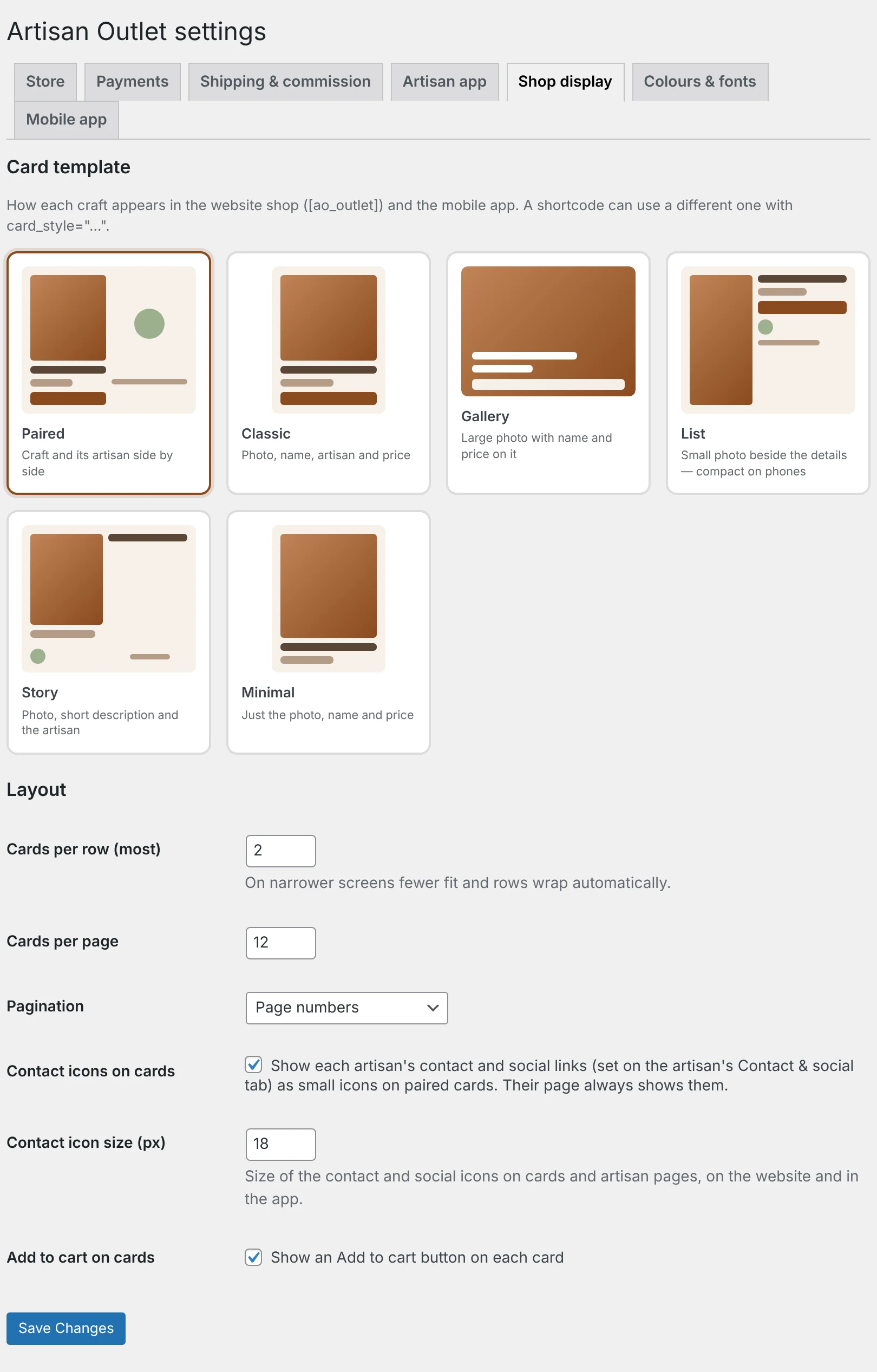
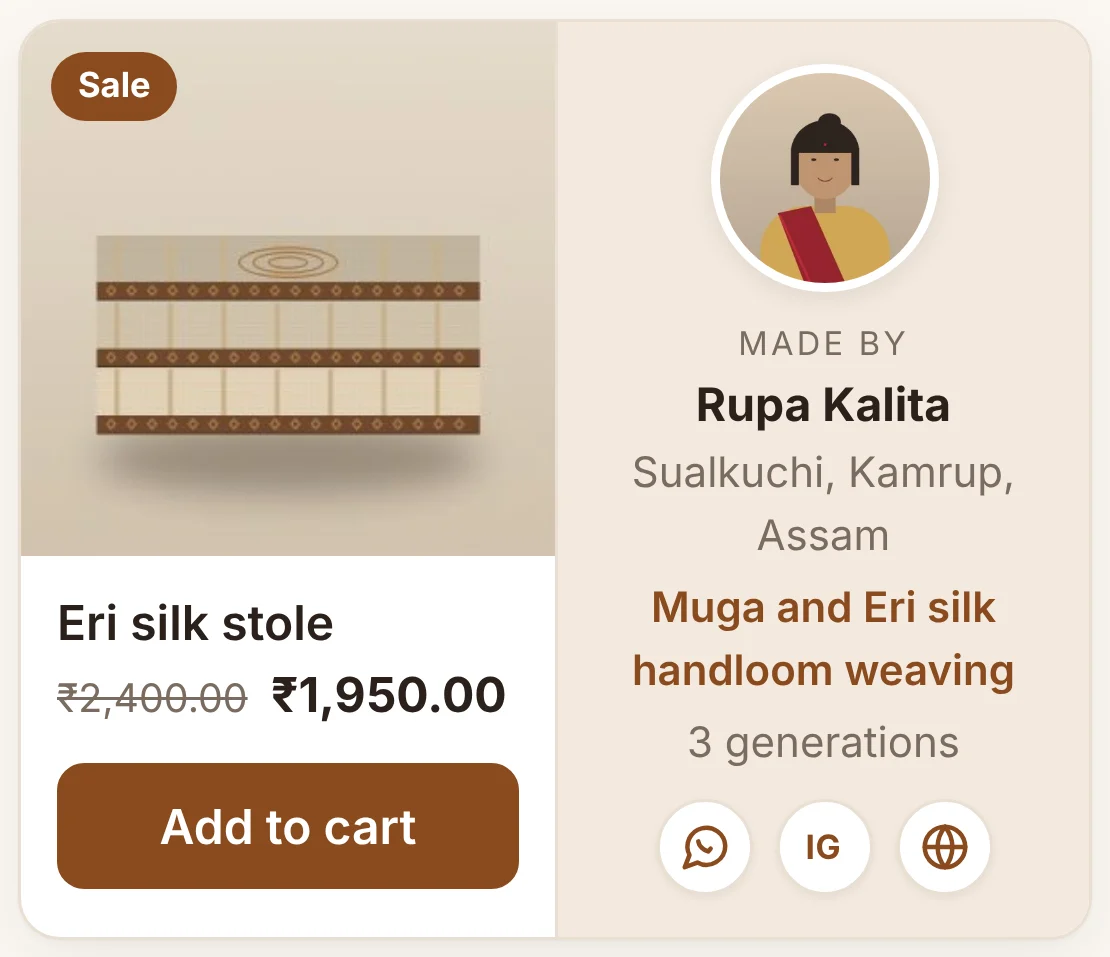
How the crafts are laid out, on the website and in the phone app alike: the card template, cards per row (a maximum; rows wrap on narrow screens), cards per page, pagination (Page numbers, Load more or none), whether each card has an Add to cart button, and the artisans’ contact icons:
- Contact icons on cards: show each artisan’s contact and social icons on paired cards (on by default). Their page always shows them.
- Contact icon size: 12 to 40 pixels (default 18), for cards and artisan pages, website and app. Above about 22 px, three icons may wrap onto two rows on narrow cards.
A shortcode can override any of these for one page.
Colours & fonts
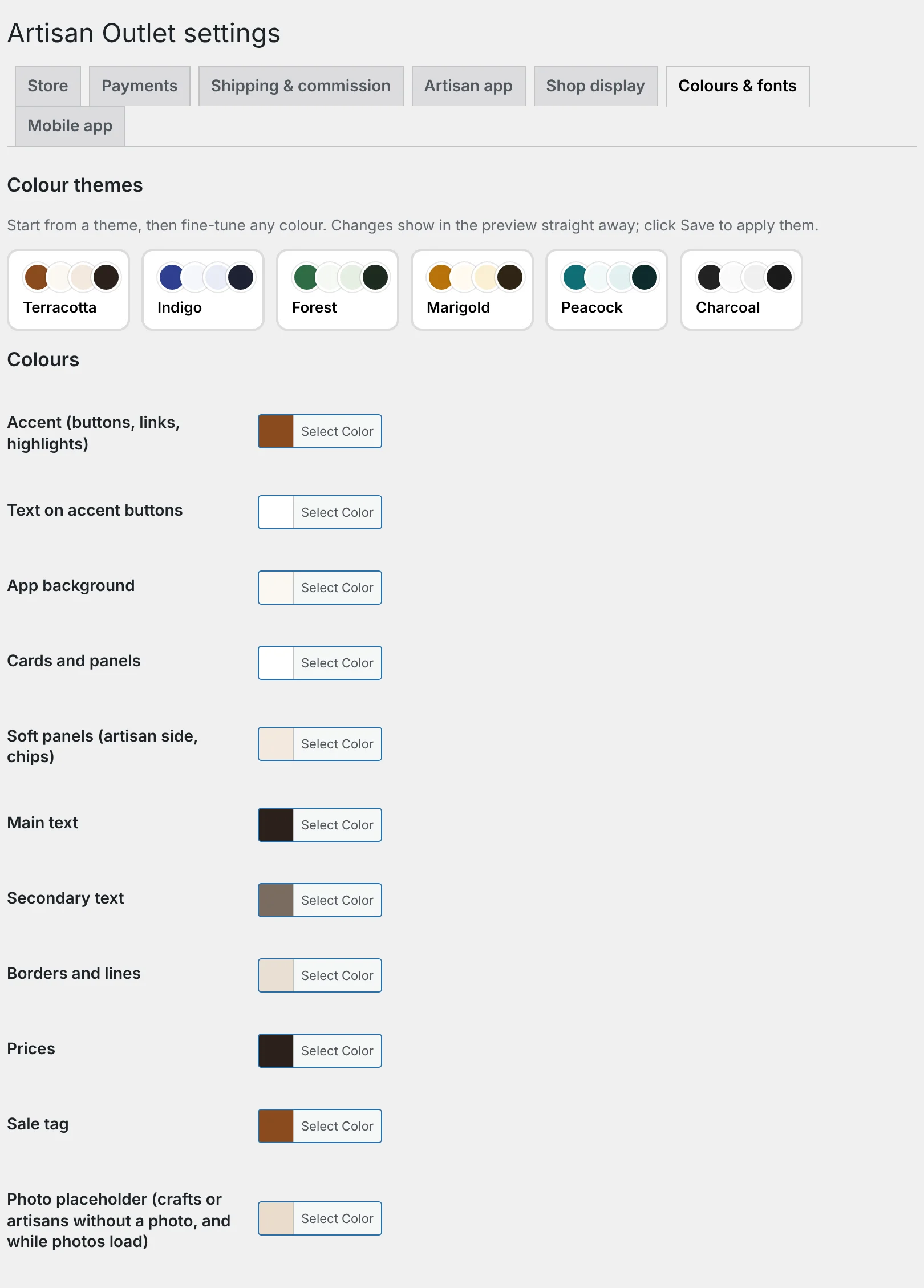
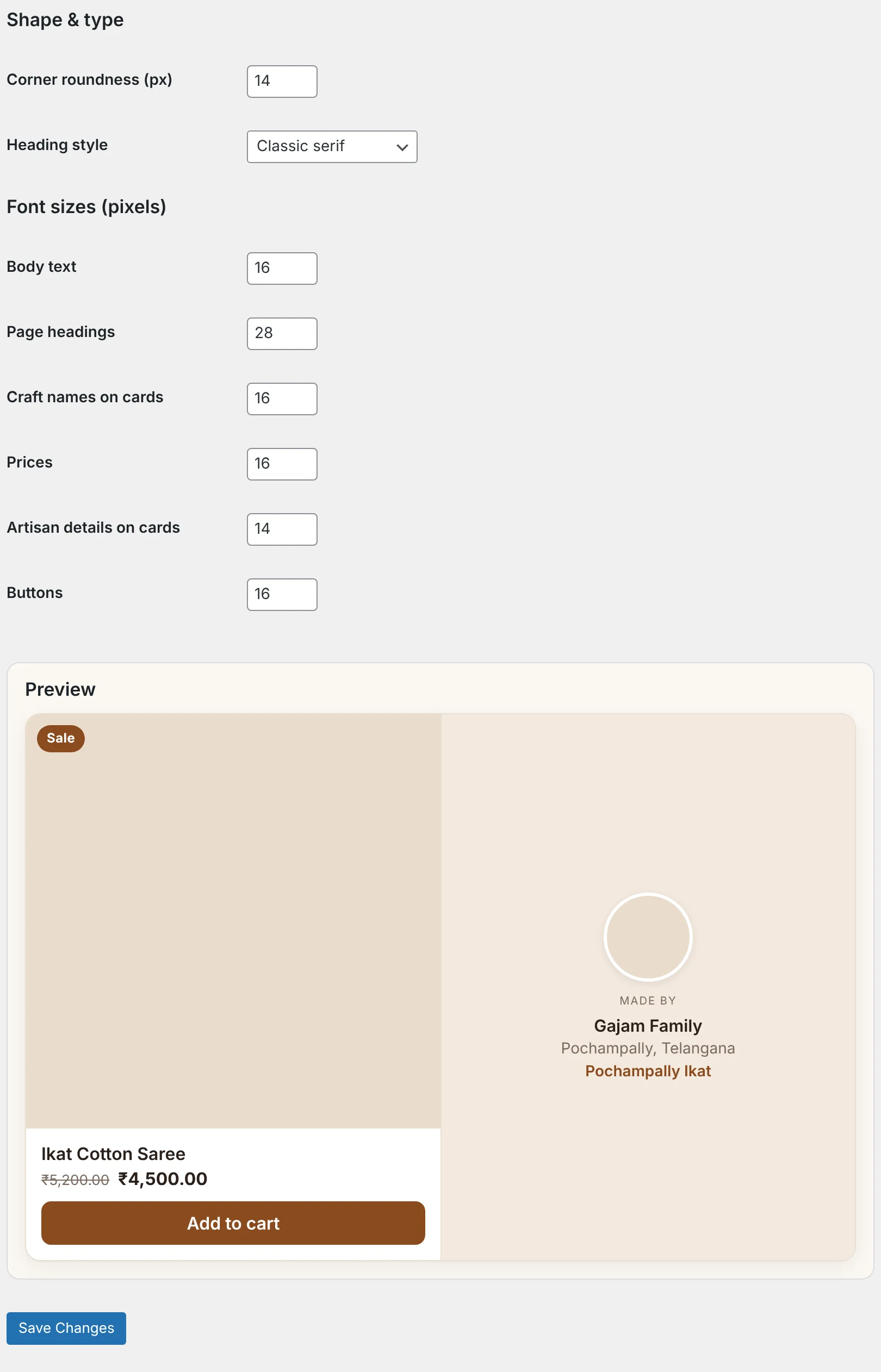
- Colour themes: Terracotta (the default, used in this manual), Indigo, Forest, Marigold, Peacock and Charcoal. Click one, see it in the preview, then save.
- Colours: fine-tune any of the eleven, including Photo placeholder, which fills the photo area for crafts and artisans without a photo and shows while photos load.
- Corner roundness, Heading style (classic serif or sans) and six font sizes: body text, page headings, craft names, prices, artisan details and buttons.
The website shop and the phone app share these colours and sizes.
Mobile app
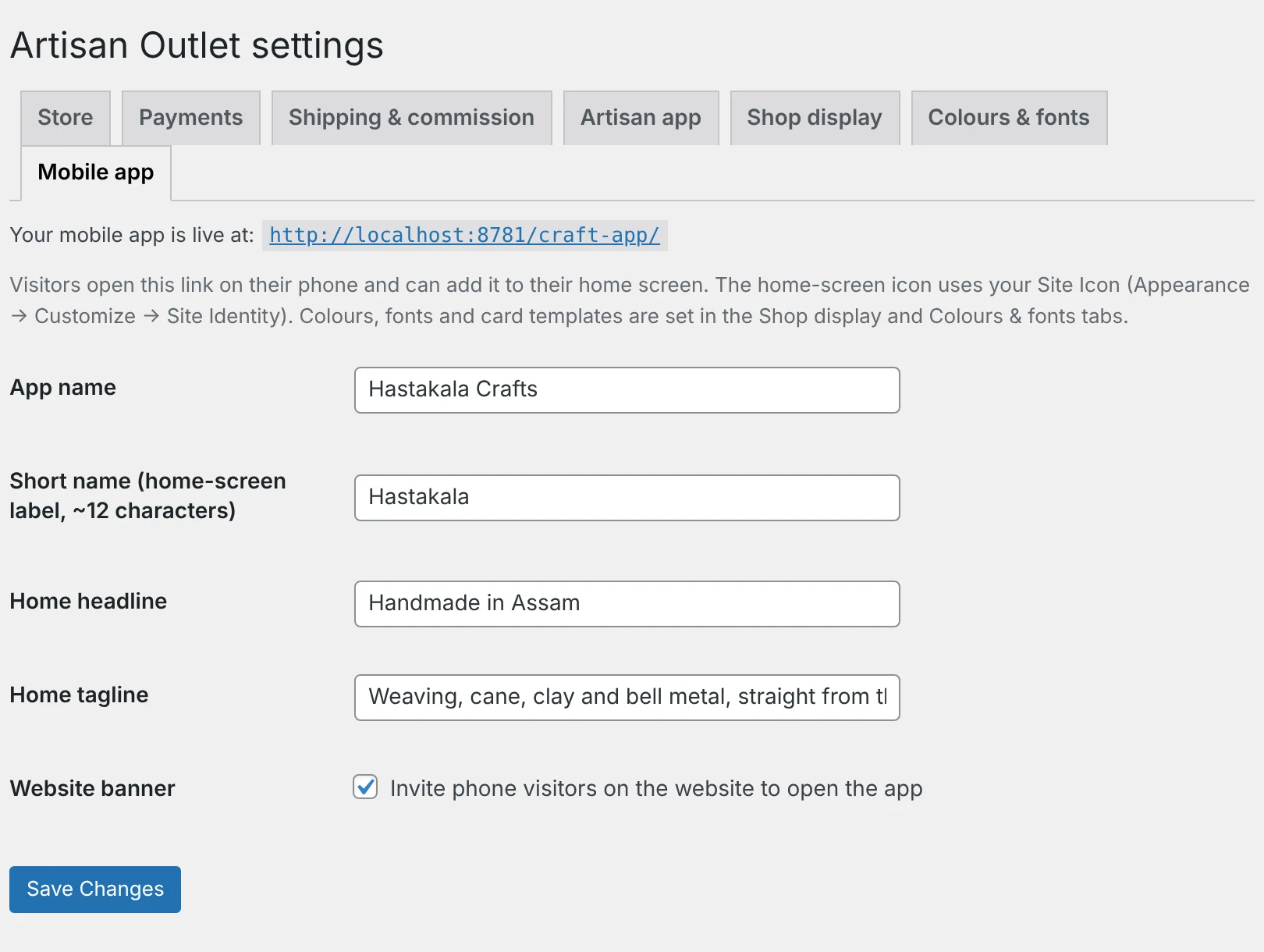
Added by Artisan Outlet Mobile. It shows the app’s address, and sets the App name, the Short name under the home-screen icon (about 12 characters), the Home headline and tagline, and the Website banner, an invitation to open the app shown to phone visitors of the website.
The catalogue
Adding artisans
Add the artisan before their crafts. The artisan page is where their story lives, and where you decide how their crafts are paid for and shipped.
The artisan list
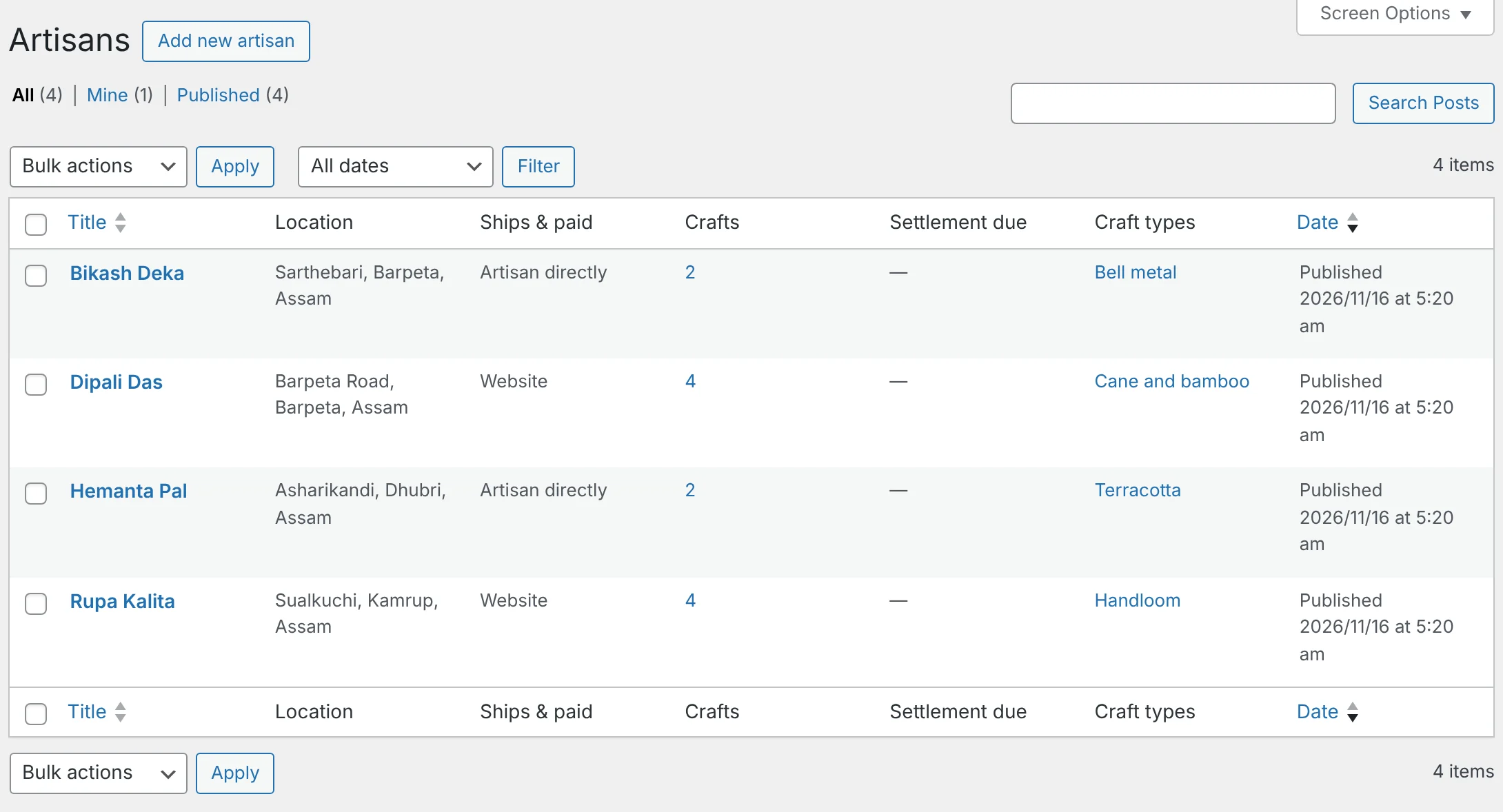
The artisan page
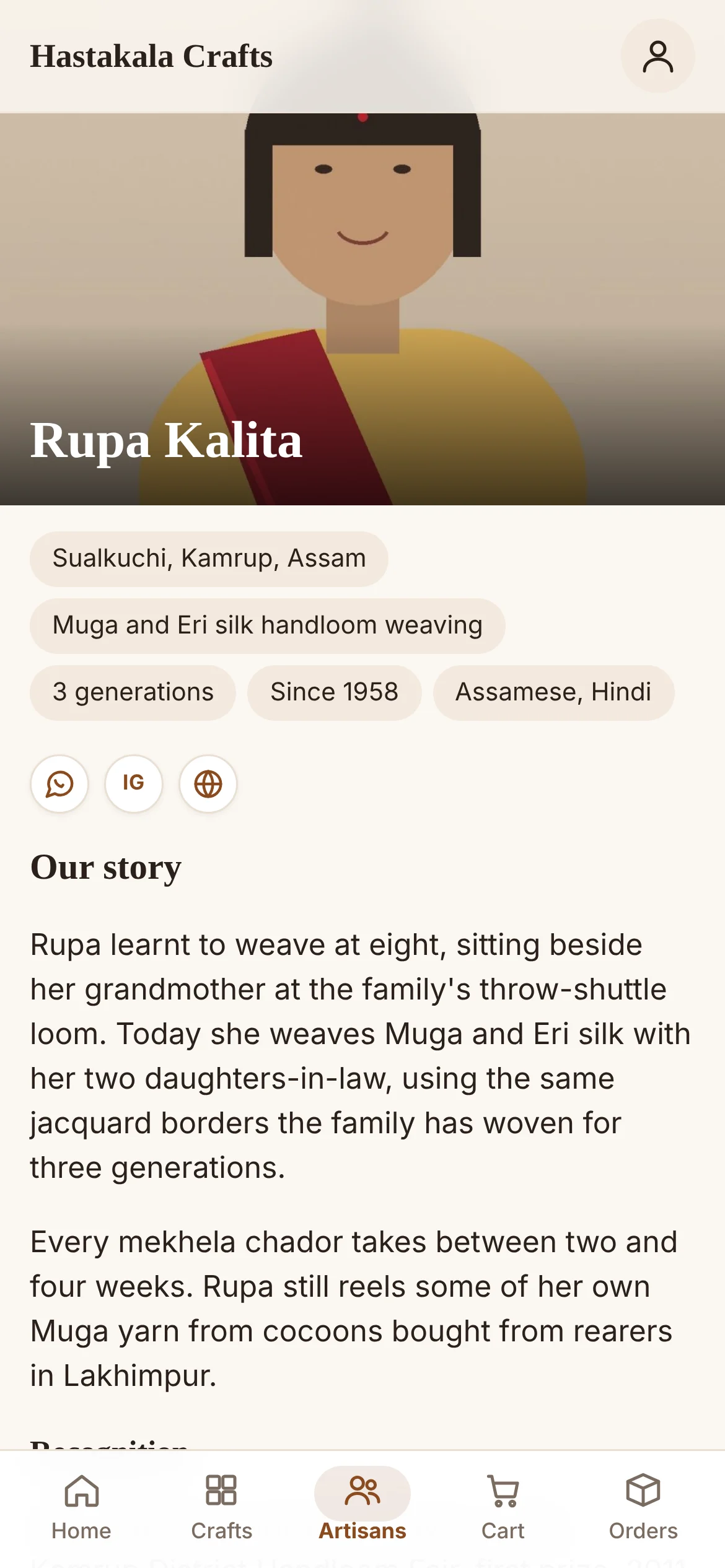
Click Add new artisan, or an artisan’s name. Type the name as the title, write the family story in the main editor and a one-line introduction in the Excerpt box; the introduction appears on cards and lists. The portrait is the Artisan photo (featured image). Tick the craft types they practise.
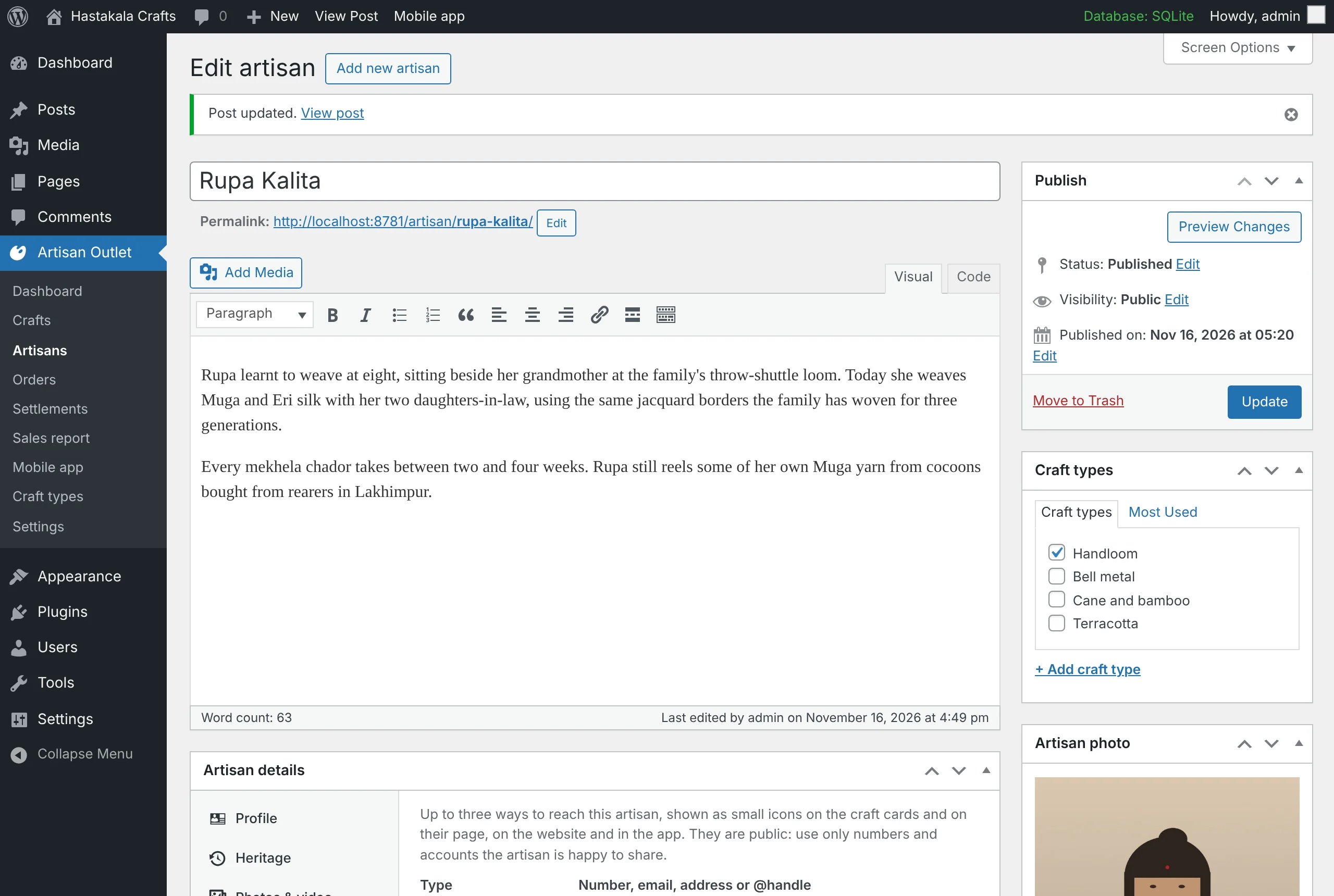
Below the story is the Artisan details box with seven tabs.
Profile
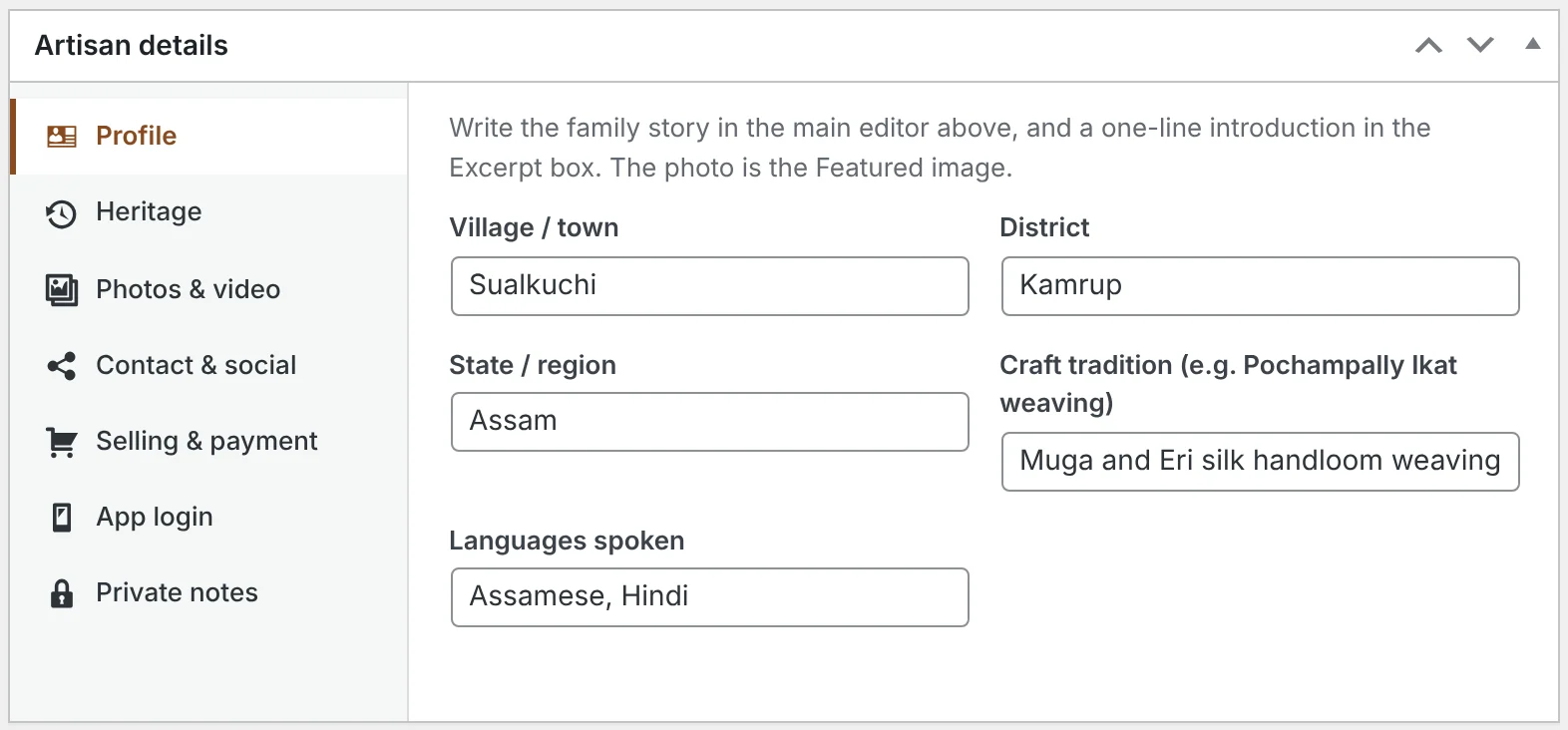
Village or town, district, state, the craft tradition (for example “Muga and Eri silk handloom weaving”) and languages spoken.
Heritage
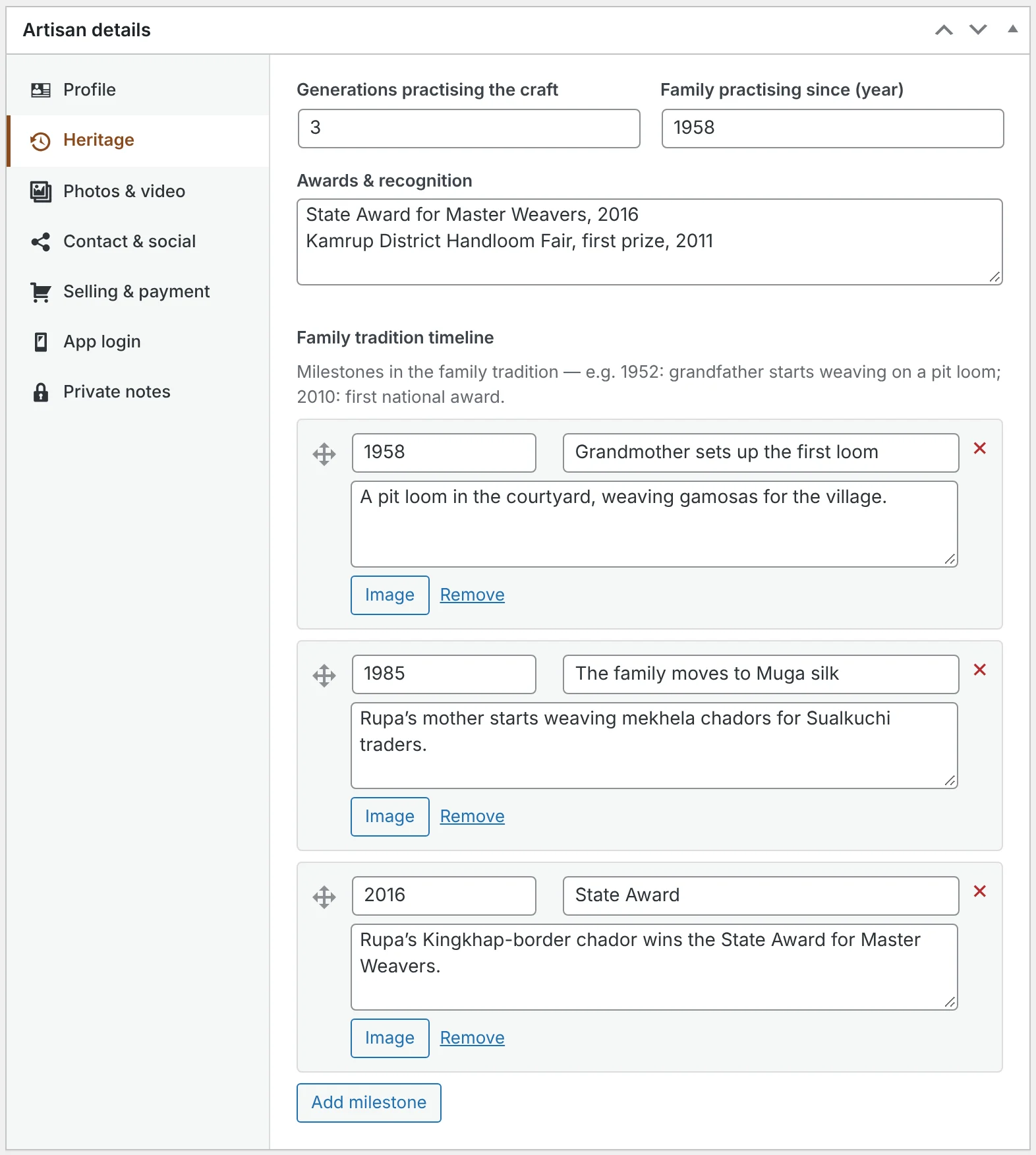
Generations practising the craft, the year the family started, awards and recognition (one per line), and the family tradition timeline: add milestones with a year, a title, a few words and an optional photo. Drag the handle to reorder.
Photos & video
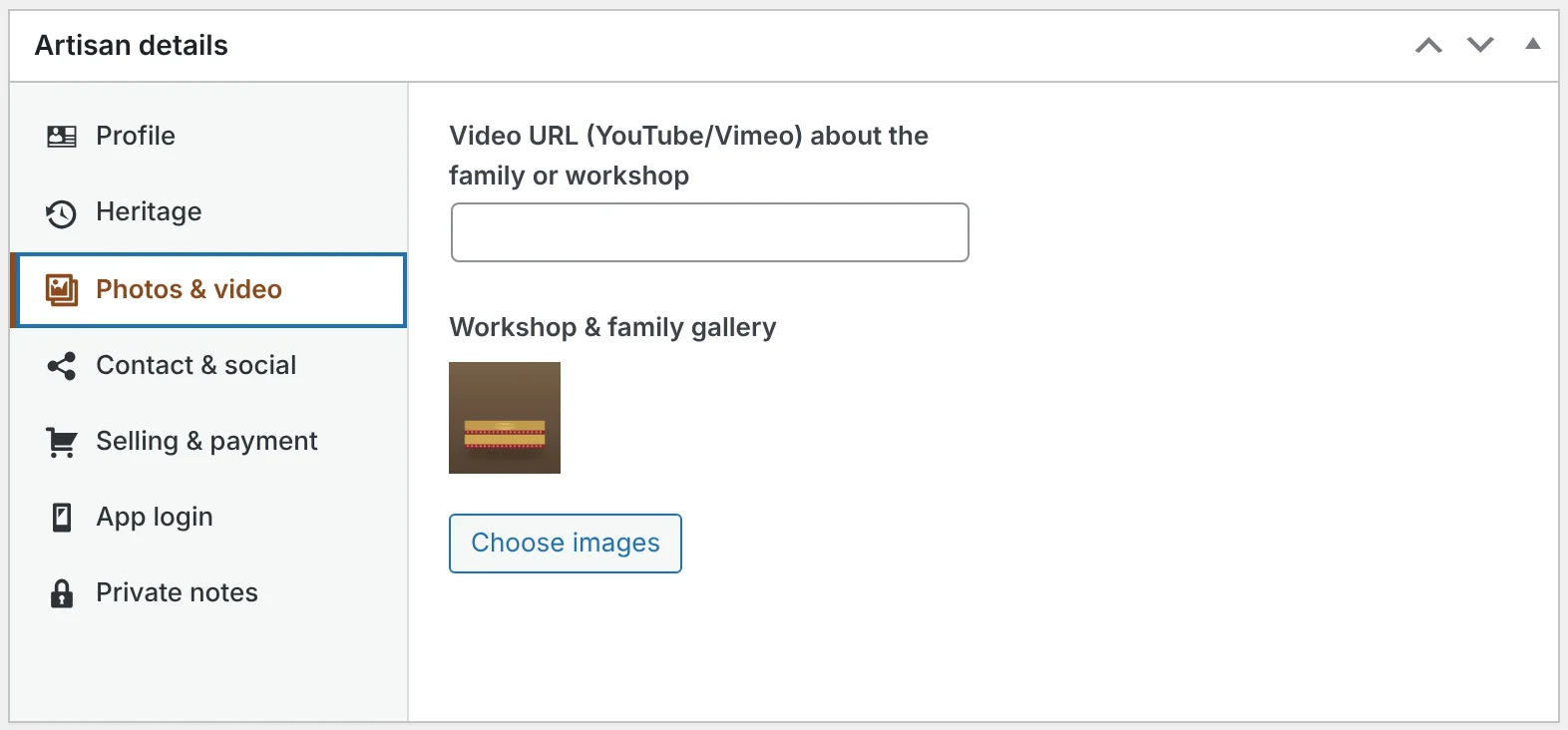
A YouTube or Vimeo address about the family or workshop, and the workshop & family gallery.
Contact & social
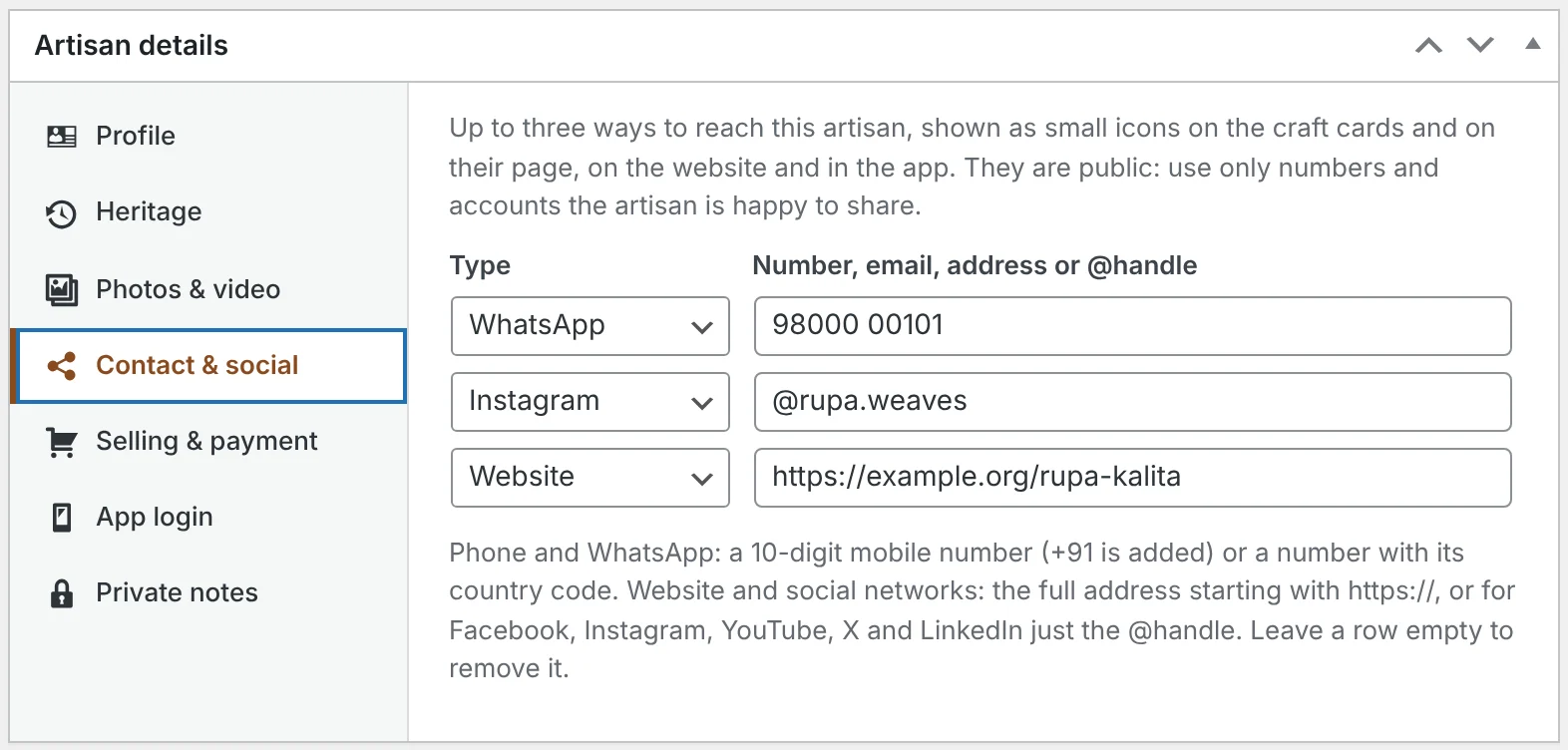
Up to three ways to reach the artisan, shown as small icons under their name on the craft cards and on their page, on the website and in the app. For each row choose the type and type the details:
| Type | What to type | Tapping the icon |
|---|---|---|
| Phone | A 10-digit mobile number (+91 is added), or a number with its country code | Starts a call |
| The same | Opens a WhatsApp chat | |
| An email address | Opens the mail app | |
| Website | The full address, starting with https:// | Opens it in a new tab |
| Facebook, Instagram, YouTube, X, LinkedIn | The full address, or just the @handle | Opens the profile in a new tab |
These details are public: use only numbers and accounts the artisan is happy to share. Empty a row to remove it. A row that doesn’t look right (for example an email without “@”) isn’t saved, and a message says which. The private contact phone stays on the Private notes tab.
Selling & payment
The most important tab: it decides who is paid and who ships for all of this artisan’s crafts.
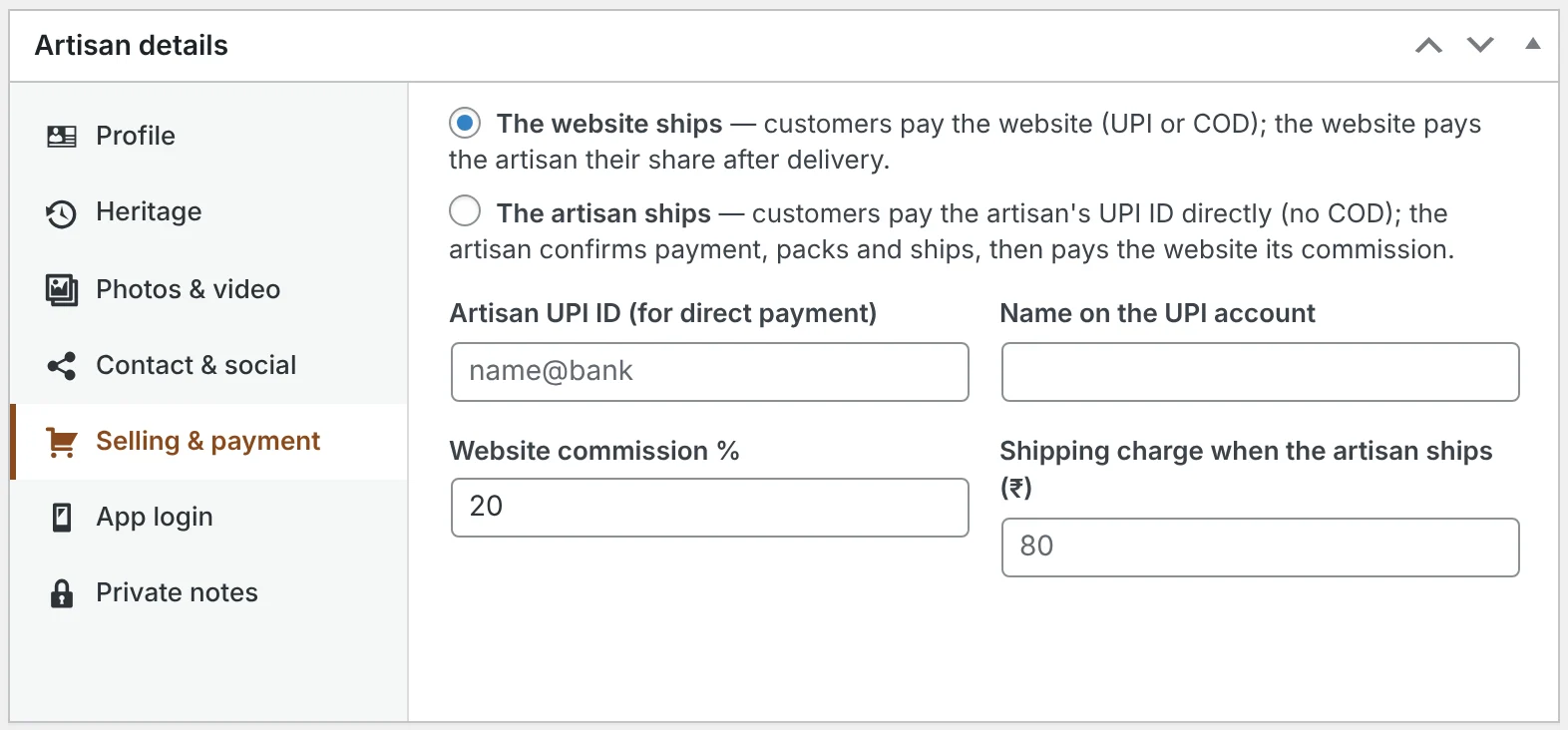
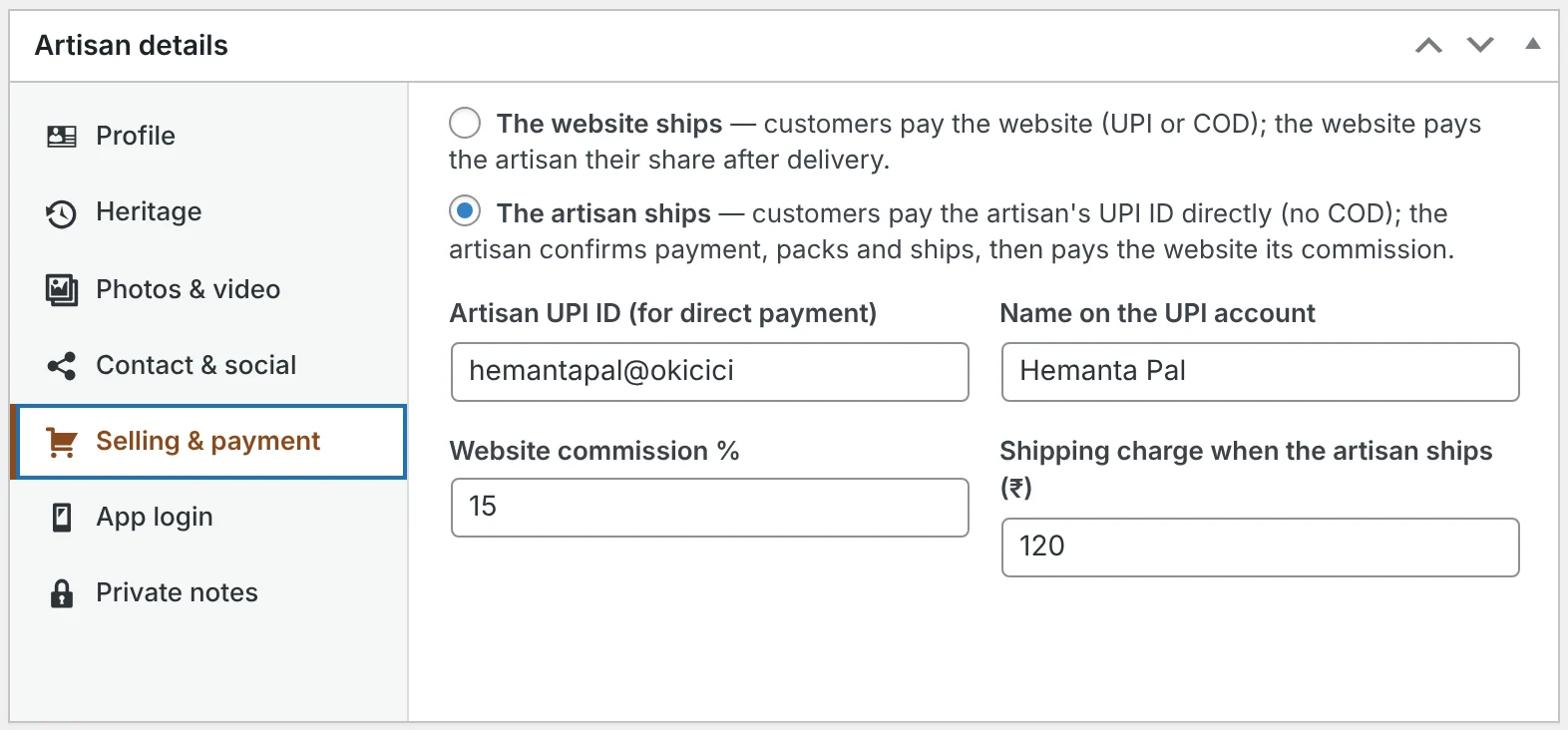
- The website ships: customers pay the shop (UPI or COD); the shop packs and ships, and pays the artisan their share after delivery.
- The artisan ships: customers pay the artisan’s own UPI ID (UPI only, no COD); the artisan confirms the payment, packs and ships, then pays the shop its commission. Fill in Artisan UPI ID and Name on the UPI account. Until a valid UPI ID is saved, the website ships for this artisan.
- Website commission %: this artisan’s rate (blank = the default).
- Shipping charge when the artisan ships: what customers pay for shipping on this artisan’s orders.
Commission and shipping are fixed on each order when it is placed, so changing them later doesn’t alter past orders. The tab also shows what is owed either way, with a Settle up link.
App login
Gives the artisan a sign-in for the artisan section of the phone app, so they can confirm payments, ship orders and confirm settlements.
- Tick Create a login and enter the artisan’s 10-digit mobile number, and an email if they have one (for notifications).
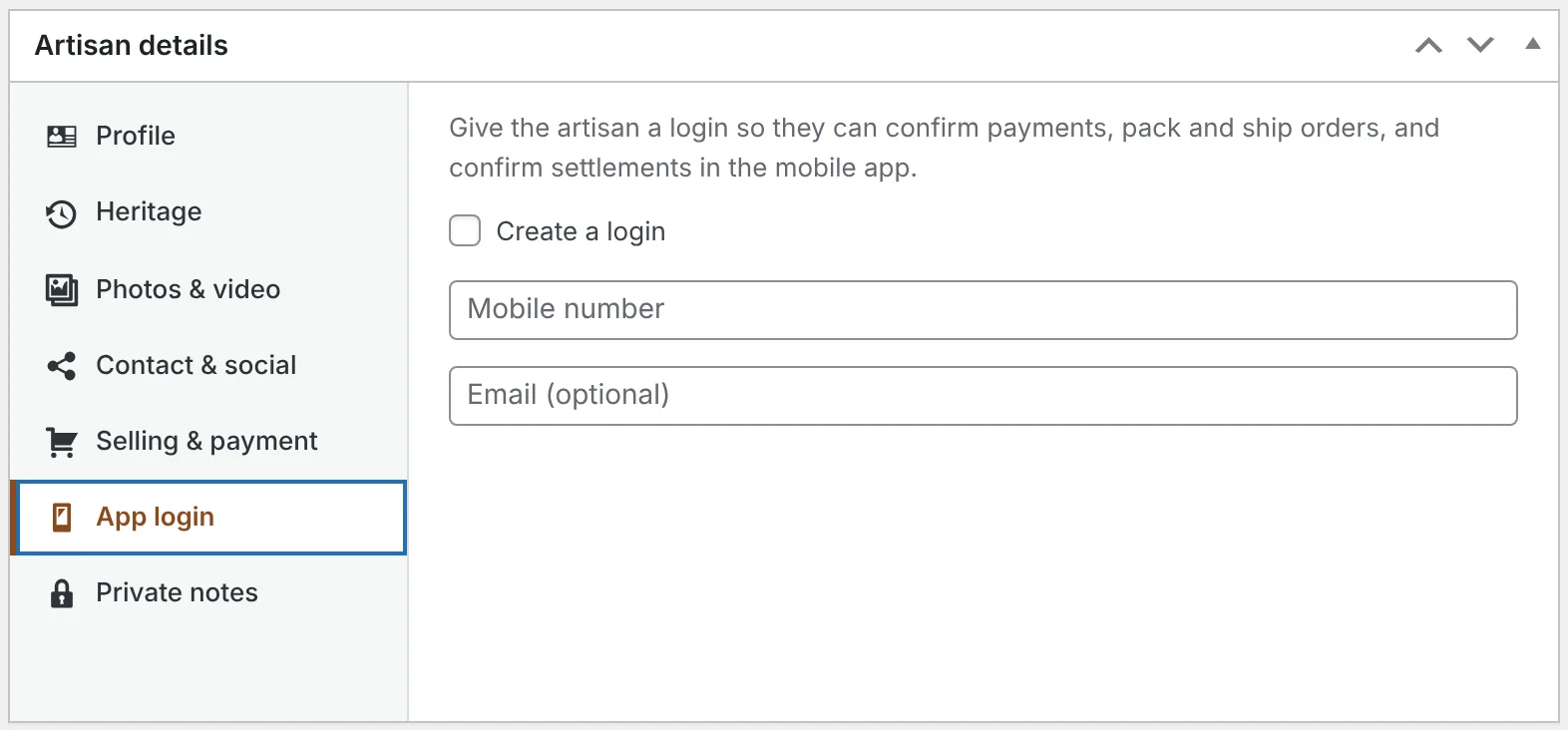
- Click Update. The mobile number and an 8-digit PIN are shown once. Give them to the artisan now, in person or by phone.
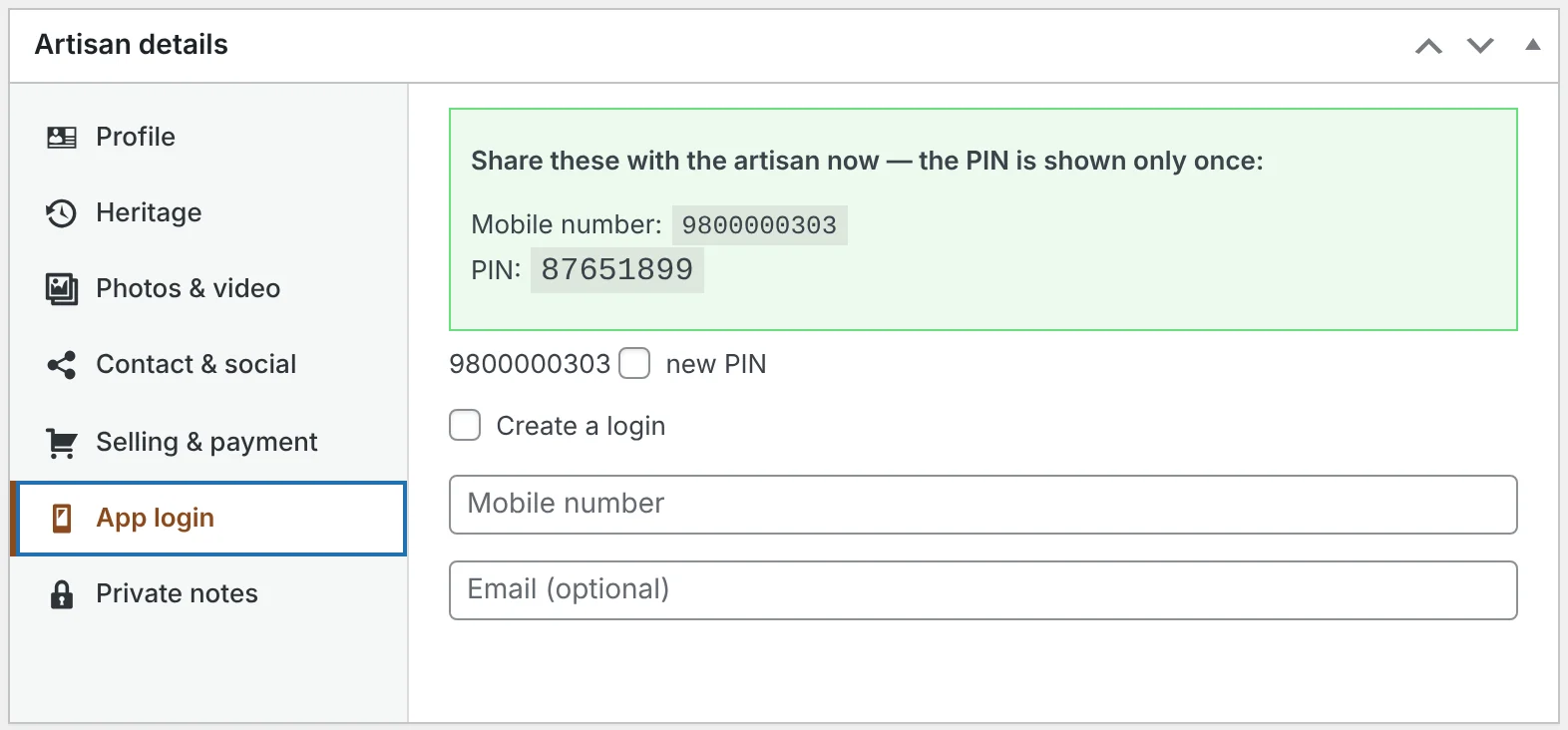
- To reset a forgotten PIN, tick new PIN beside the number and update again.
Artisans who don’t ship themselves can sign in too, to follow their orders and confirm payouts.
Private notes
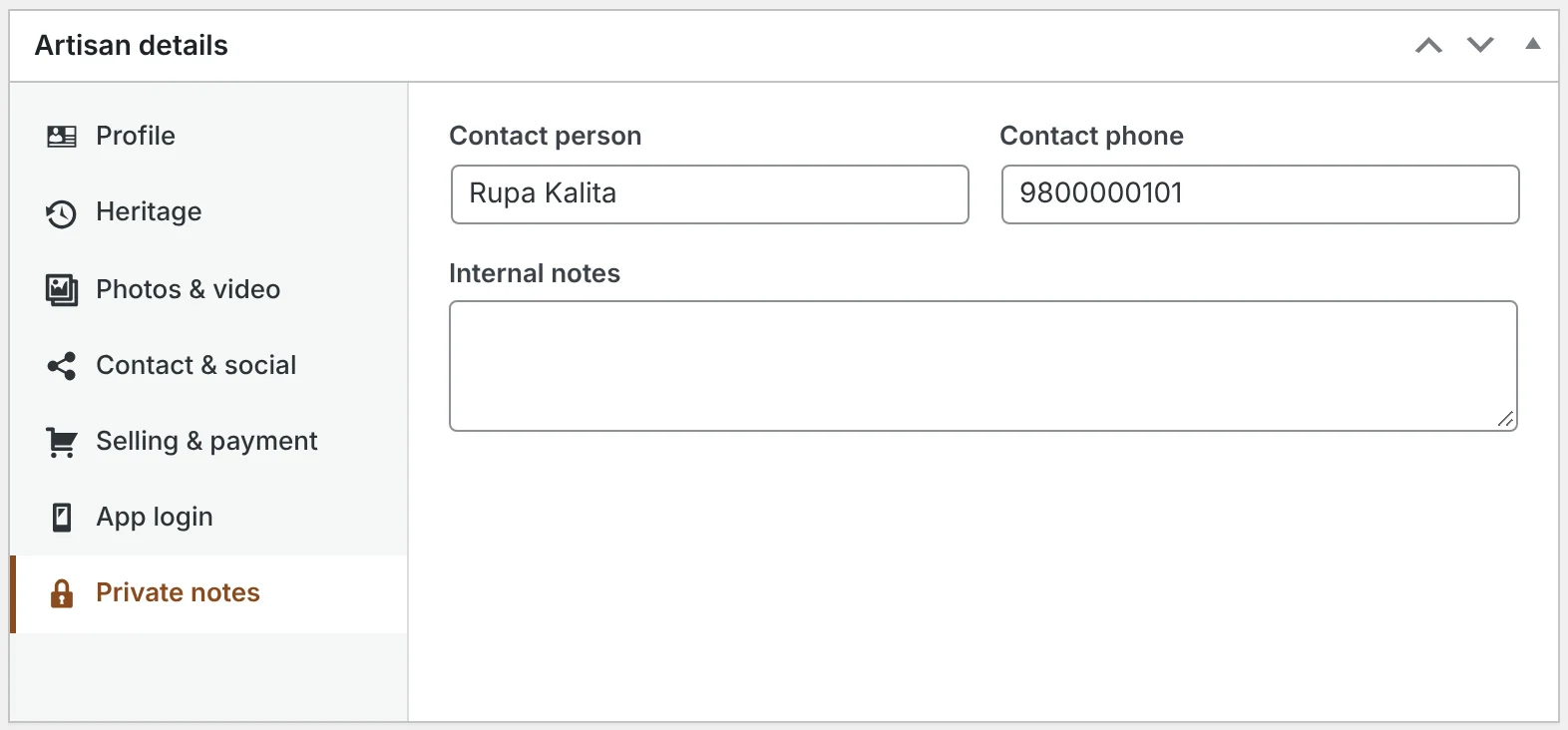
A contact person and phone, and internal notes. Never shown on the website or in the app.
The catalogue
Adding crafts
Each craft has a title, a description, a main photo and the Craft details box: price and stock, the artisan, how it is made, care and more photos.
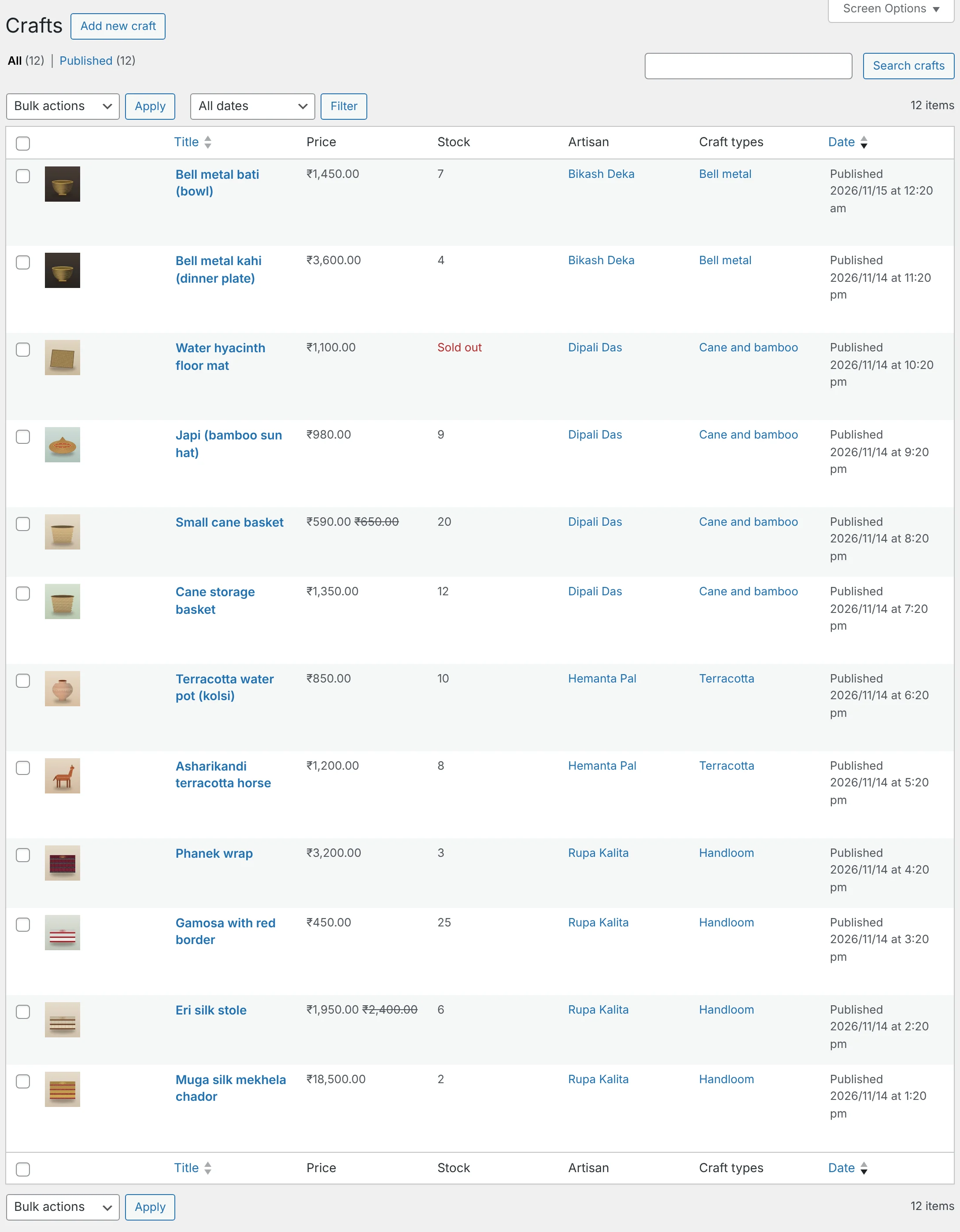
The craft page
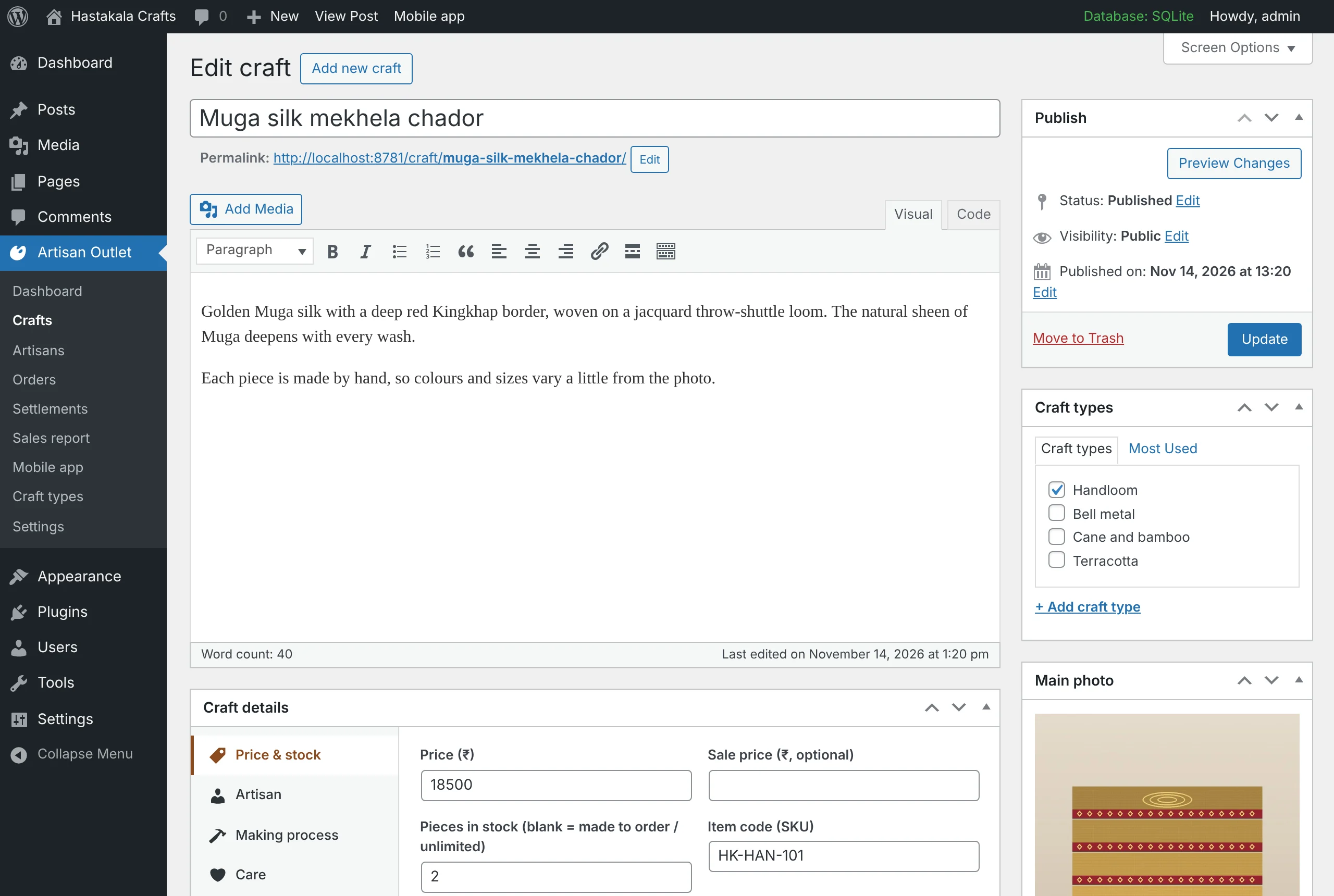
- Title and description: what the piece is and why it is special.
- Excerpt: a short description for cards and the top of the page. If empty, the start of the description is used.
- Main photo (featured image) and Craft types.
Price & stock
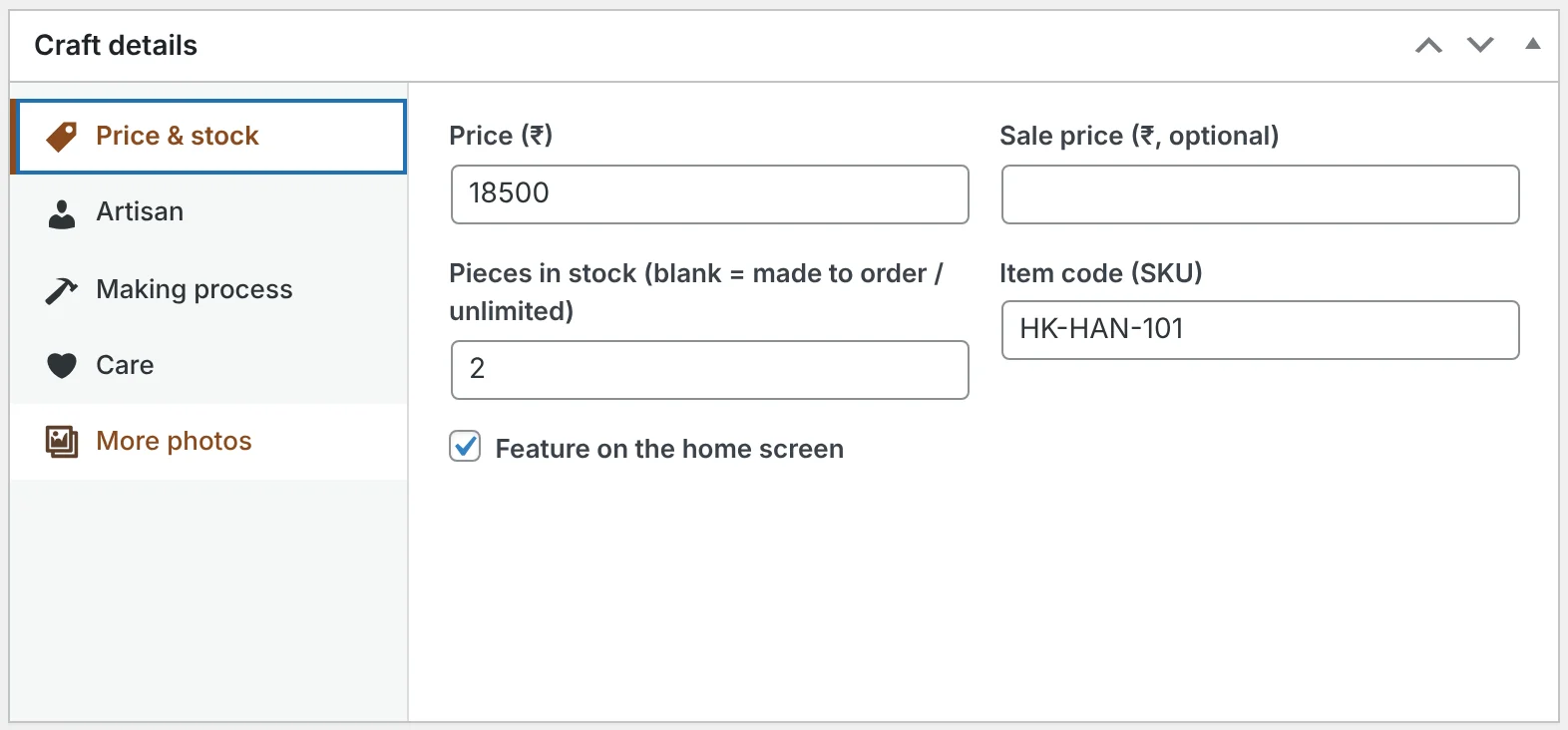
- Price and an optional Sale price (shows a Sale tag and the old price struck through).
- Pieces in stock: leave blank for made-to-order or unlimited. Stock goes down when an order is placed and comes back if it is cancelled. At 0 the craft shows Sold out; at five or fewer it shows Only 2 left (with the number).
- Item code (SKU): your own reference, shown on orders.
- Feature on the home screen: featured crafts come first in the shop and the app.
Artisan
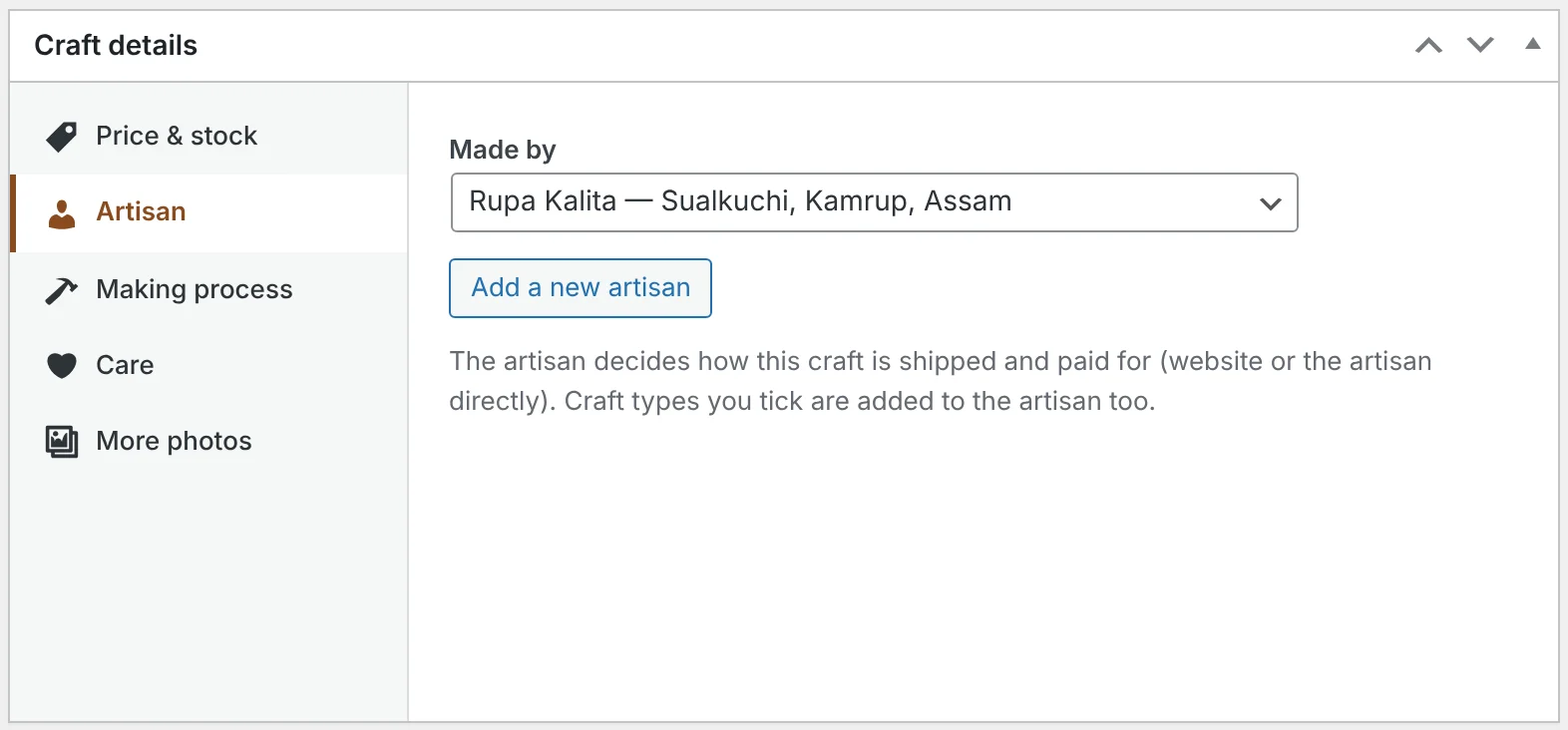
Made by: choose the artisan, or Add a new artisan. The artisan decides how this craft is shipped and paid for; those marked “(ships directly)” are paid directly. Craft types ticked here are added to the artisan too.
Making process
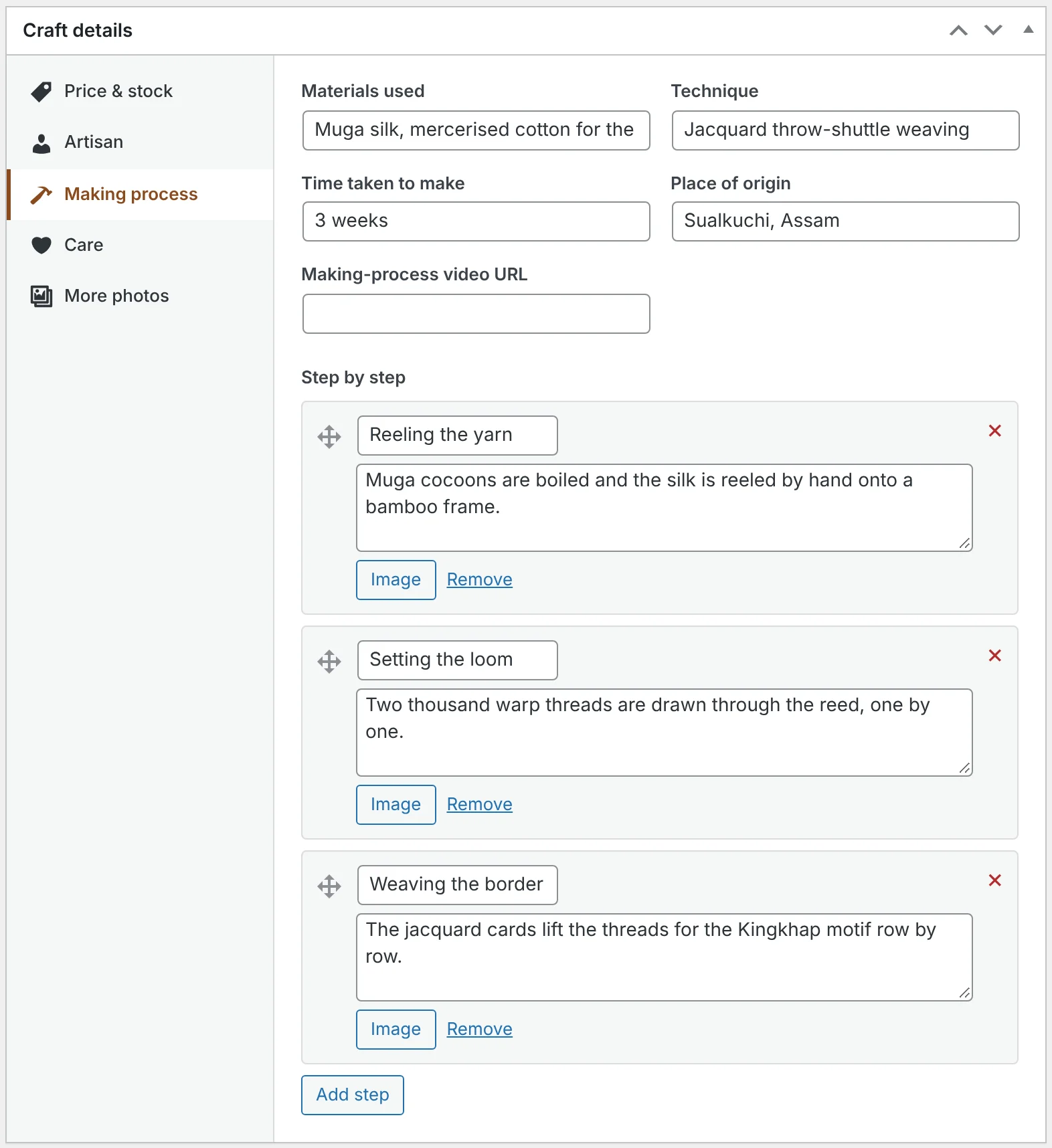
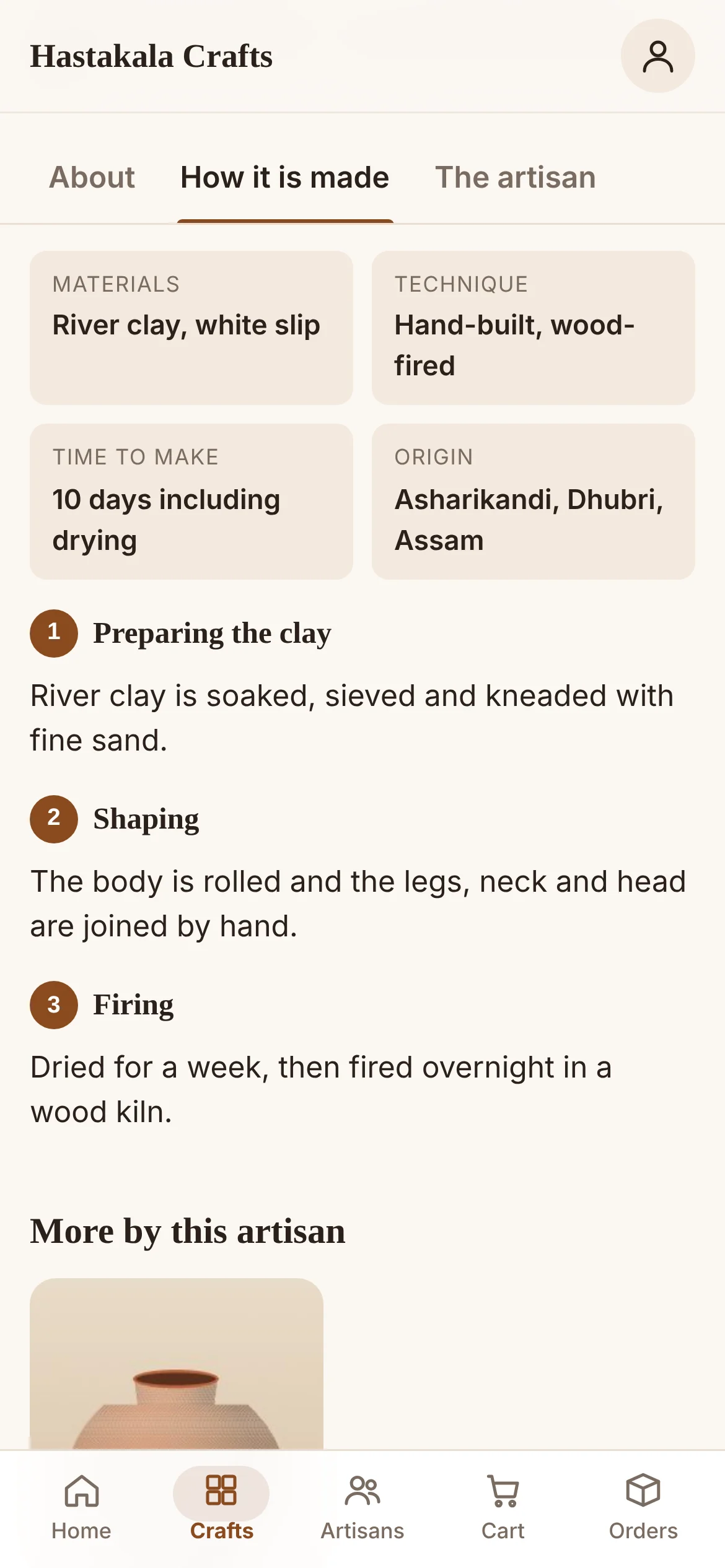
Materials, technique, time taken, place of origin and a making-process video. Under Step by step, add each step with a title, a description and a photo; drag to reorder. On the website these become the How it is made tab.
Care and more photos
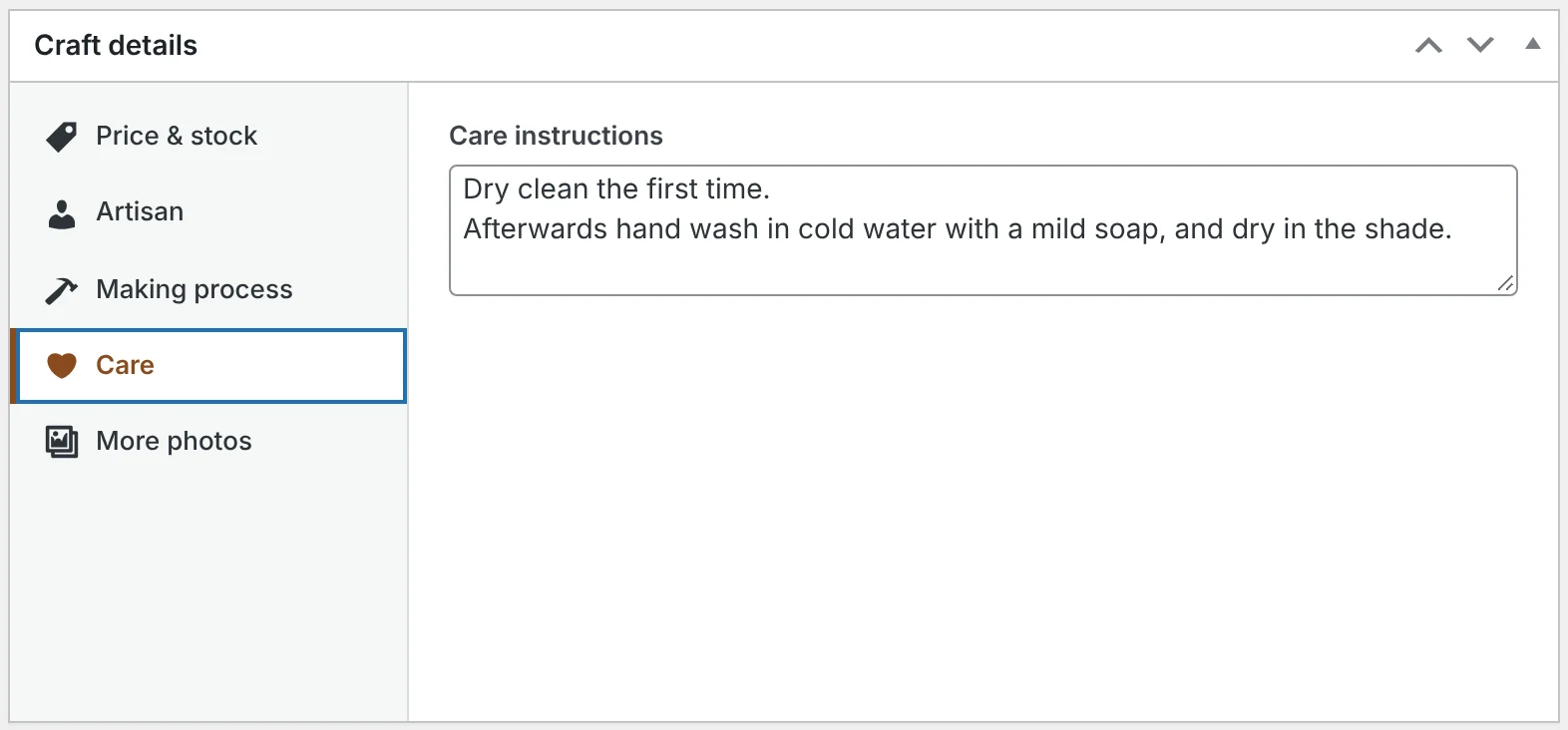
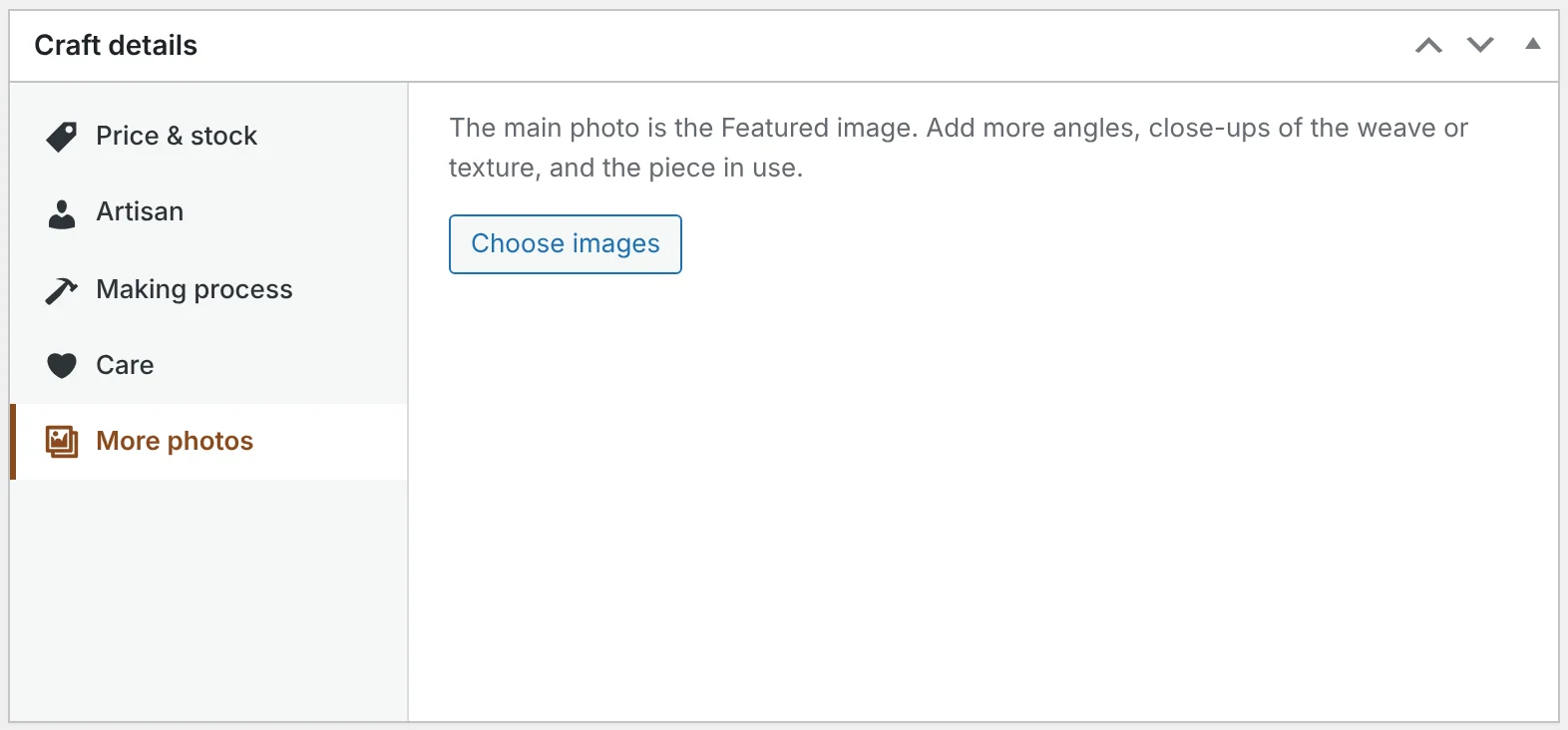
Care instructions, one per line. More photos: other angles, close-ups of the weave or texture, the piece in use.
Craft types
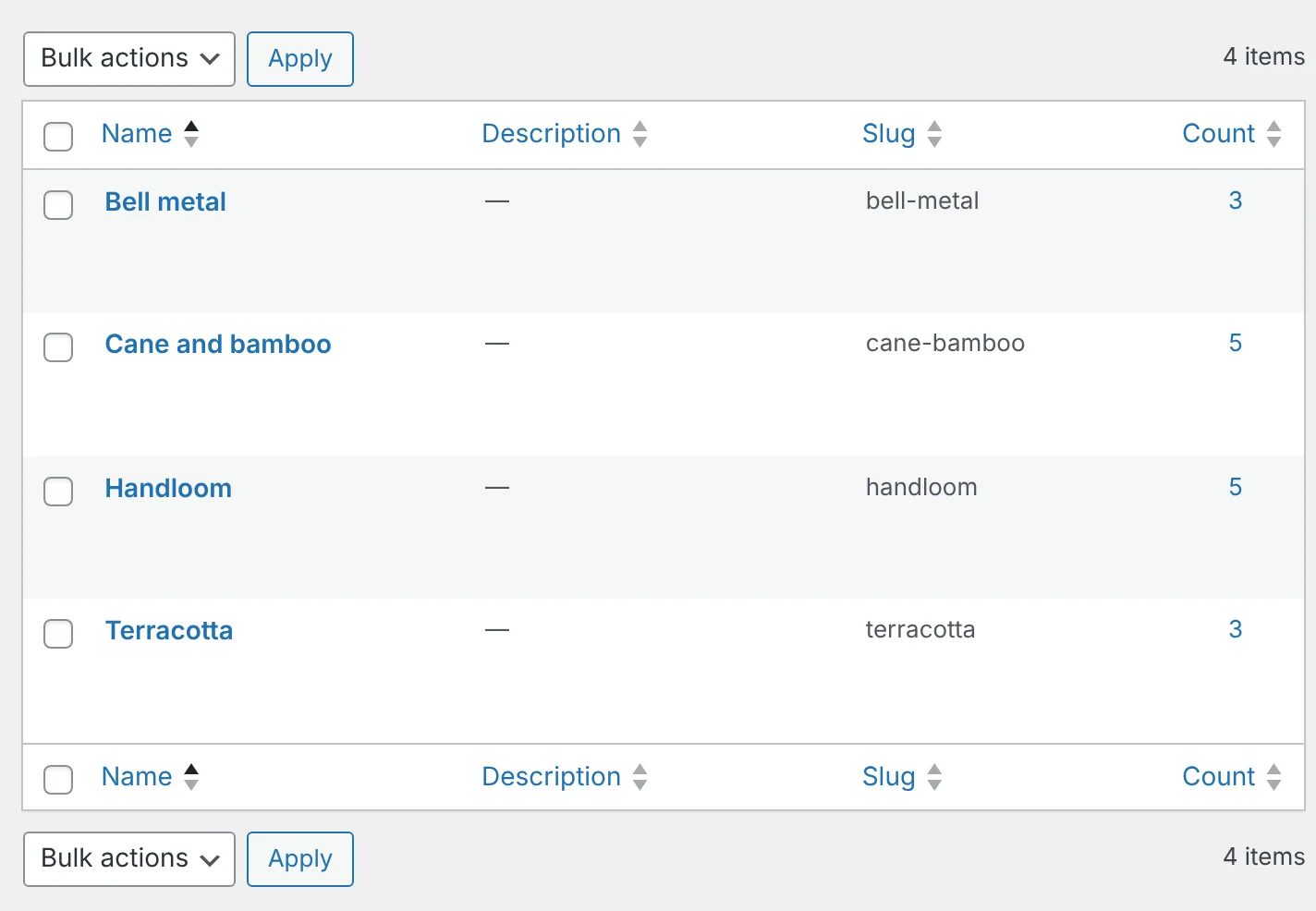
Artisan Outlet → Craft types. They become the filter chips in the shop and the app, and can start a shortcode filtered: [ao_outlet craft_type="handloom"] uses the slug.
add_filter( 'ao_use_block_editor', '__return_true' );.Selling
The shop on your website
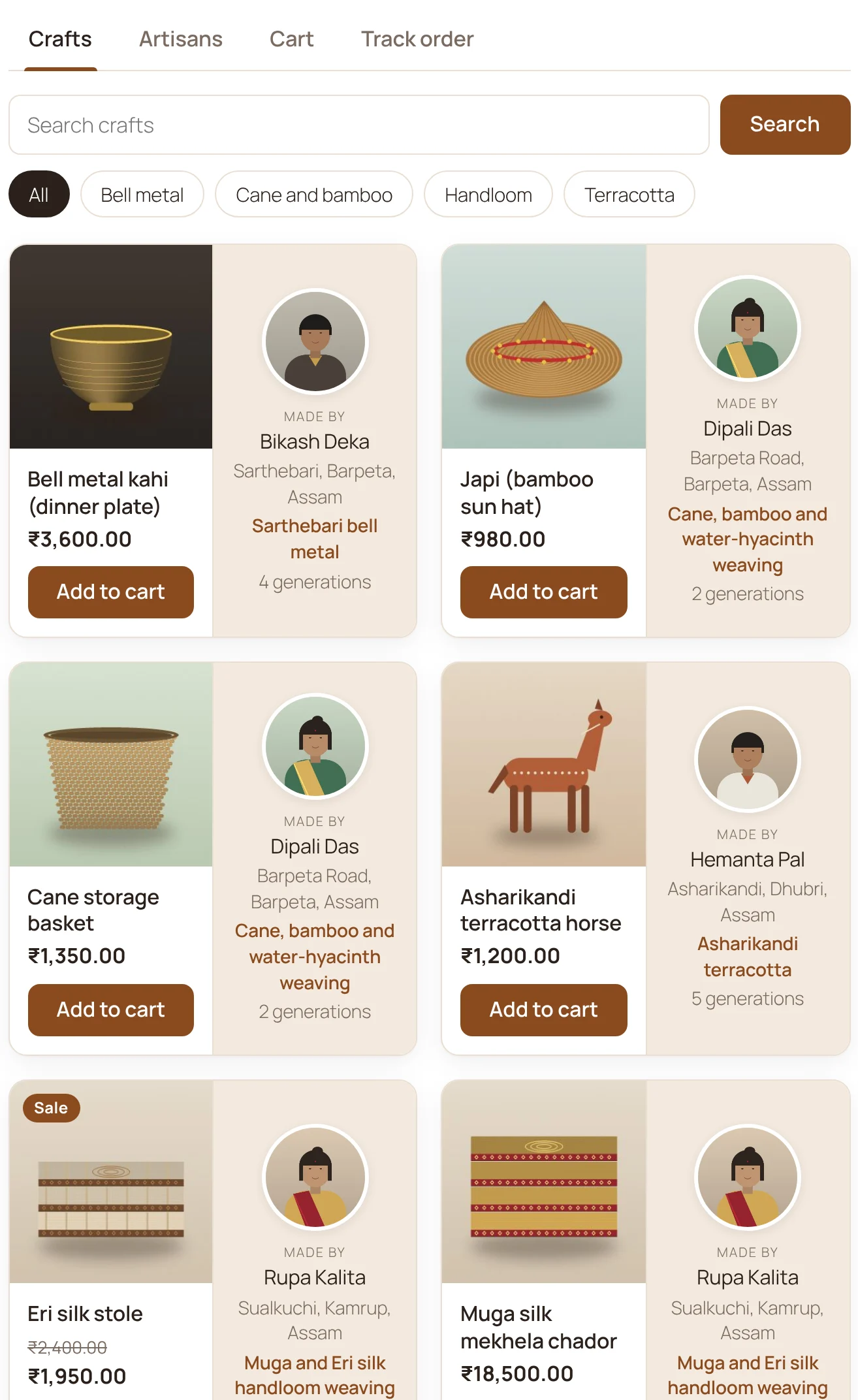
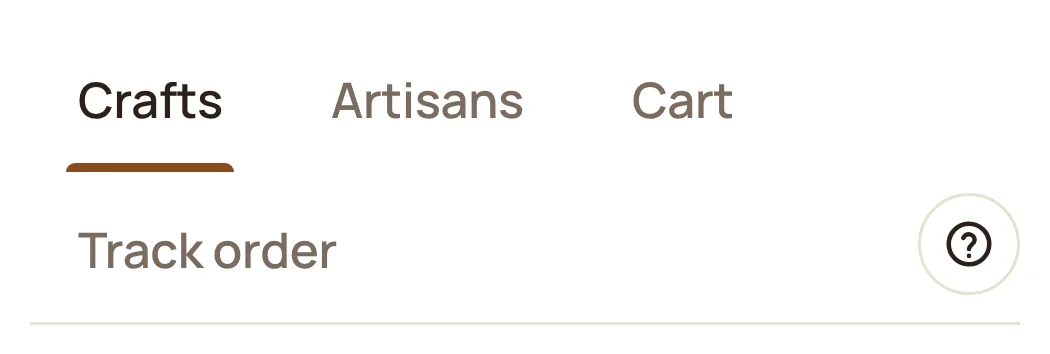
One shortcode, [ao_outlet], puts the whole shop on a page, with tabs for Crafts, Artisans, Cart and Track order. Every craft and artisan also has a page of its own.
The shop page
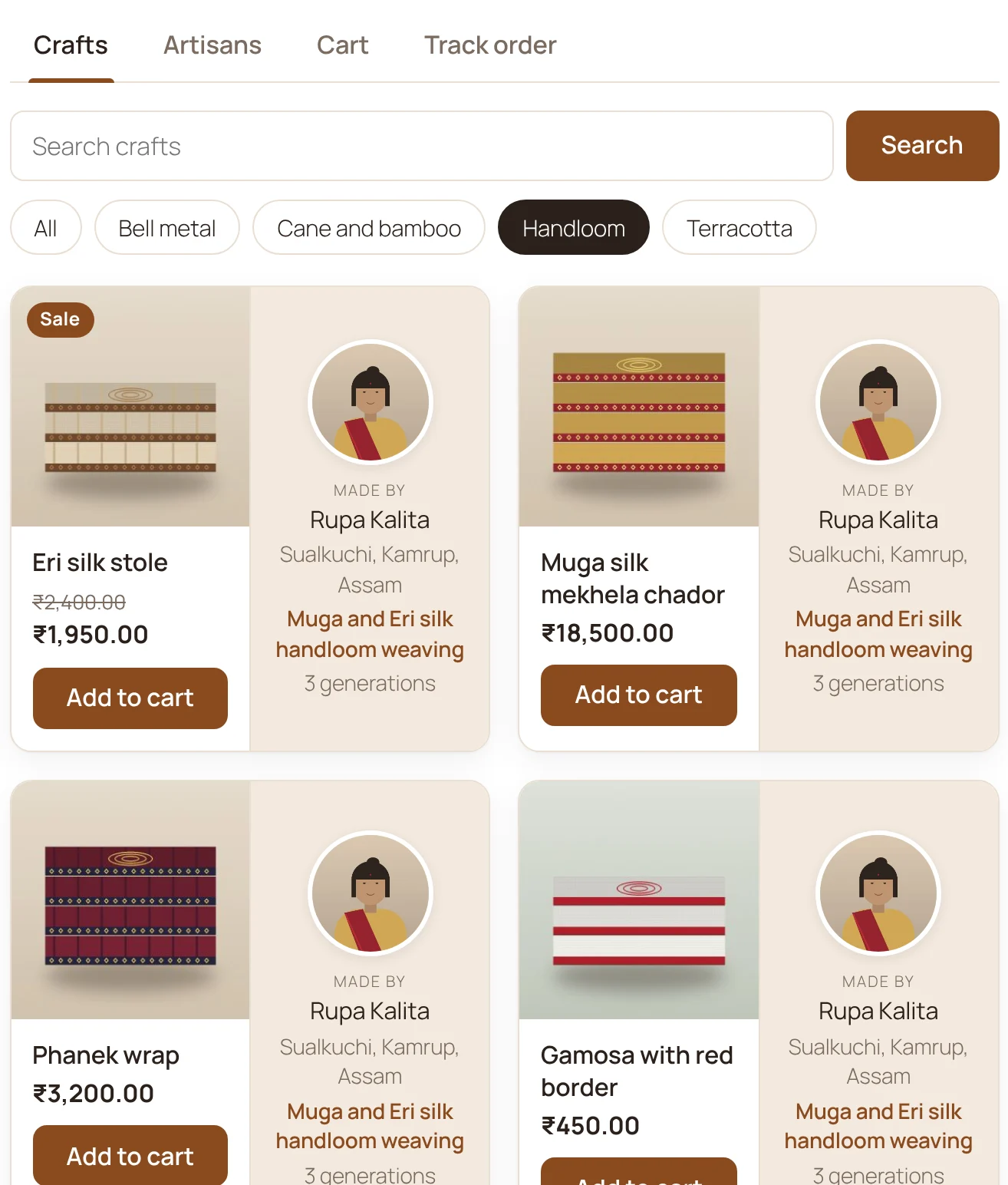
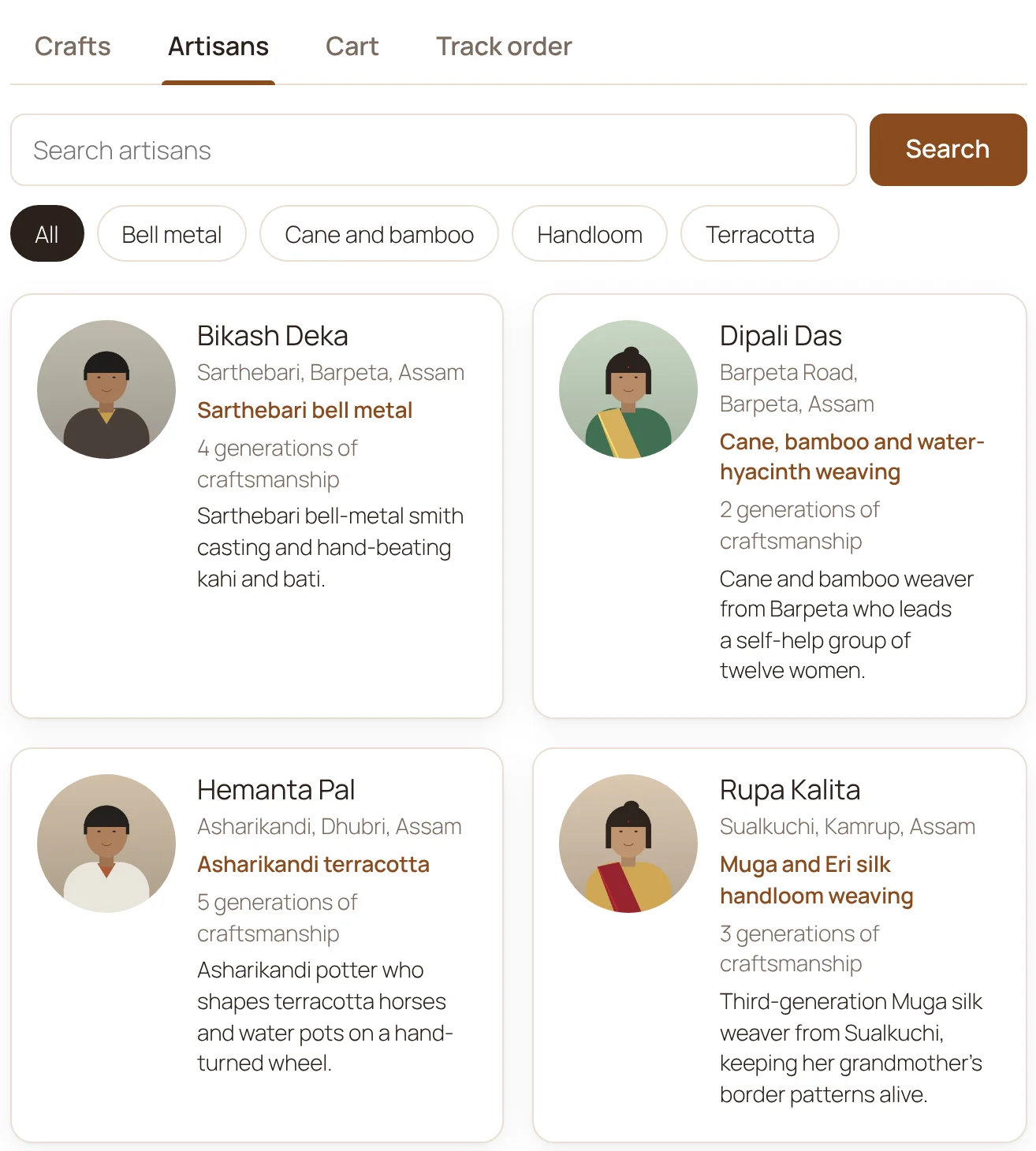
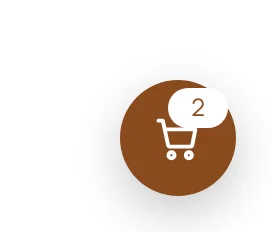
The Cart tab shows a count when the cart has something in it; Track order finds an order by its number. On other pages, a floating cart button appears at the bottom corner once the cart has something in it.
Searching
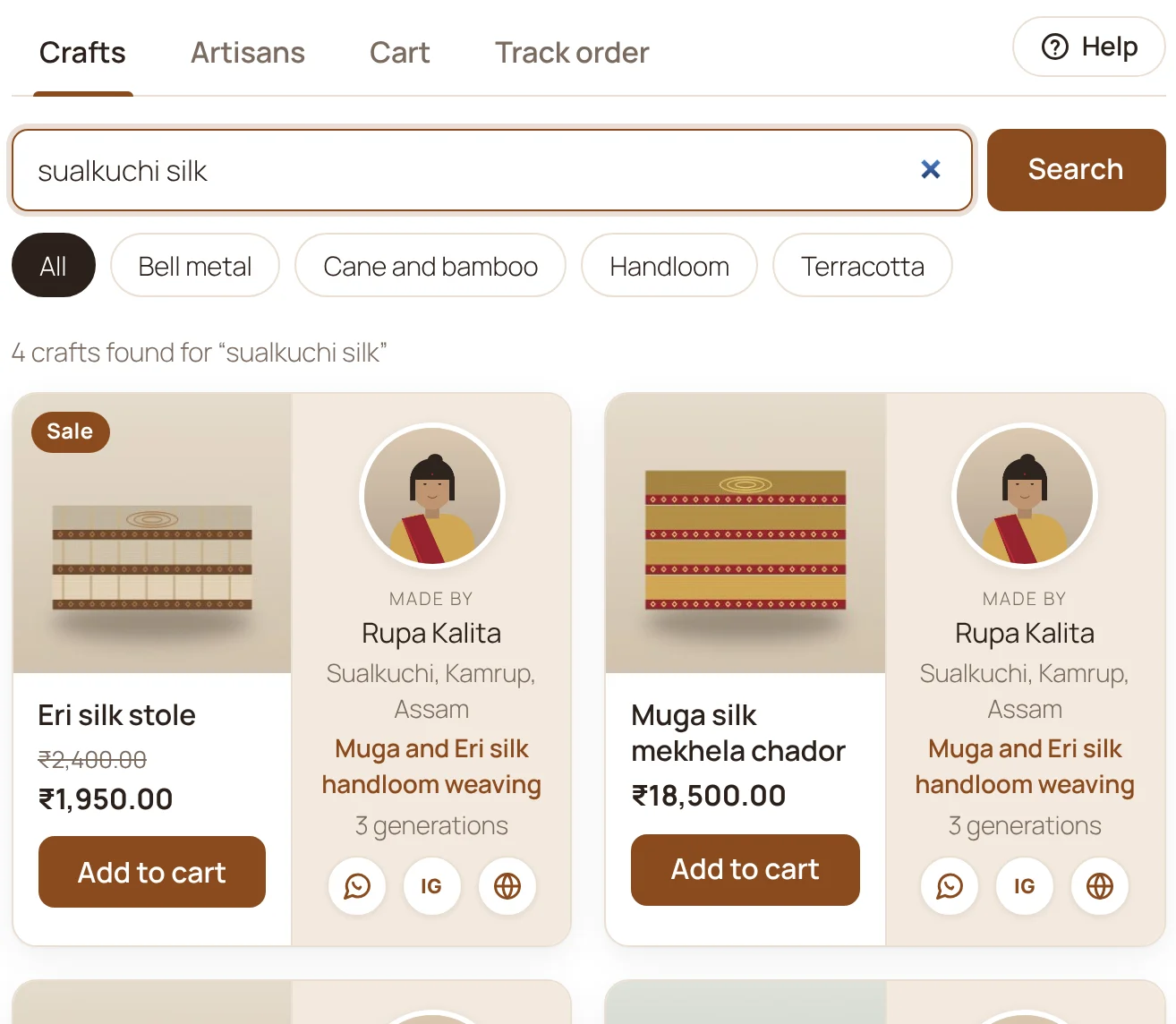
- Search as you type. The results update about a third of a second after the visitor stops typing, without reloading the page; the search box keeps its place. One letter on its own is ignored; clearing the box shows everything again. Search or Enter also works.
- Every public field is searched. On the Crafts tab: name, description and introduction, materials, technique, time to make, origin, care, item code, the steps of How it is made, craft types, and the artisan’s name, place and tradition. On the Artisans tab: name, story and introduction, village, district, state, craft tradition, languages, awards, generations, the family timeline and craft types.
- Every word must match, in any field and in any order. Capitals and accents don’t matter, and the start of a word is enough (jacq finds jacquard).
- A line above the results says how many were found. The search works together with the craft-type chips and Load more, and the page address changes with it, so a search can be bookmarked or shared.
- Private fields (private notes, contact person, phone, email, address, UPI ID) are never searched.
The search keeps a small index of each craft and artisan, updated whenever one is saved. It is built automatically the first time 2.8.0 runs; on a large catalogue the first page load after updating can take a moment longer.
The Help button

On a phone the button shrinks to its question-mark icon so the tabs keep their space; screen readers still announce it as “Help (opens in a new tab)”.
For one page only: [ao_outlet help="no"] hides the button, and [ao_outlet help="https://…"] opens a different address.
Contact icons
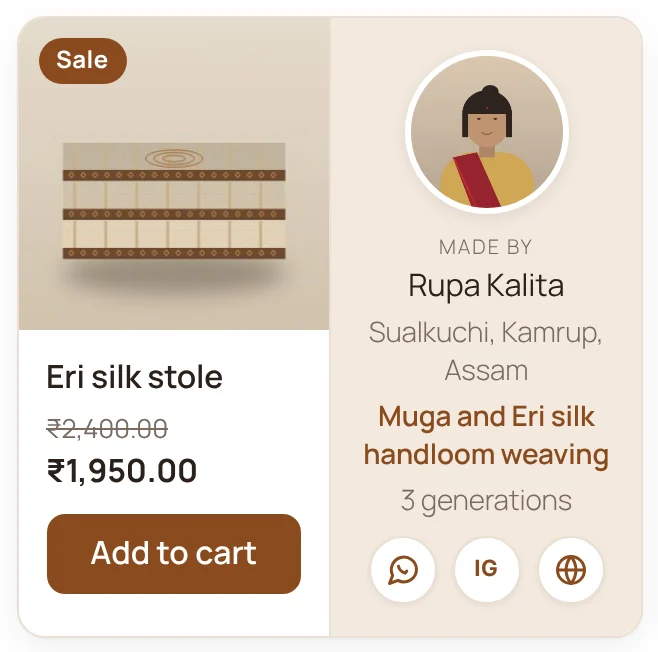
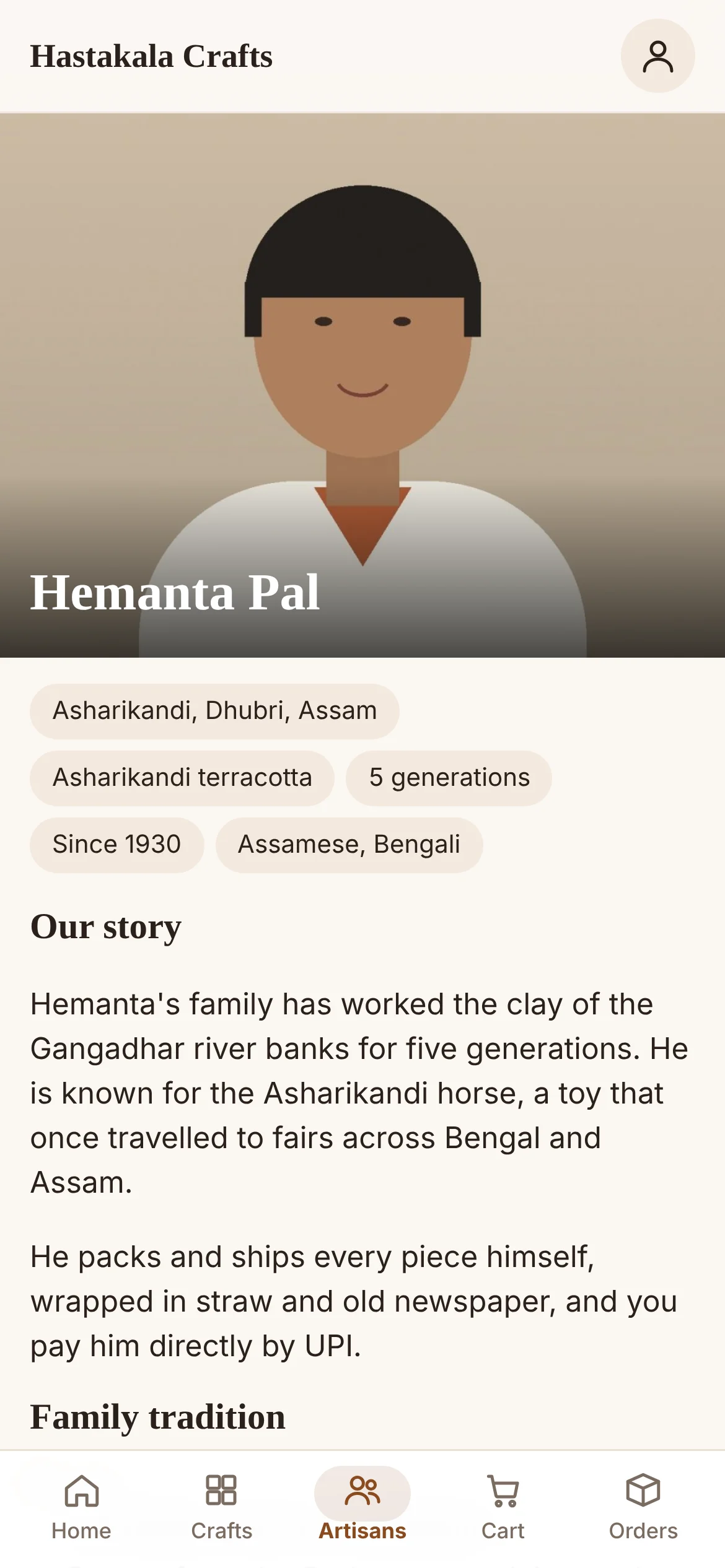
When an artisan has contact or social links, they appear as small round icons under the artisan on paired cards, and under the figures on the artisan’s page. Each icon is its own link; the rest of the artisan’s half of the card still opens their page.
- Phone, WhatsApp, email and website have line icons; social networks show a short label: FB, IG, YT, X, LI. Pointing at an icon shows what it is; screen readers announce, for example, “WhatsApp of Rupa Kalita”.
- Switch them off or change their size in Settings → Shop display, or for one page with
contact_icons="no"oricon_size="24". - Artisans without links look exactly as before.
A craft’s page
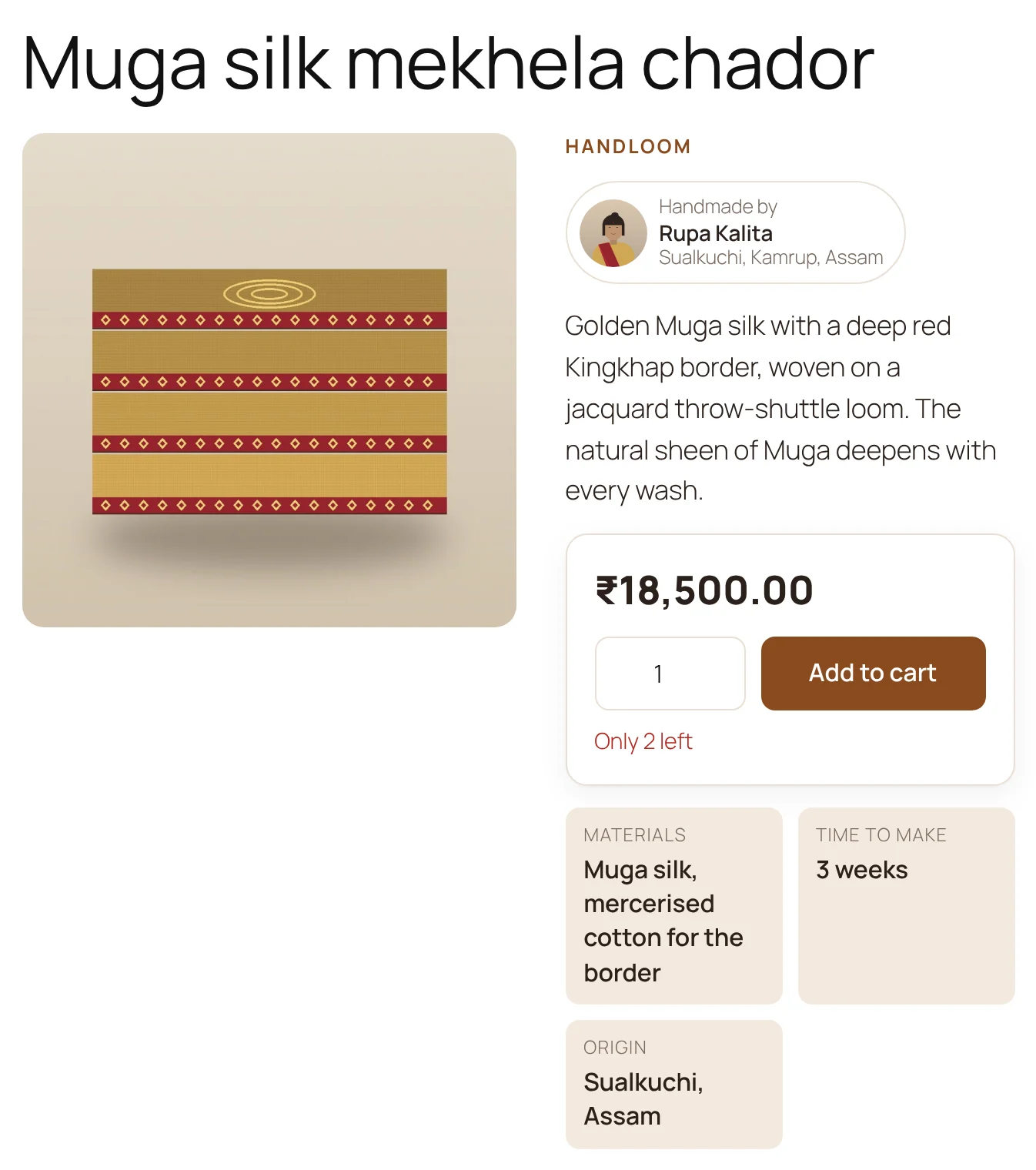
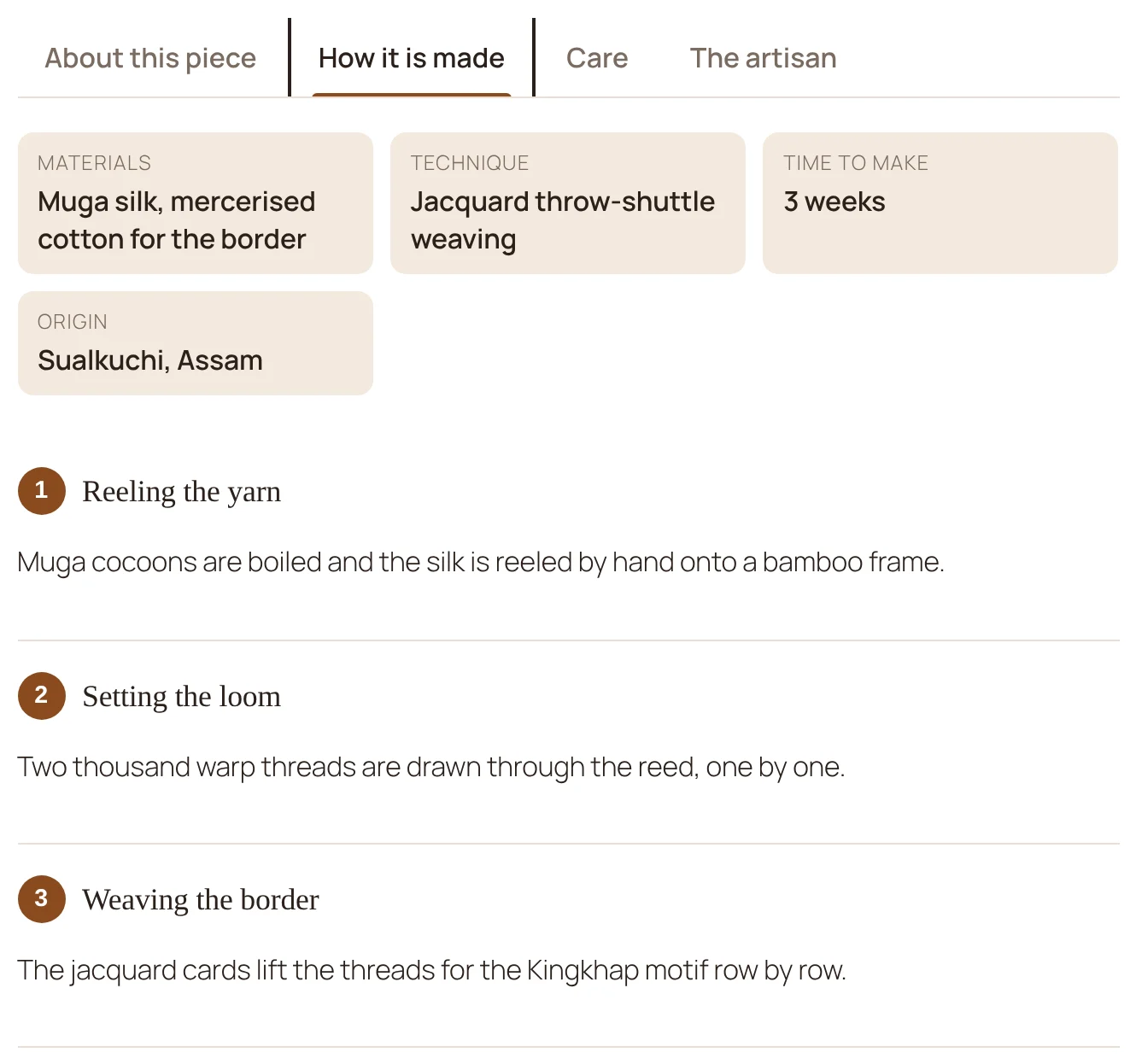

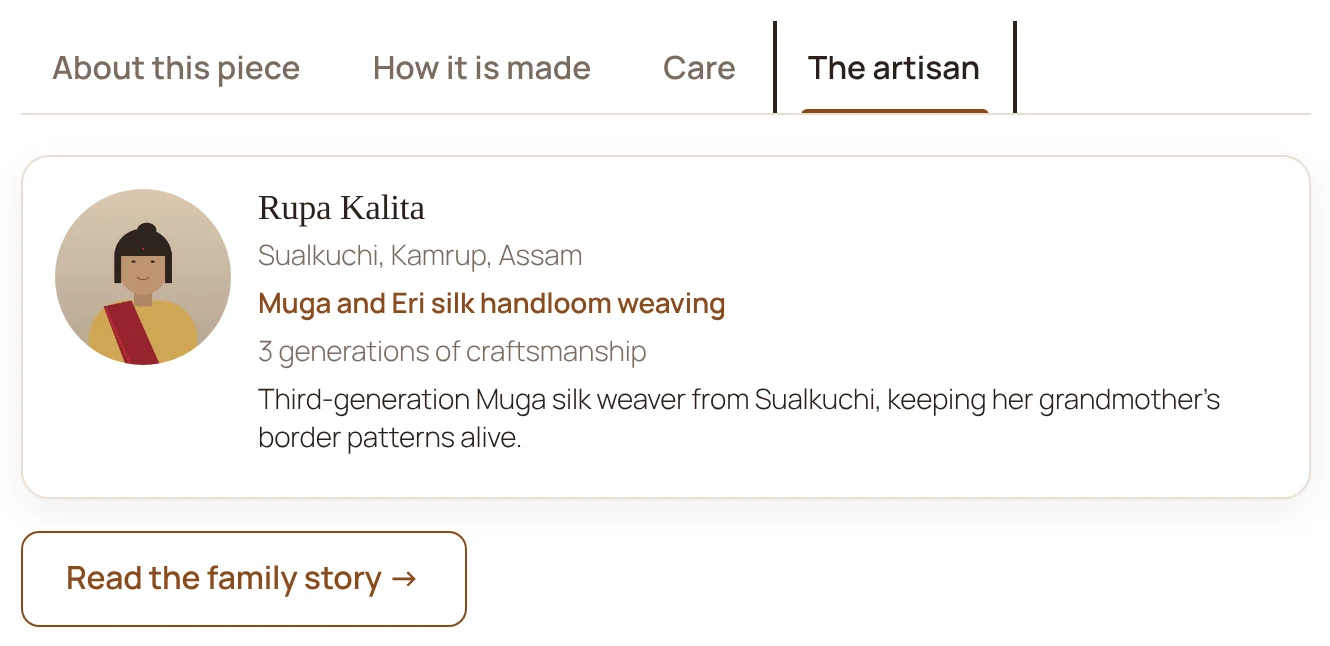
Below the tabs is More by this artisan. Tabs with nothing in them are hidden. Adding #making, #care or #artisan to the page address opens that tab.
An artisan’s page
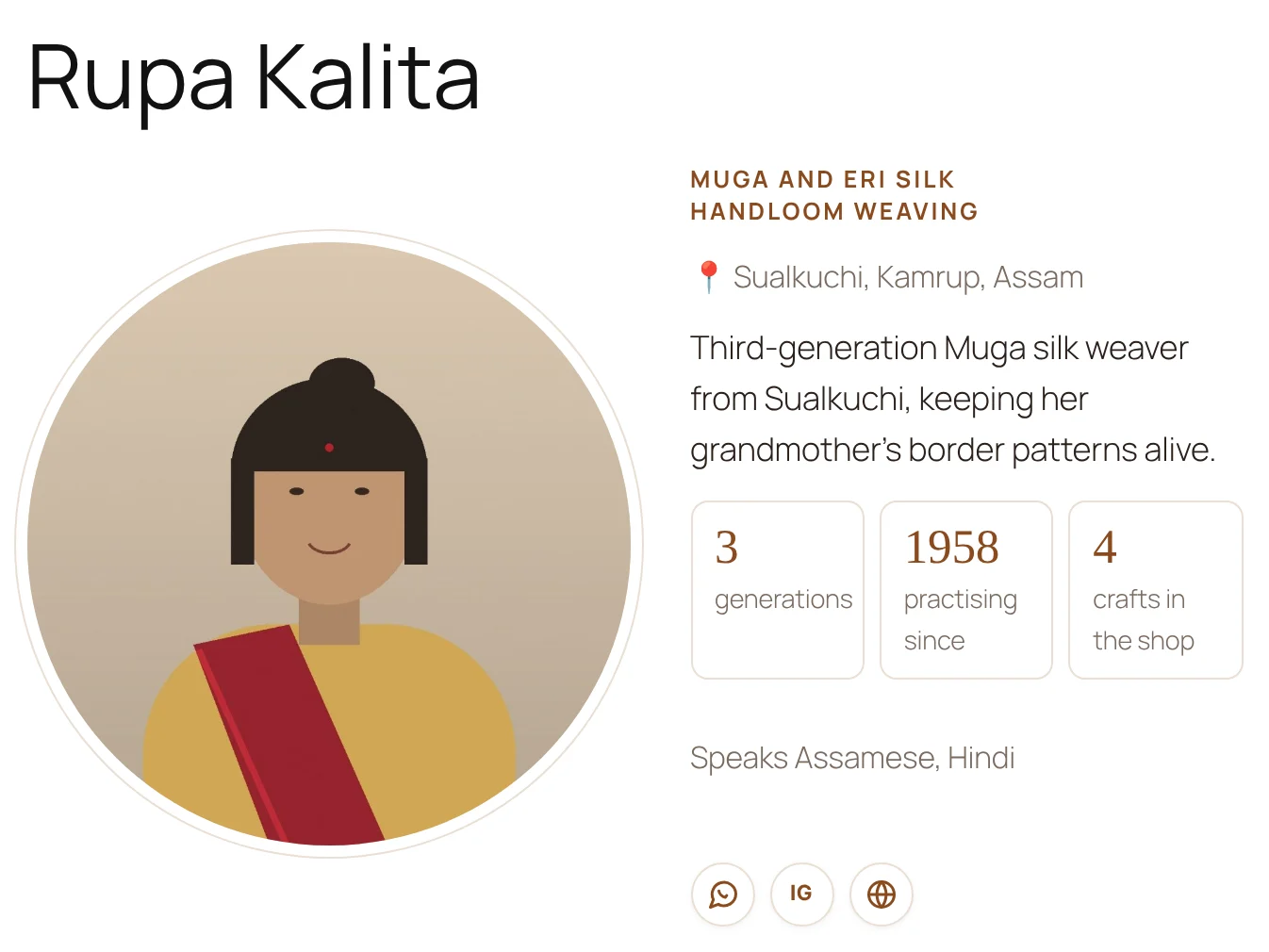
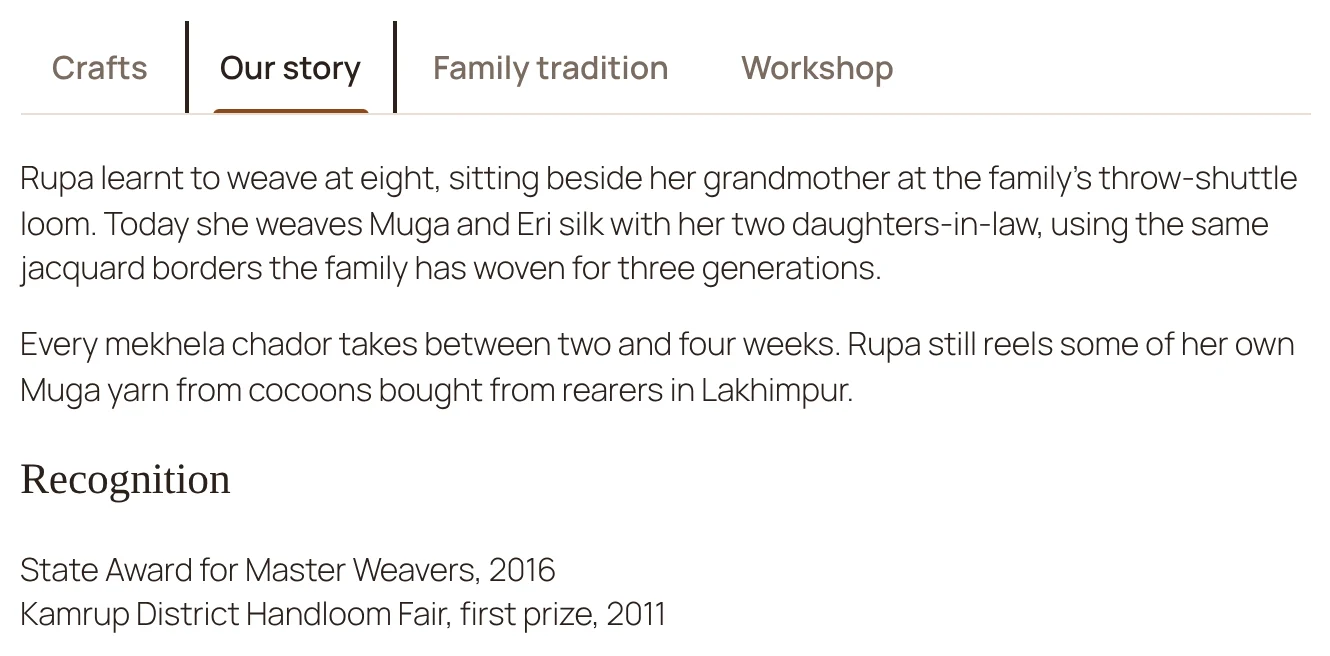
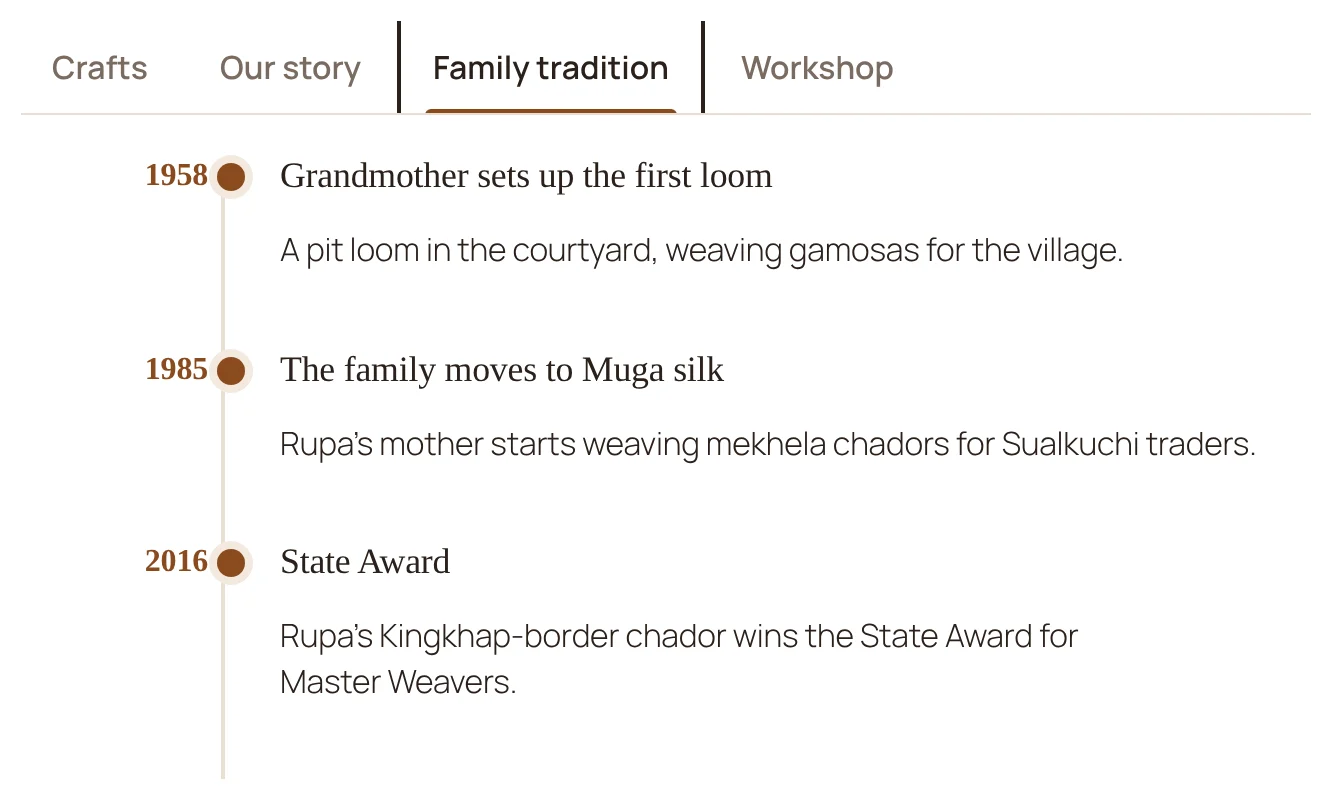
The other tabs are Crafts (everything they sell) and Workshop (the gallery and video). #story, #tradition and so on open a tab directly.
Card templates
Choose one in Settings → Shop display, or for one page with card_style="…".
| Template | card_style | Looks like |
|---|---|---|
| Paired | paired | Craft on the left, its artisan on the right. The default. |
| Classic | simple | Photo, name, artisan, price. |
| Gallery | overlay | Large photo with the name and price over it. |
| List | list | Small photo beside the details; compact on phones. |
| Story | story | Photo, name, a short description, price and the artisan. |
| Minimal | minimal | Photo, name and price only. |
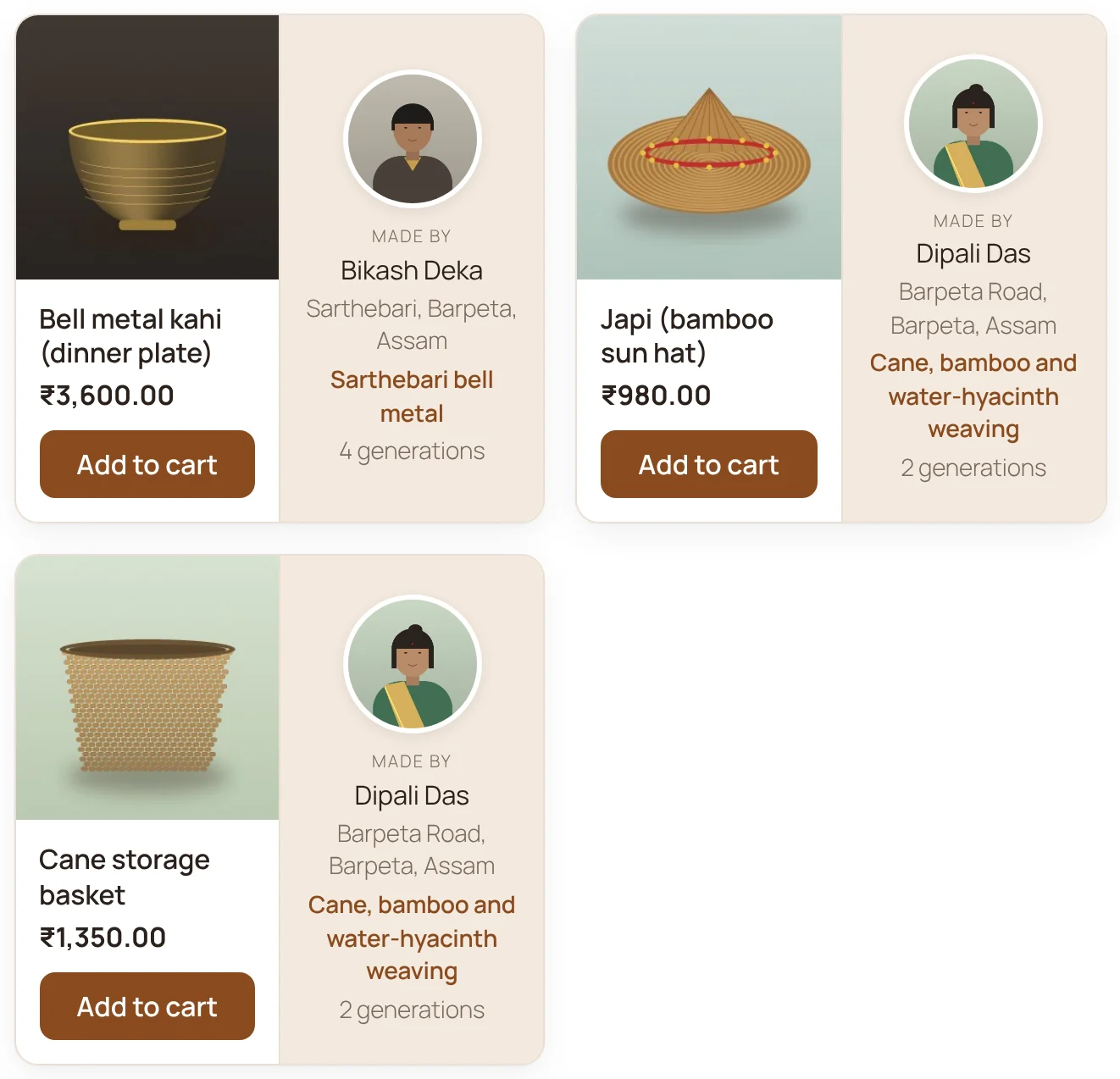
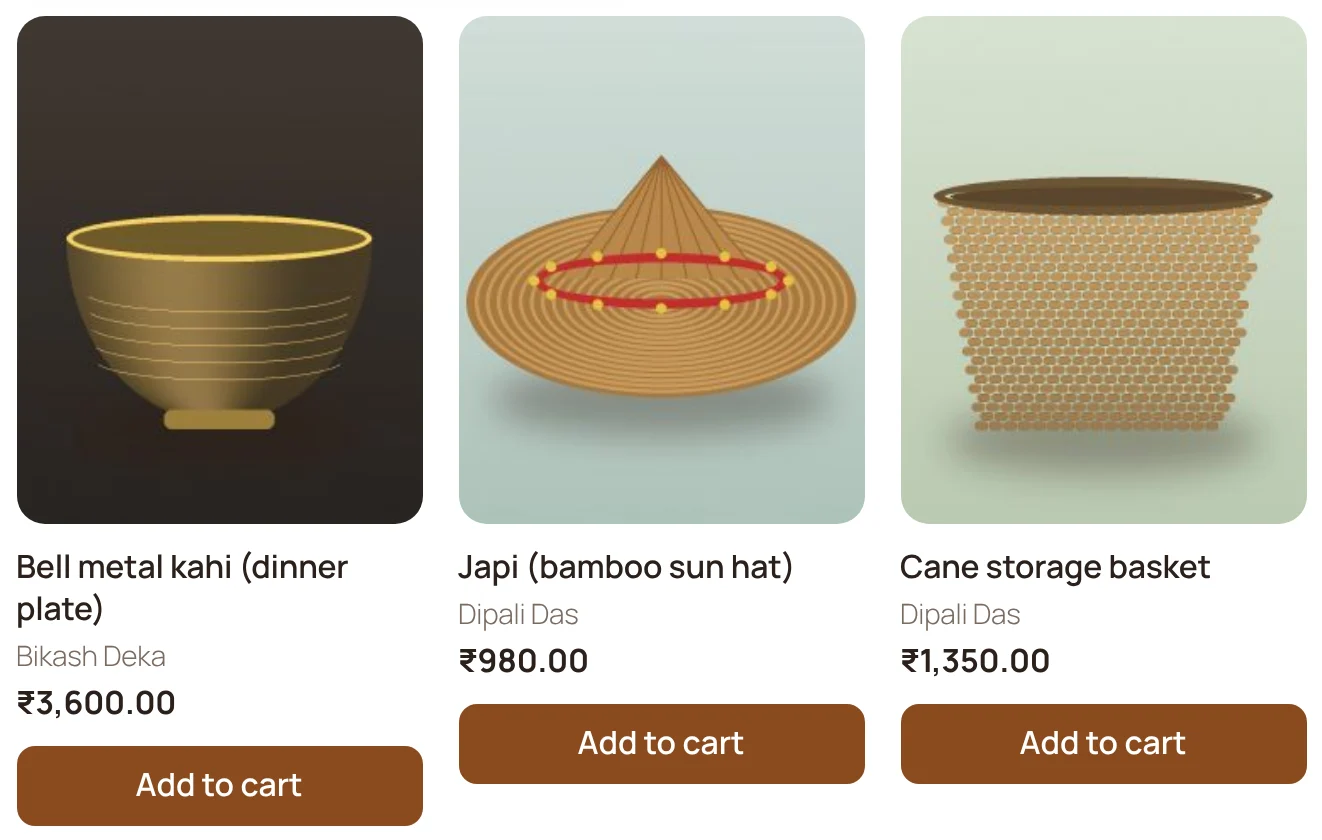
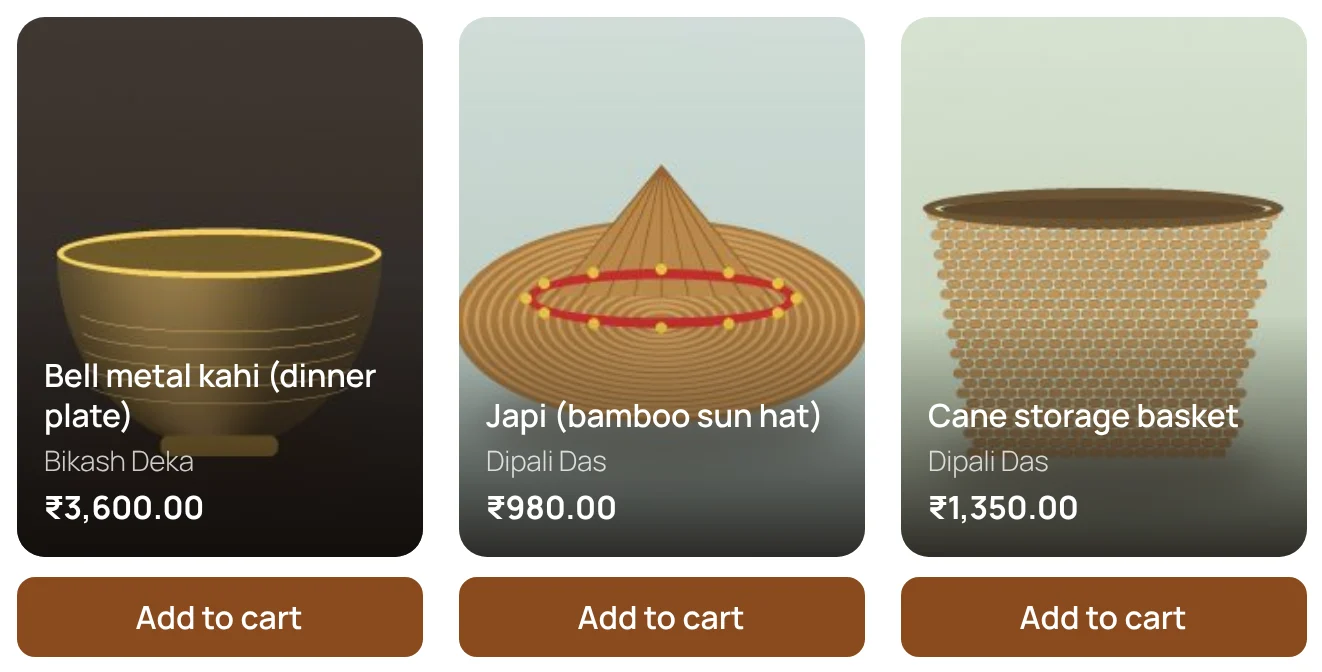
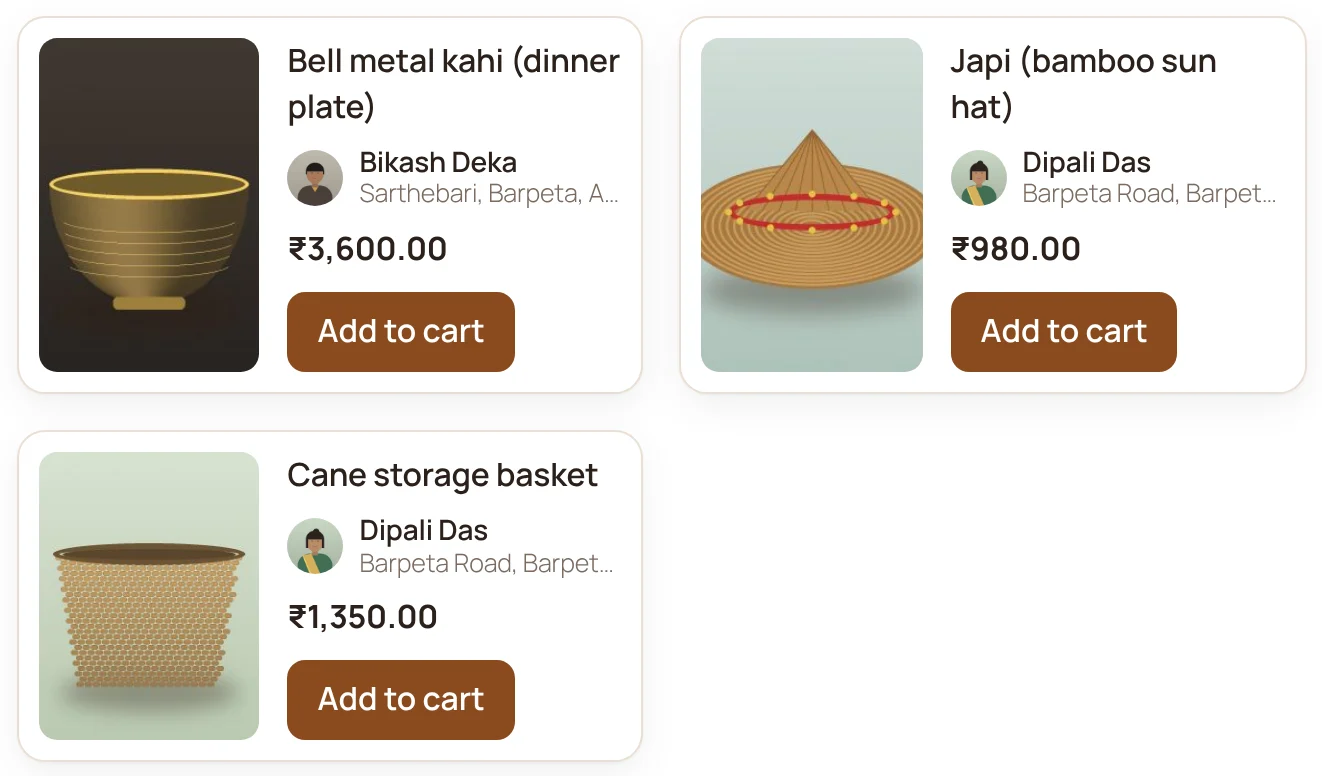
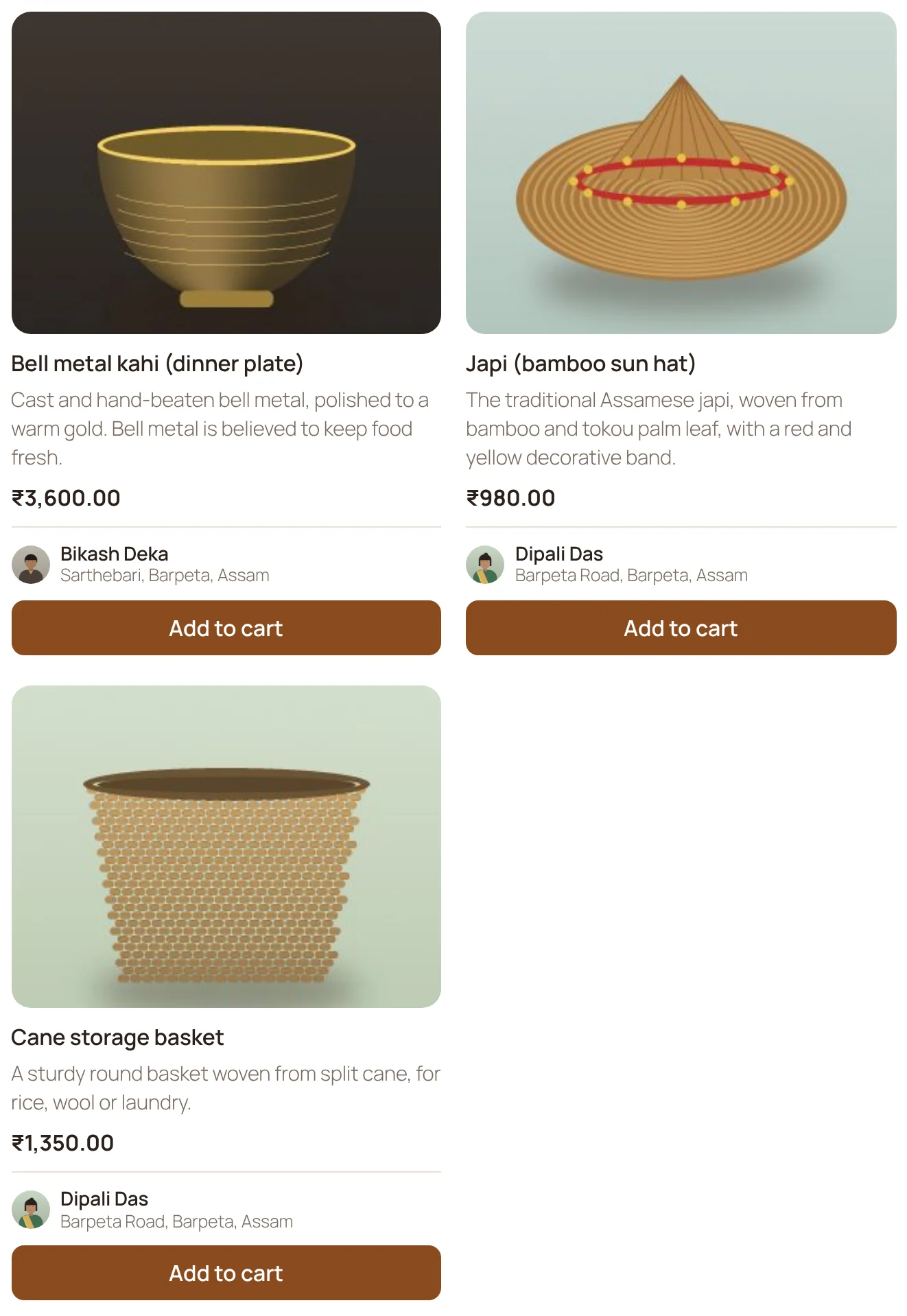
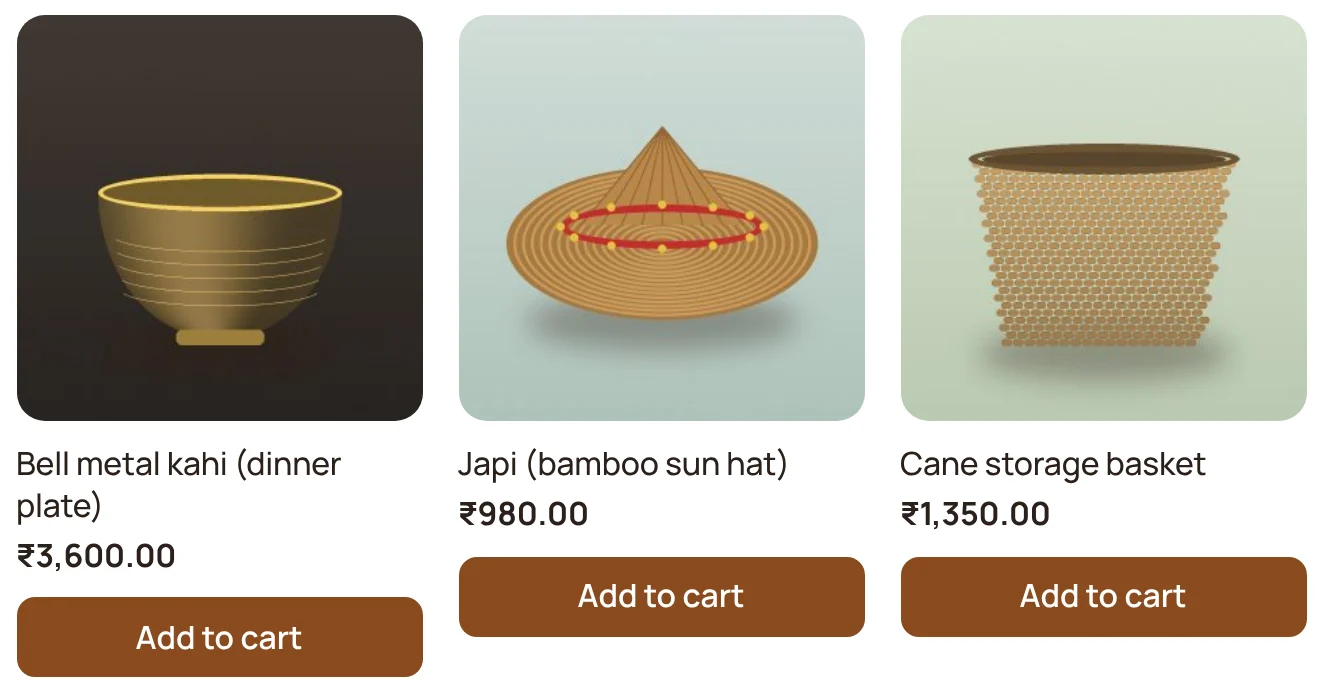
Cards per row is a maximum: paired cards need about 300 px each and classic cards about 150 px, so a phone shows one paired card or two classic cards per row.
Shortcodes
[ao_outlet]: the whole shop
| Attribute | Default | What it does |
|---|---|---|
tabs | crafts,artisans,cart,track | Which tabs to show, in order, e.g. tabs="crafts,cart". |
craft_type | — | Start filtered to one craft type (its slug). |
artisan | — | Only one artisan’s crafts: the artisan’s ID, shown in the address bar when you edit them. |
mode | — | mode="app" embeds the phone app (needs Artisan Outlet Mobile). |
height | 760 | App height with mode="app": pixels or a share of the screen (85vh). |
help | from Settings | The Help button: help="no" hides it on this page, help="https://…" opens another address. |
align | — | wide or full lets the shop or app stretch beyond the theme’s content column. |
card_style, columns (1–6), per_page (1–60), pagination (numbers, load_more, none), add_to_cart and contact_icons (yes/no), icon_size (12–40) | from Settings | The Shop display settings for this page. |
font_base, font_heading, font_title, font_price, font_artisan, font_button | from Settings | Font sizes in pixels. |
Examples:
[ao_outlet]
[ao_outlet columns="3" per_page="9" pagination="load_more"]
[ao_outlet card_style="simple" columns="4" font_title="20"]
[ao_outlet craft_type="pottery" add_to_cart="no"]
[ao_outlet mode="app" align="full" height="85vh" per_page="6"]
Smaller pieces
[ao_crafts craft_type="" artisan="" featured="1" per_page="12"] | A grid of crafts, with the same display attributes; no pagination unless you add pagination="numbers". |
[ao_artisans craft_type="" columns="3"] | A grid of artisans. |
[ao_checkout] | Cart and checkout (on the page created on activation). |
[ao_track_order] | Order tracking (likewise). |
The app inside a page
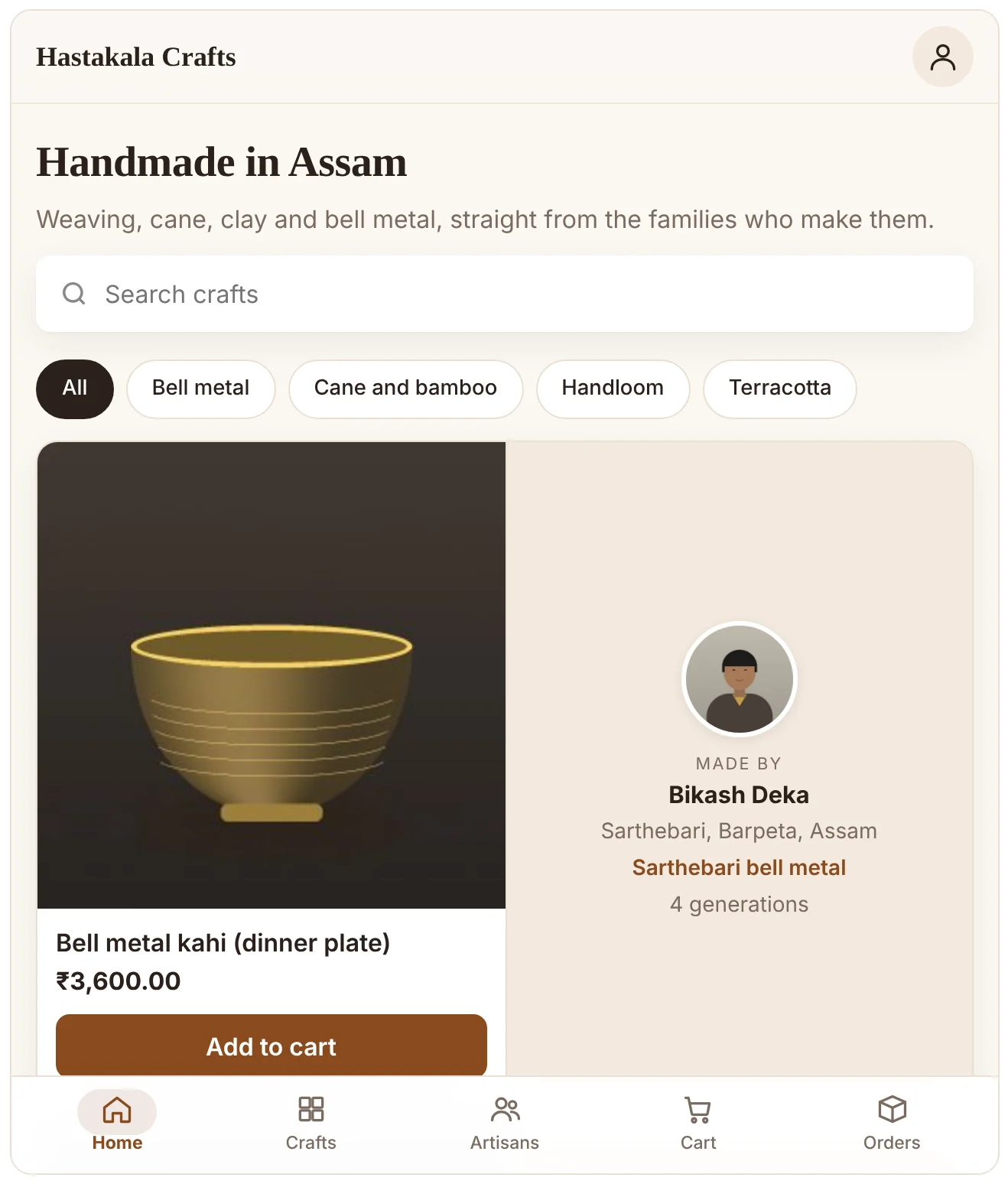
[ao_outlet mode="app" height="760"]: the app fills the width of the page’s content area and uses the extra width for more cards per row.Selling
How customers buy
What a customer sees from cart to delivery. The same steps work in the website shop and the phone app. No account is needed: the order is found by its number and the customer’s mobile number or email.
The cart
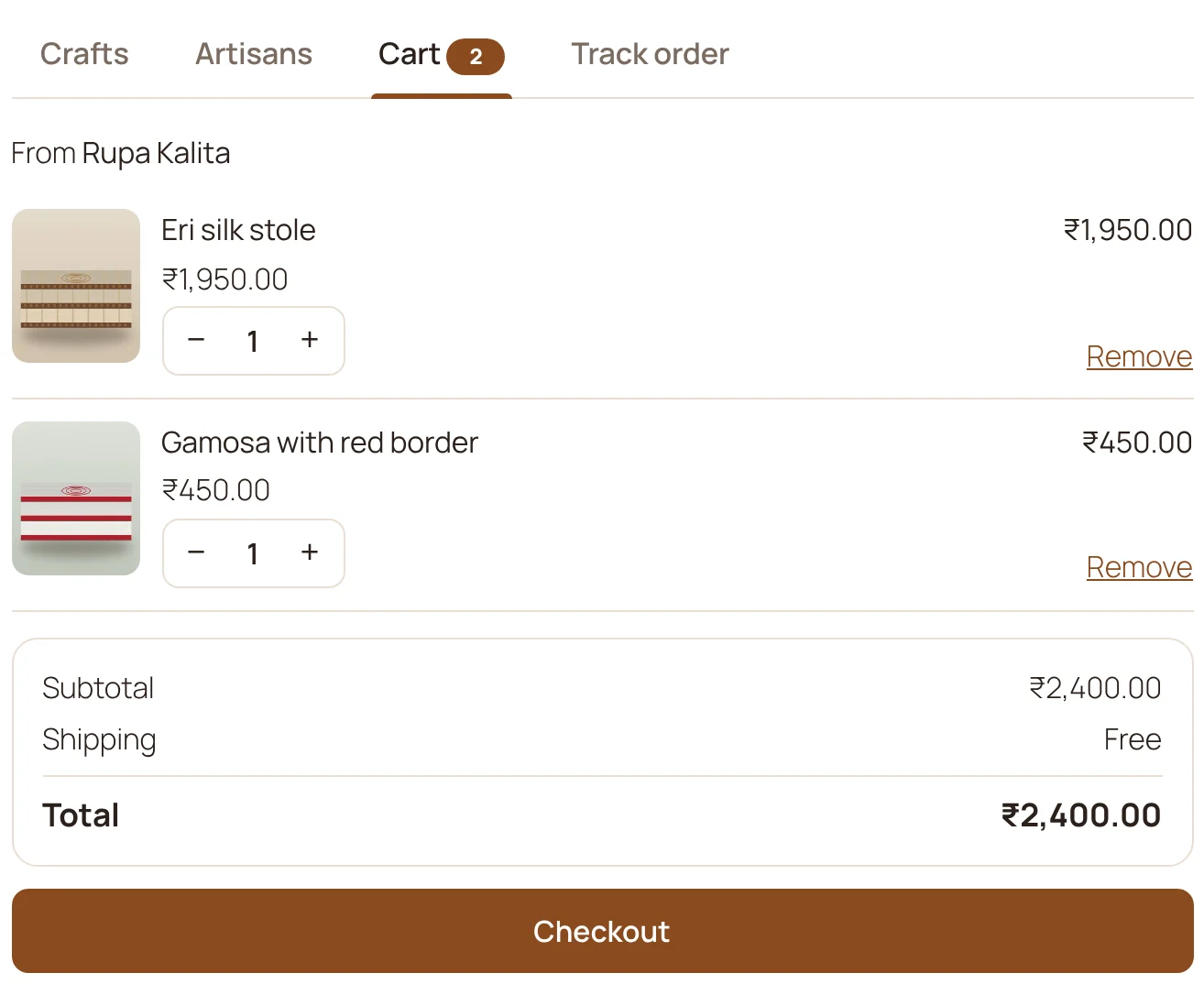
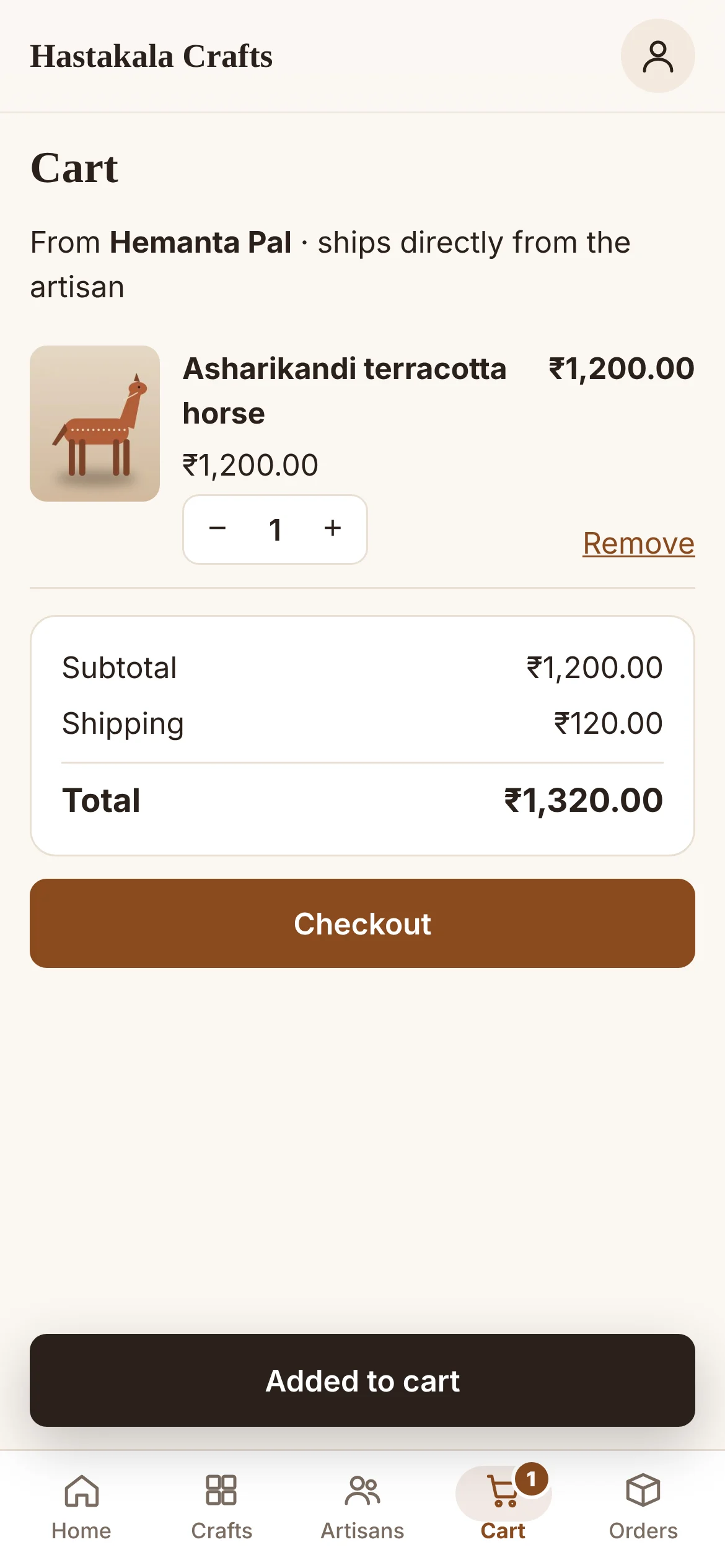
Add to cart on a card changes to Added to cart. The cart shows whose crafts these are (“From Rupa Kalita”), quantities, shipping and the total.
One artisan per order. Adding another artisan’s piece asks: “Your cart has crafts from Rupa Kalita. Each order can contain one artisan’s crafts only. Empty the cart and add this piece?” Cancel keeps the cart as it is.
Shipping is free once the items total reaches the free-shipping amount. The cart is kept in the browser, so it survives closing the page.
Checkout
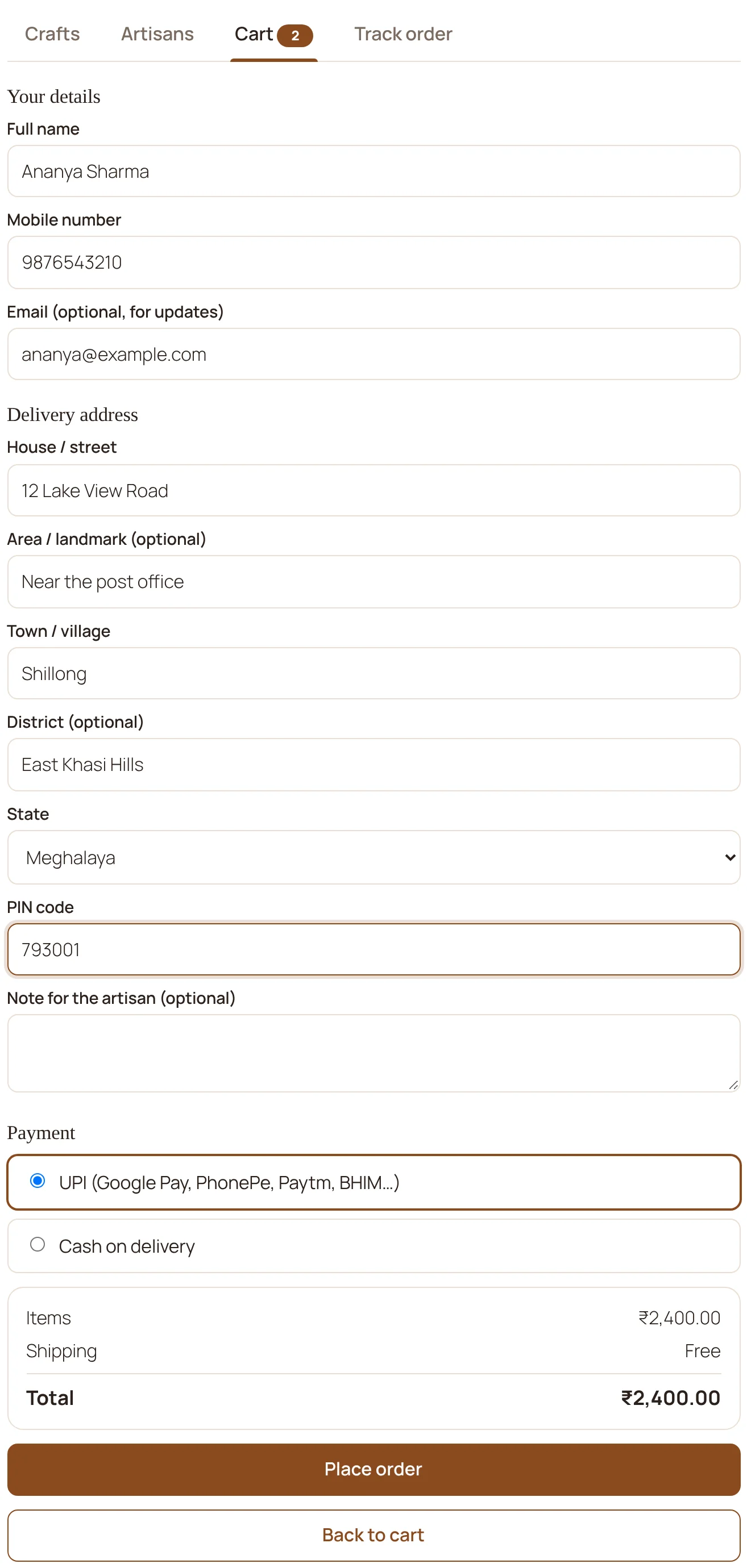
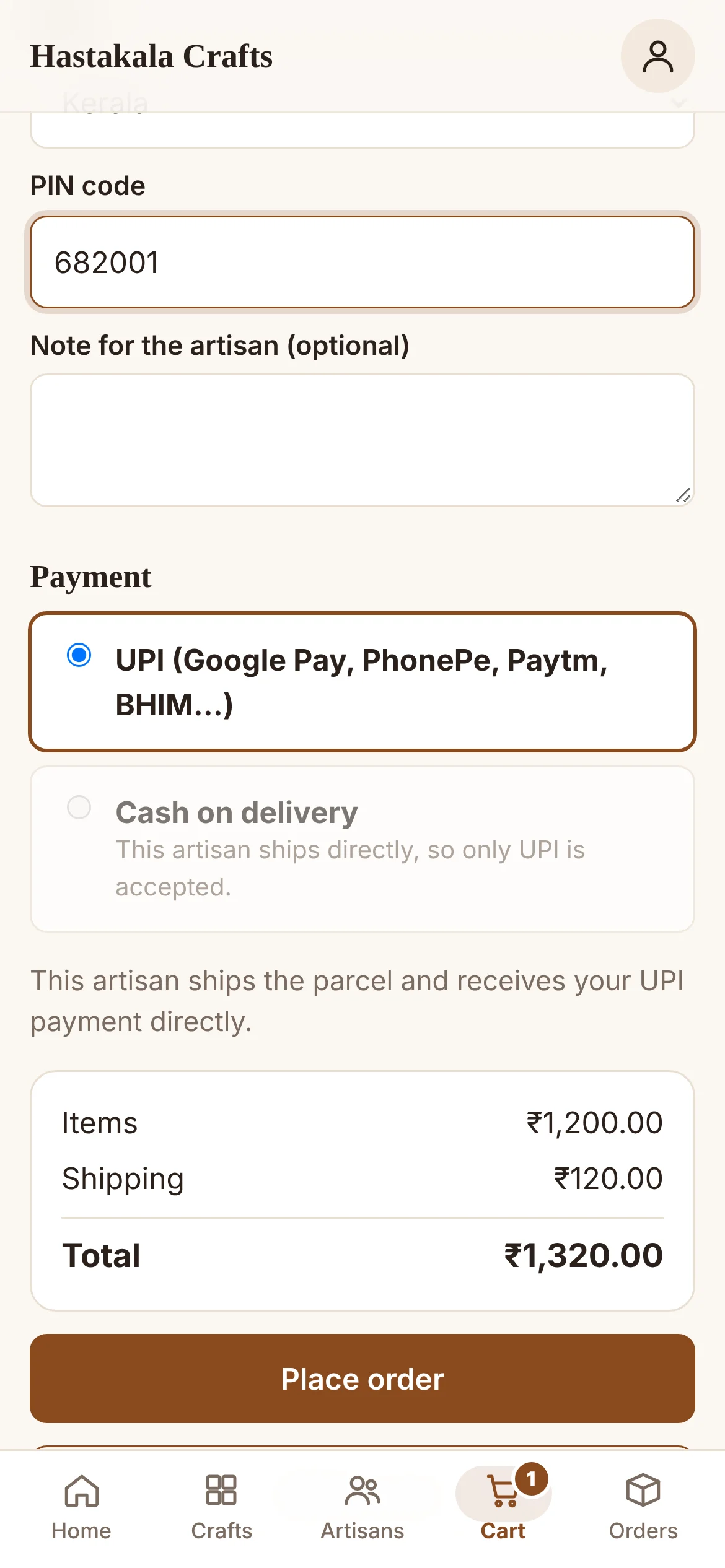
- Your details: full name, mobile number (required) and email (optional, for updates).
- Delivery address: house and street, area or landmark, town or village, district, state and the 6-digit PIN code.
- An optional note for the artisan.
- Payment: UPI, or Cash on delivery when it is allowed. For an artisan who ships, only UPI is offered: “This artisan ships the parcel and receives your UPI payment directly.”
- Place order.
Paying by UPI
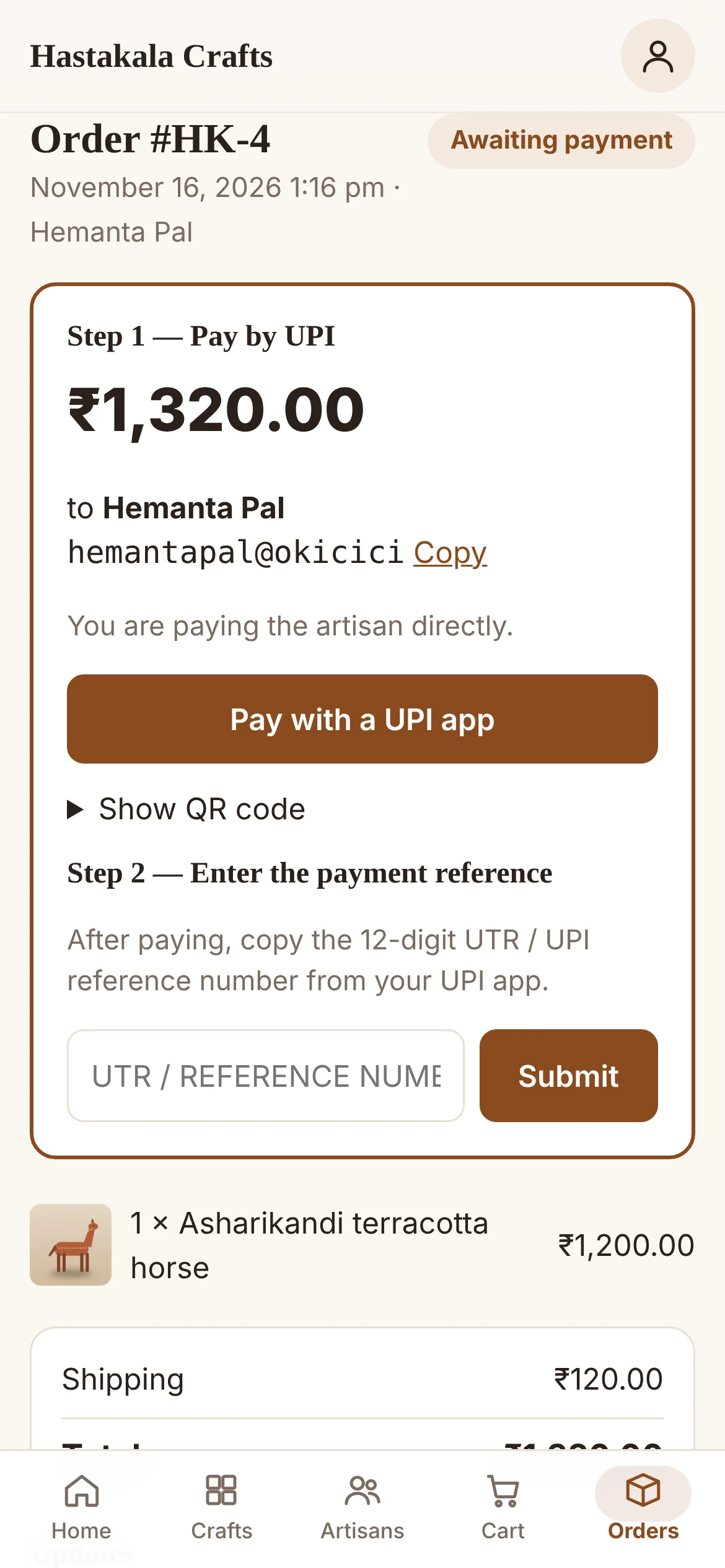
The order page opens with two steps:
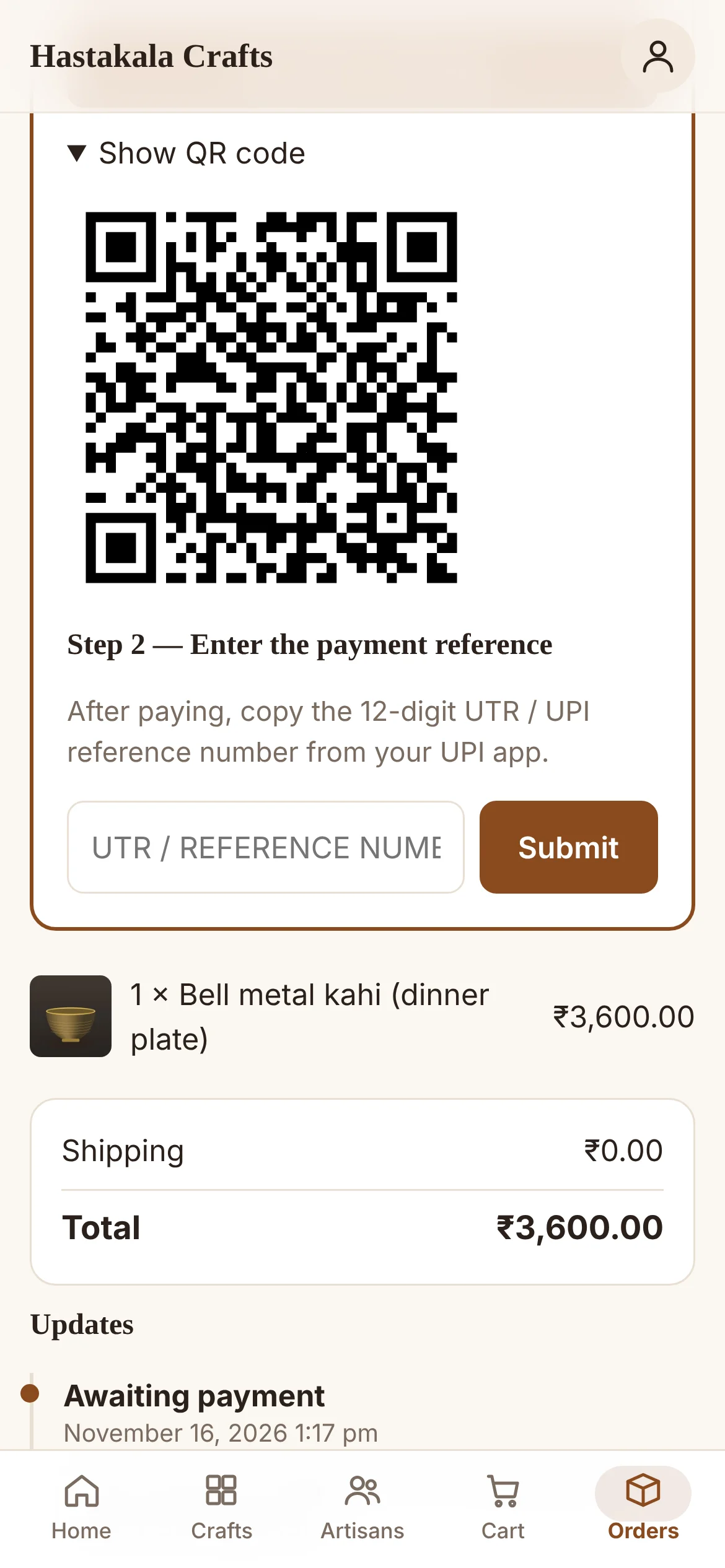
- Pay by UPI. The amount, the payee and their UPI ID (with Copy). On a computer there is a QR code to scan with any UPI app. On a phone there is a Pay with a UPI app button that opens Google Pay, PhonePe, Paytm or BHIM with the amount filled in, and the QR code under Show QR code.
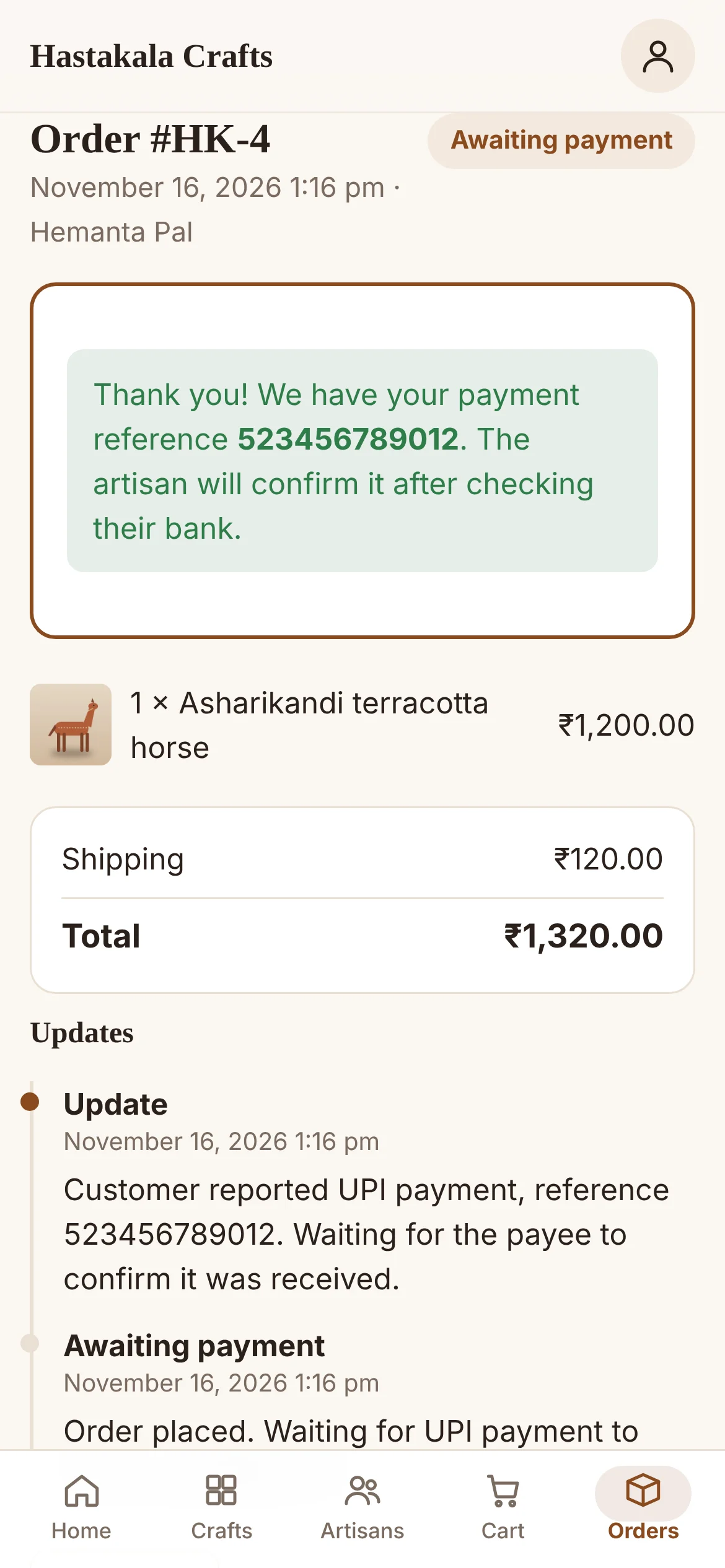
- Enter the payment reference. After paying, the customer copies the 12-digit UTR / UPI reference from their UPI app and clicks Submit. The same reference can’t be used on two orders.
The order then waits for whoever received the money (the shop, or the artisan who ships) to check their bank.
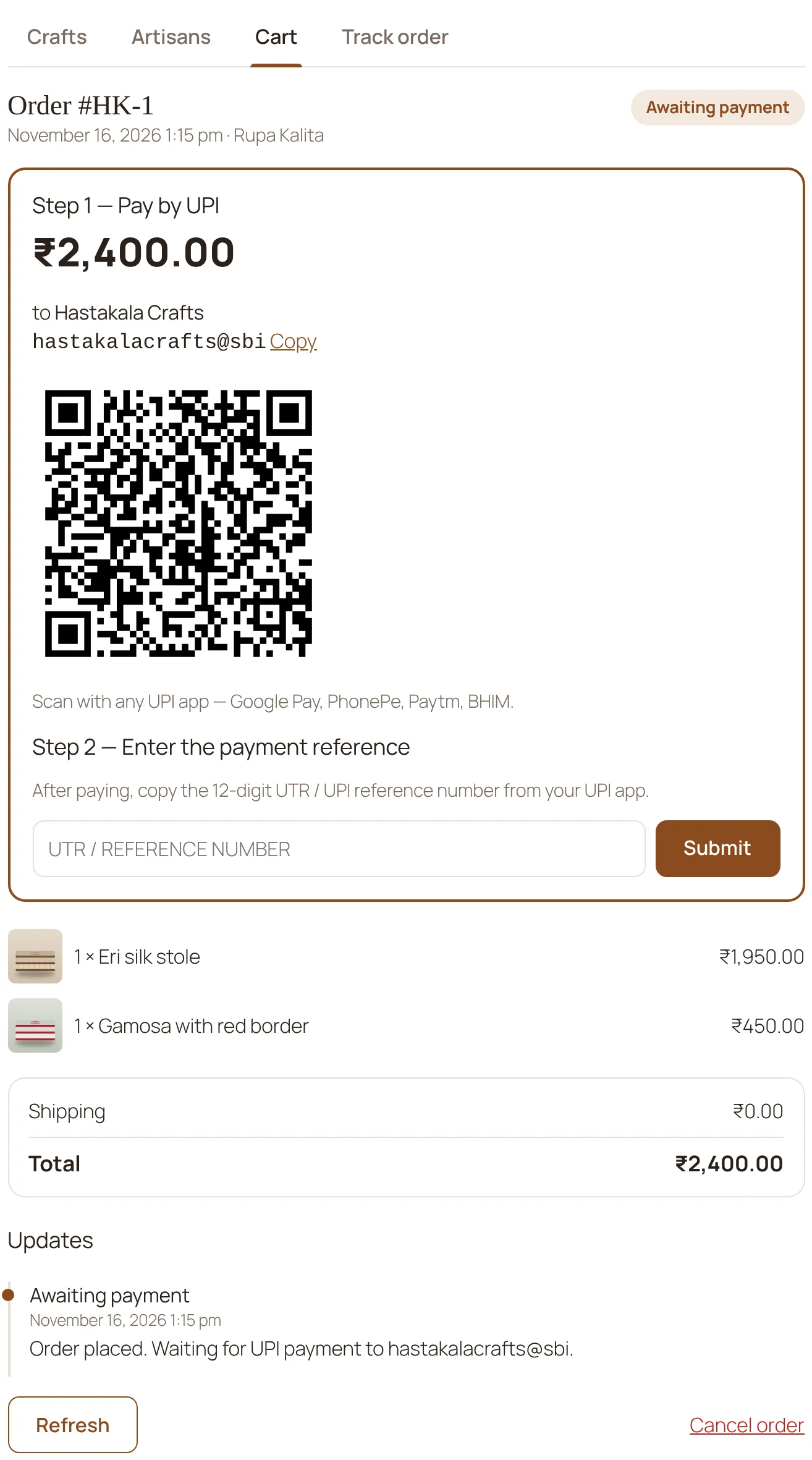
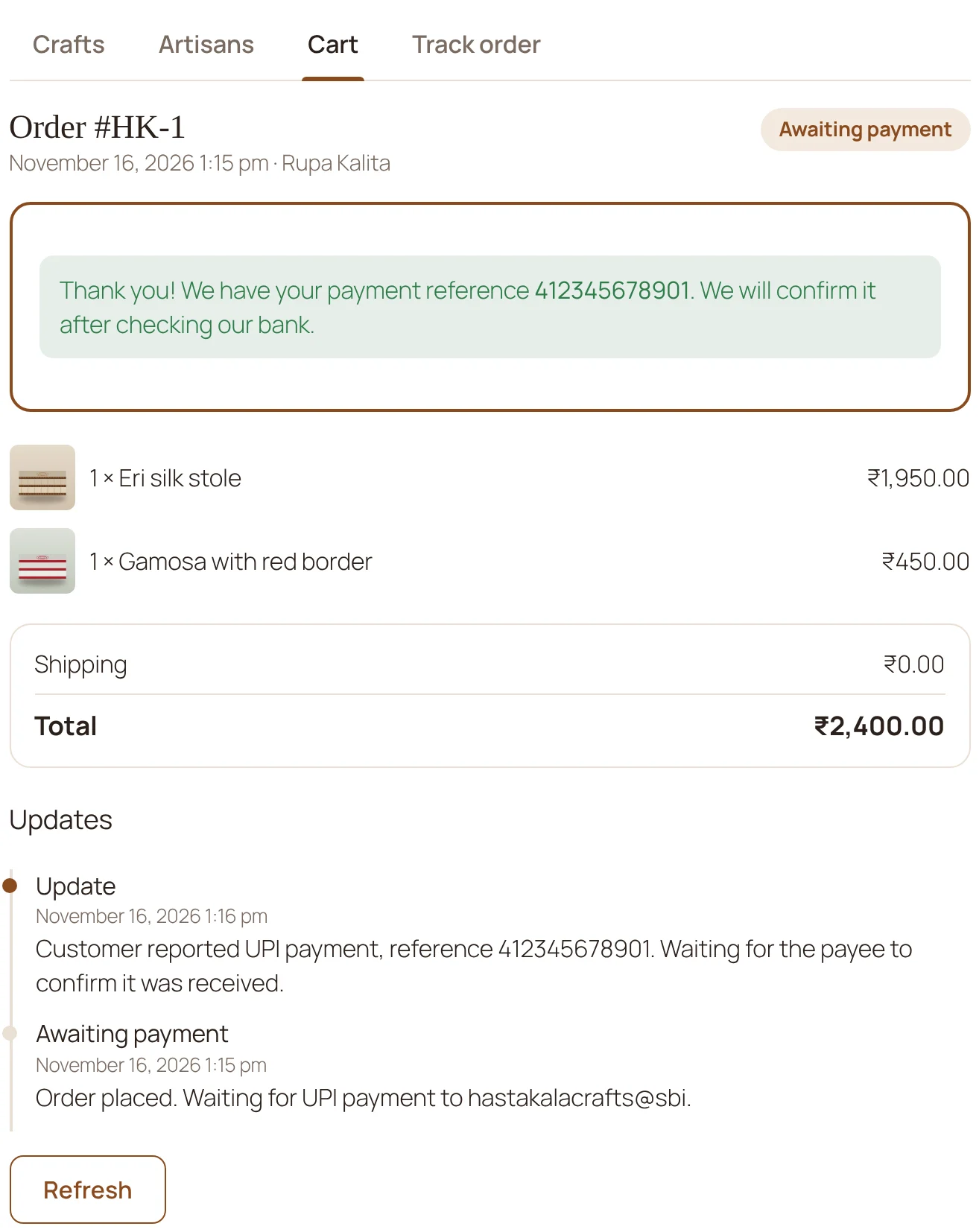
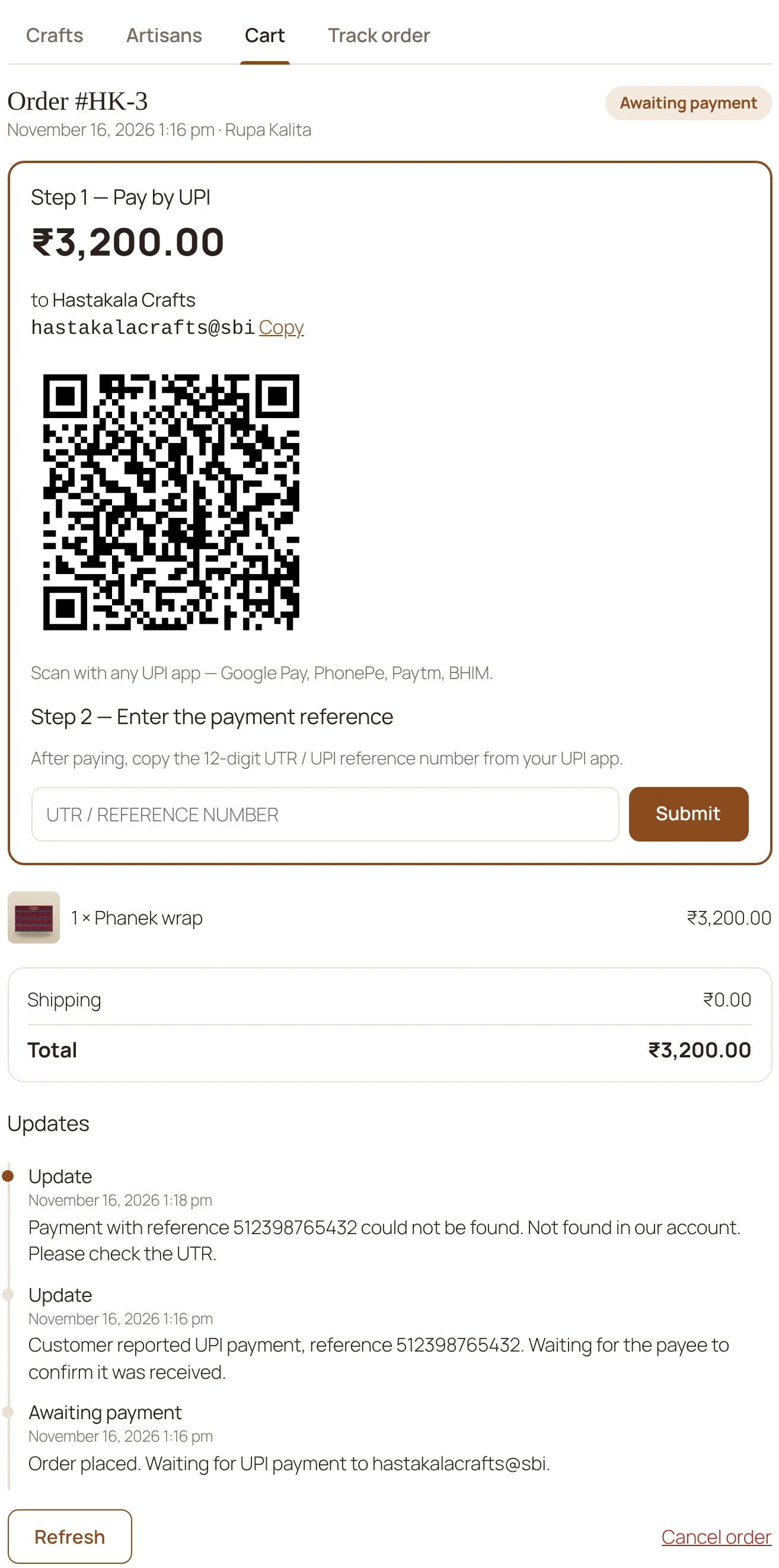
An order with no reference is cancelled automatically after the time set in Payments (48 hours by default), and its stock is released. Until a reference is given, the customer can cancel it themselves with Cancel order.
Cash on delivery
Tracking an order
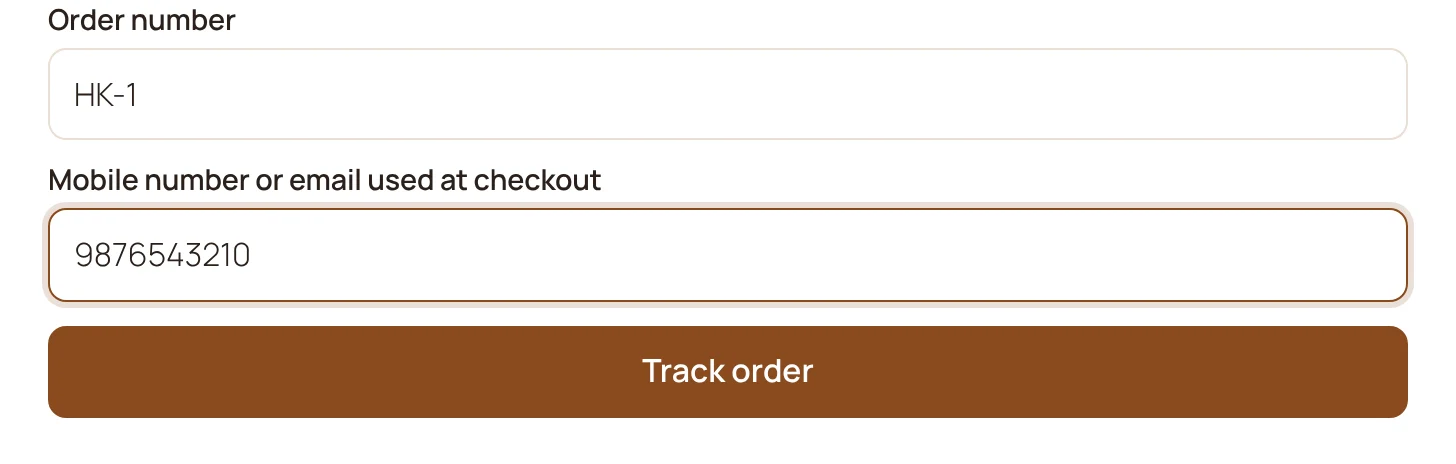
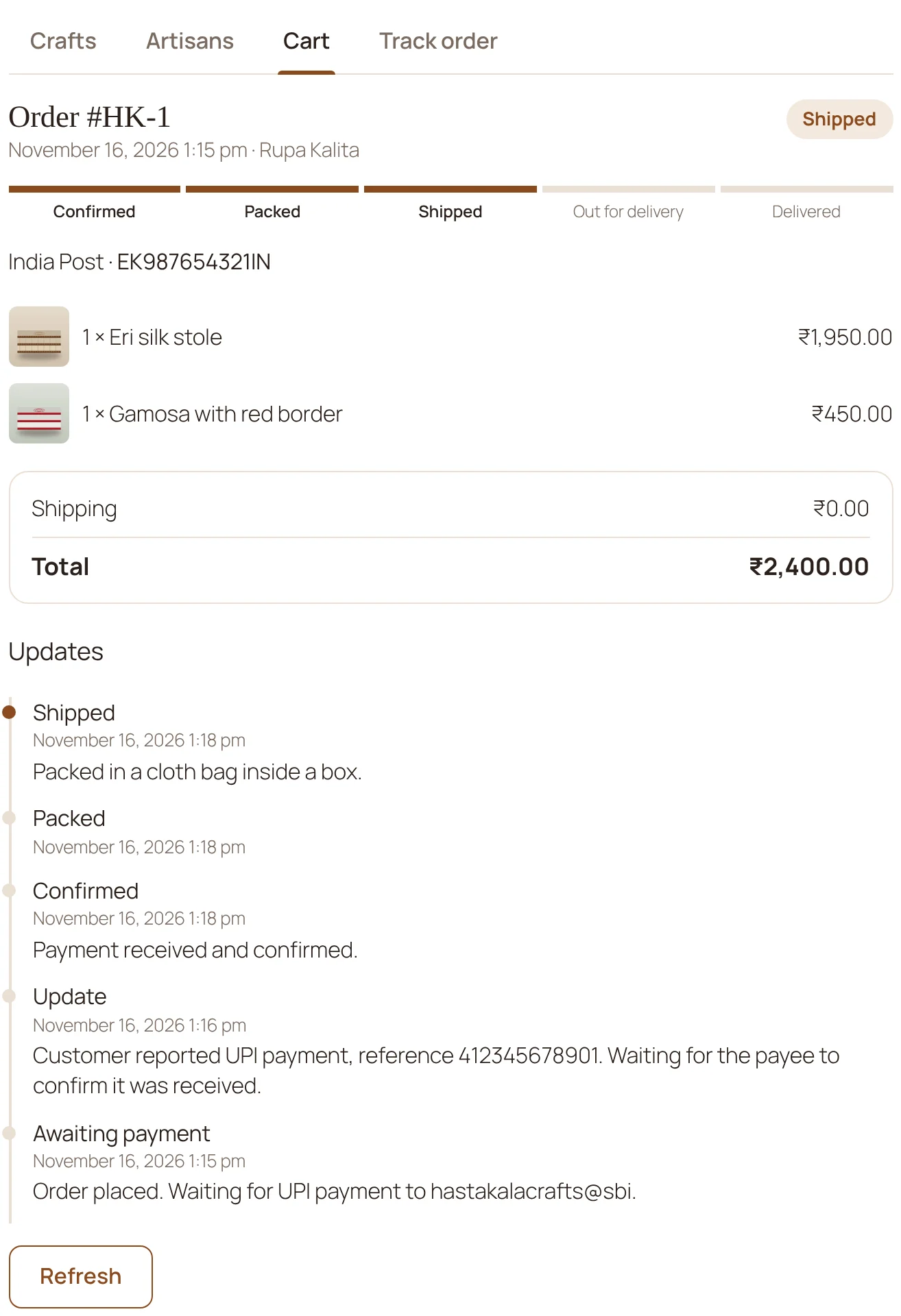
The order page also opens from the link in the customer’s emails. With a tracking address set for the courier, a Track on courier site link appears. Notes that staff mark Show to the customer appear among the updates.
Emails customers get
If they gave an email: order placed (with payment details), payment received, payment not found, shipped (with tracking), delivered, and cancelled.
Selling
The phone app
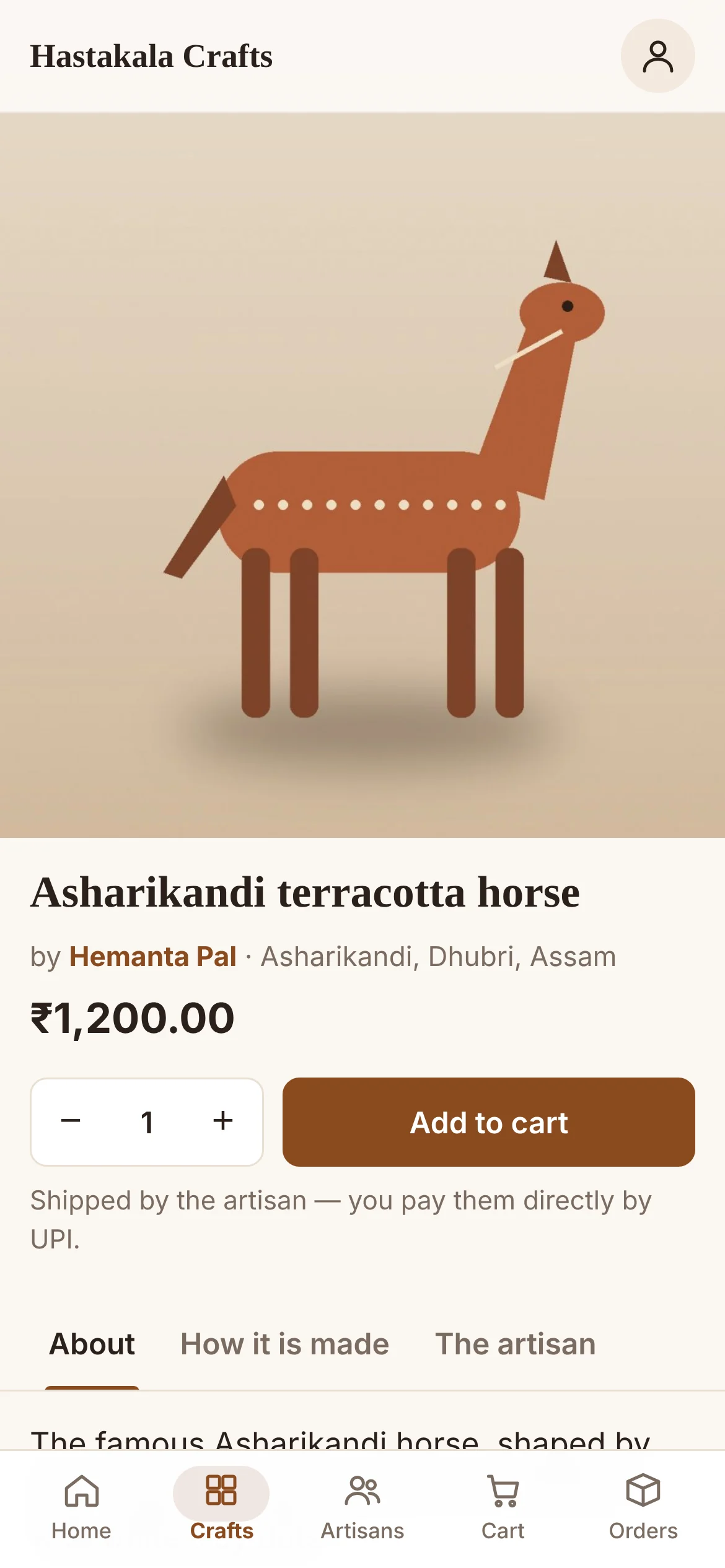
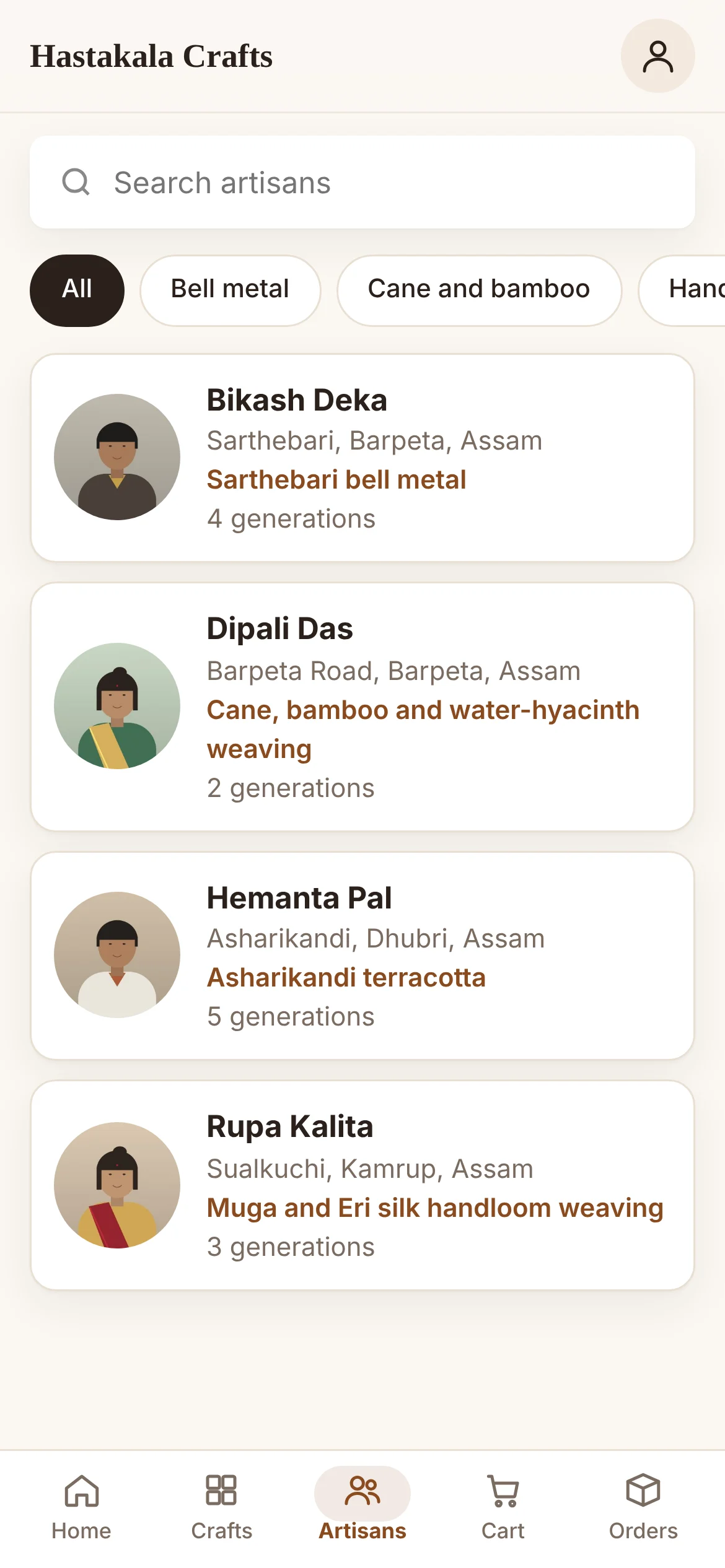
Artisan Outlet Mobile serves an app at yoursite.com/craft-app/. It opens in any phone browser and can be added to the home screen, after which it starts like any other app. It works with the same crafts, cart, orders and settings as the website.
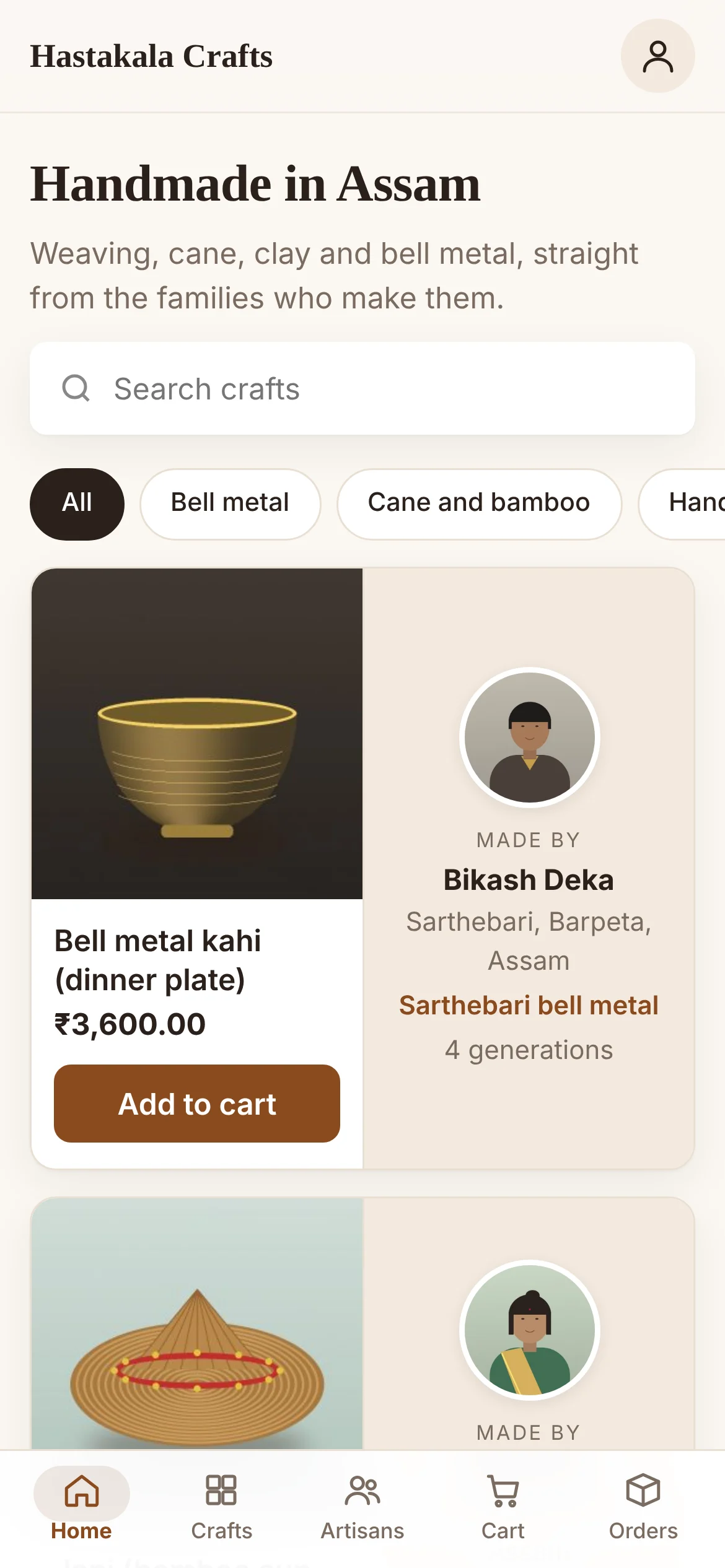
- App name, from Settings → Mobile app.
- Account: your orders, sign in, the artisan section.
- Headline and tagline.
- Search crafts.
- Craft types to filter by.
- A craft: tap for its page, or Add to cart.
- Its artisan: tap for their profile.
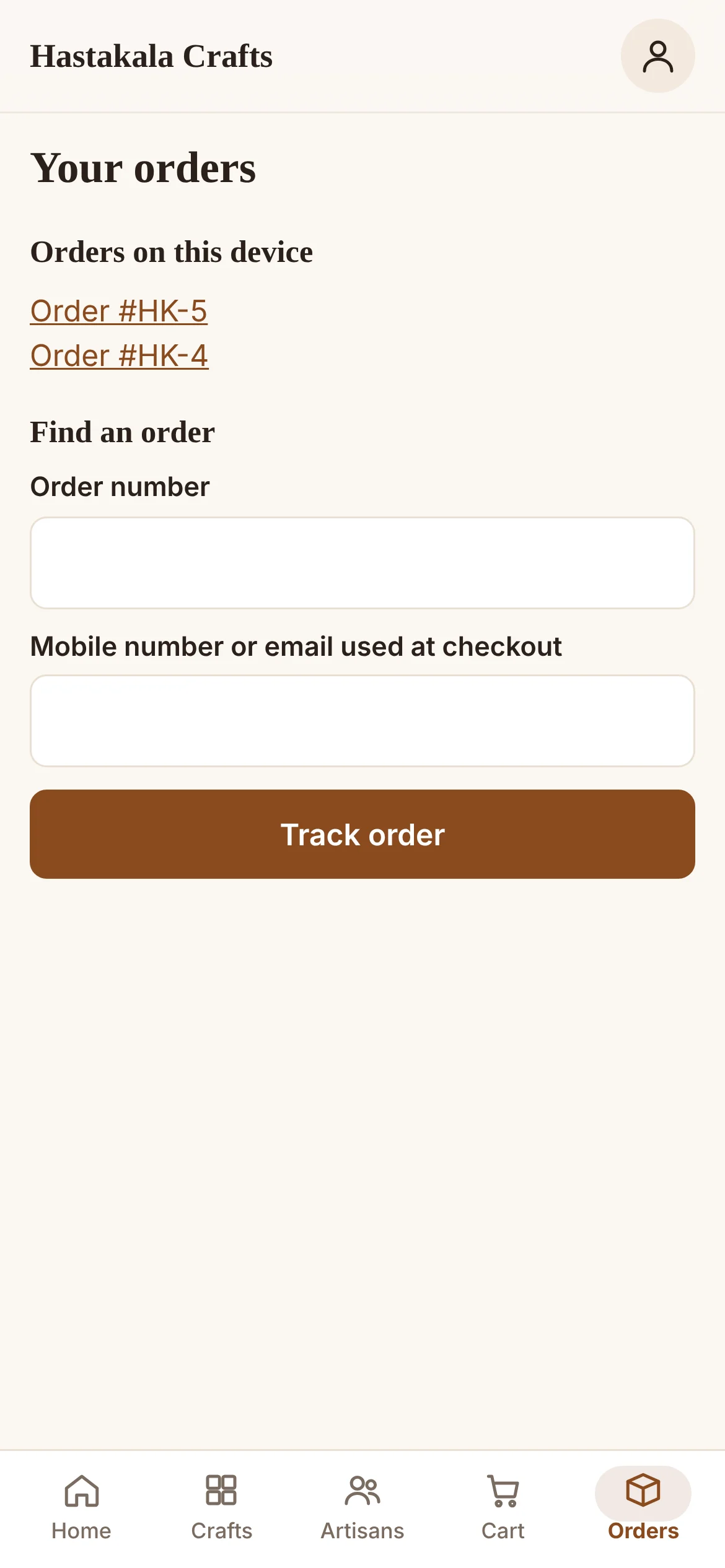
- Home, Crafts, Artisans, Cart, Orders. Signed-in artisans get My work.
Opening and installing
- Share the address
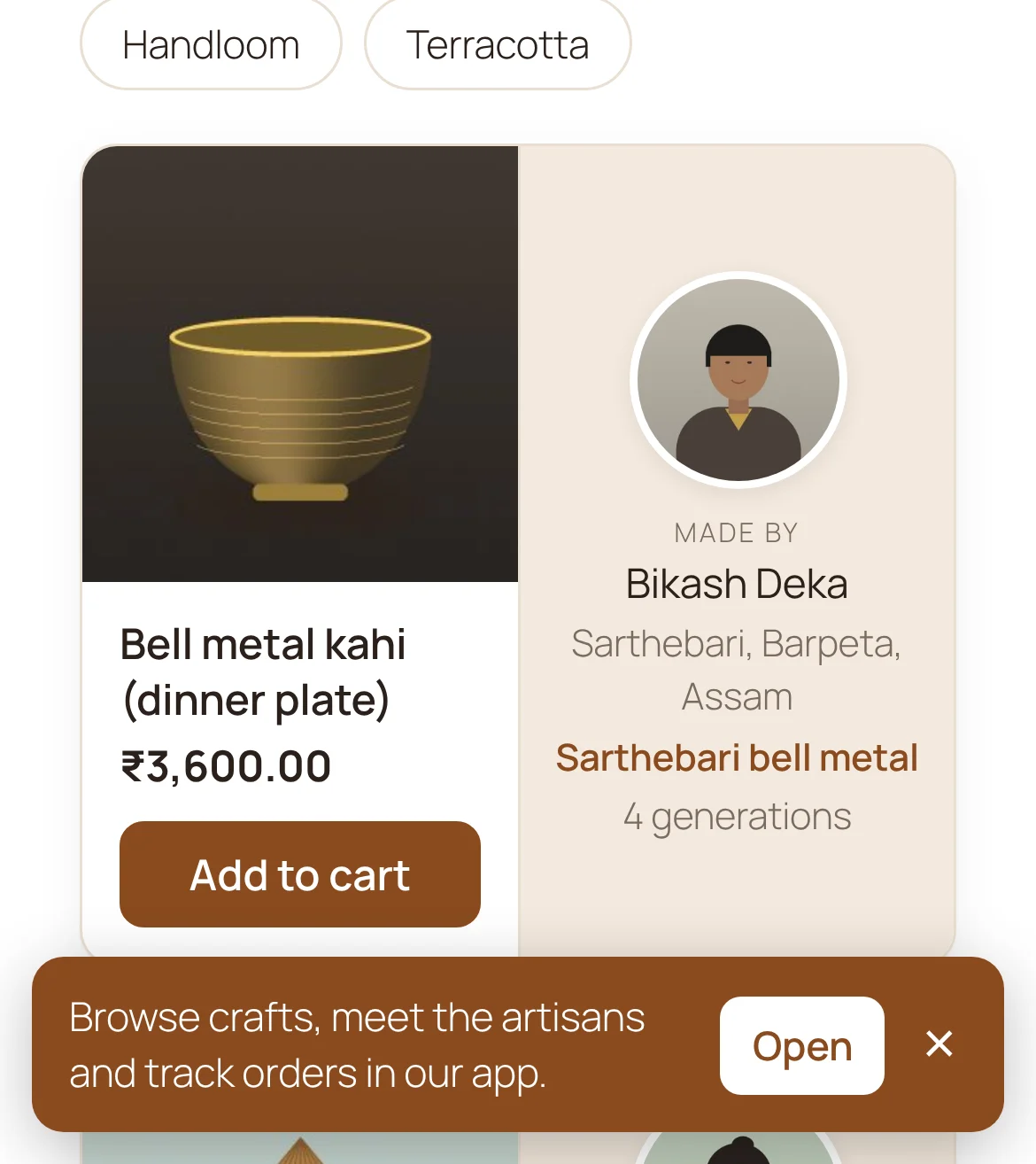
yoursite.com/craft-app/, put it in your menu, or let the website banner invite phone visitors (Settings → Mobile app). - On Android with Chrome, an Install app button appears in the app; on an iPhone, use Safari’s Share → Add to Home Screen. The icon is your Site Icon.
- When offline, the app says so and offers Try again. Updates to the plugins reach installed apps straight away.
Browsing
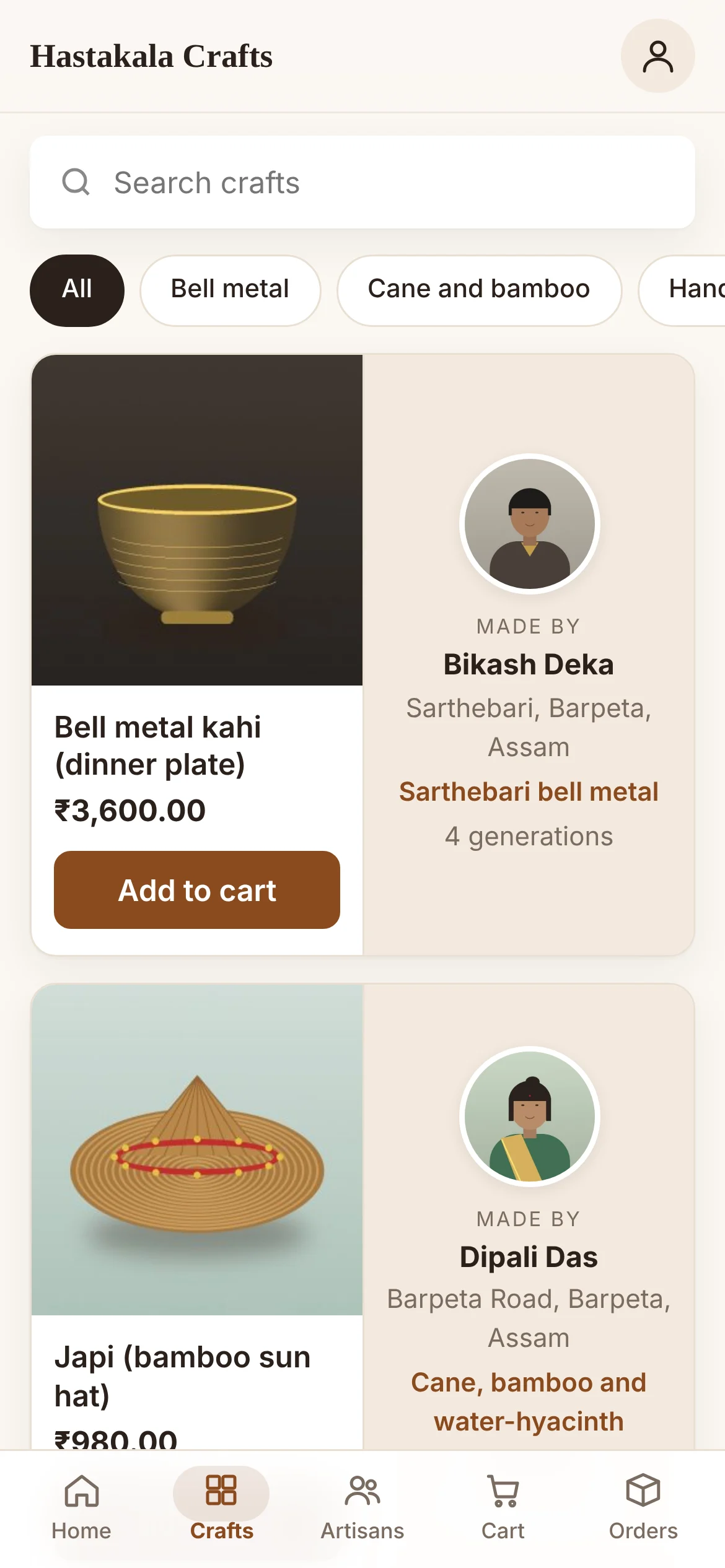
The search boxes on Home, Crafts and Artisans search as you type, in the same fields as the website search. The list below the box updates while the keyboard stays open; tapping Search on the keyboard closes it to show the results. Back leaves the screen rather than stepping back through each search.
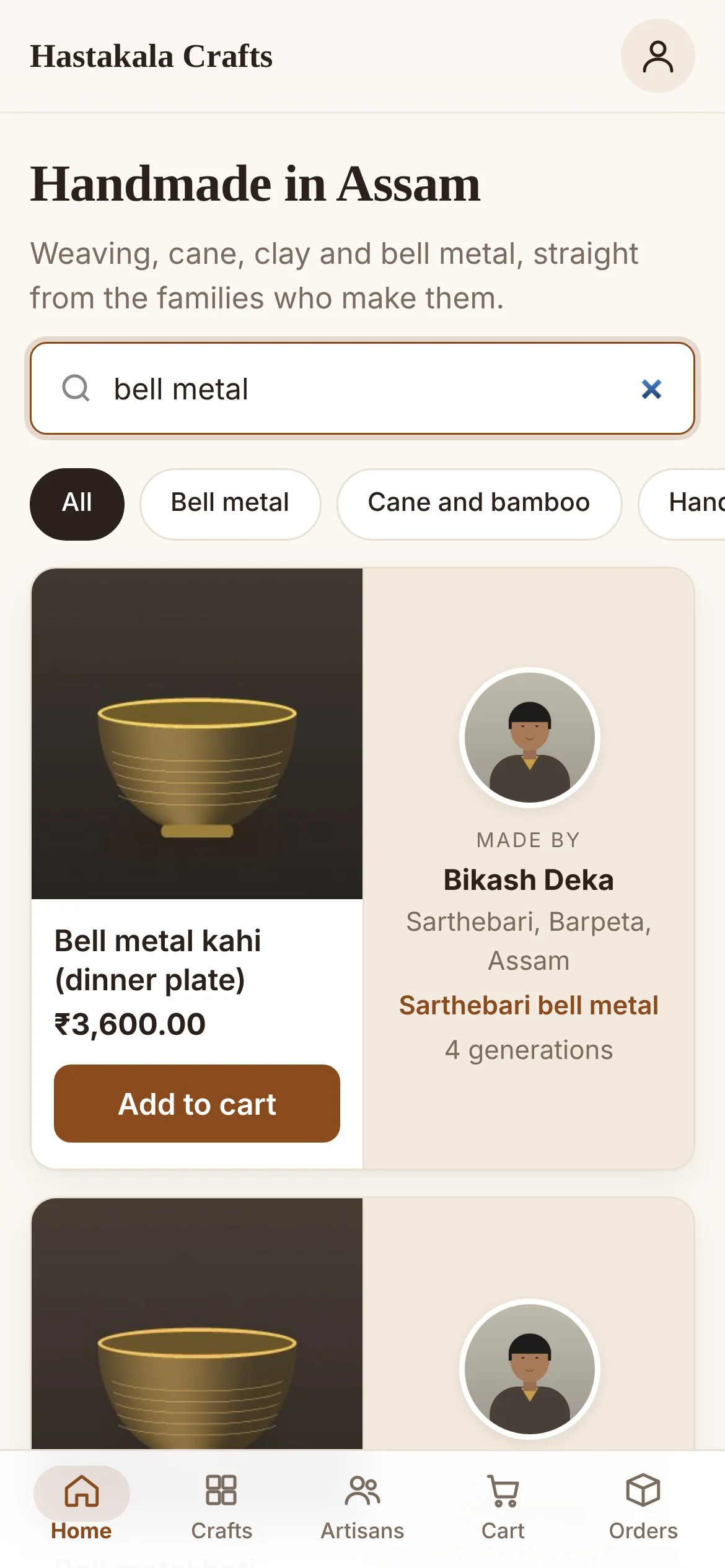
Going back is instant and keeps your place in the list; results are remembered for two minutes.
Buying in the app
Orders and Account
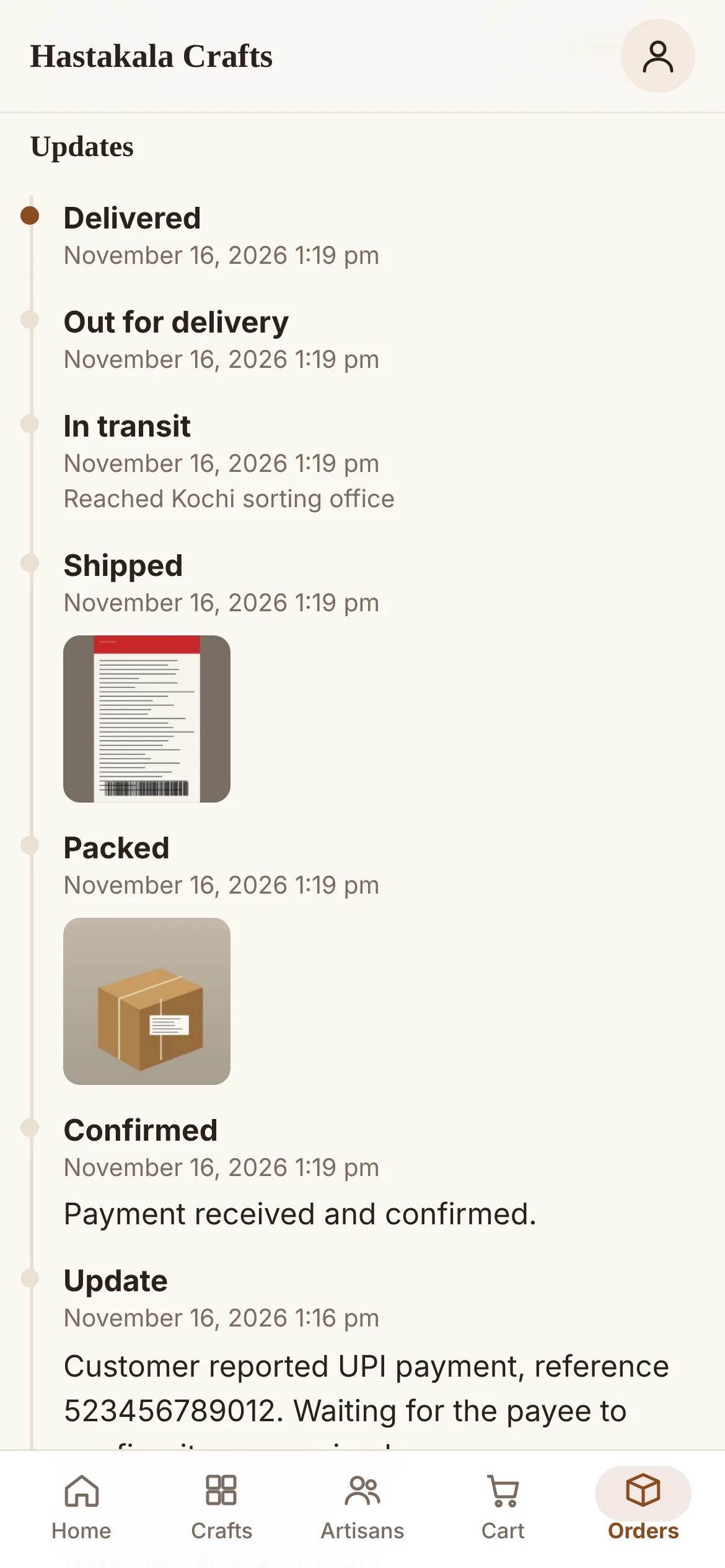
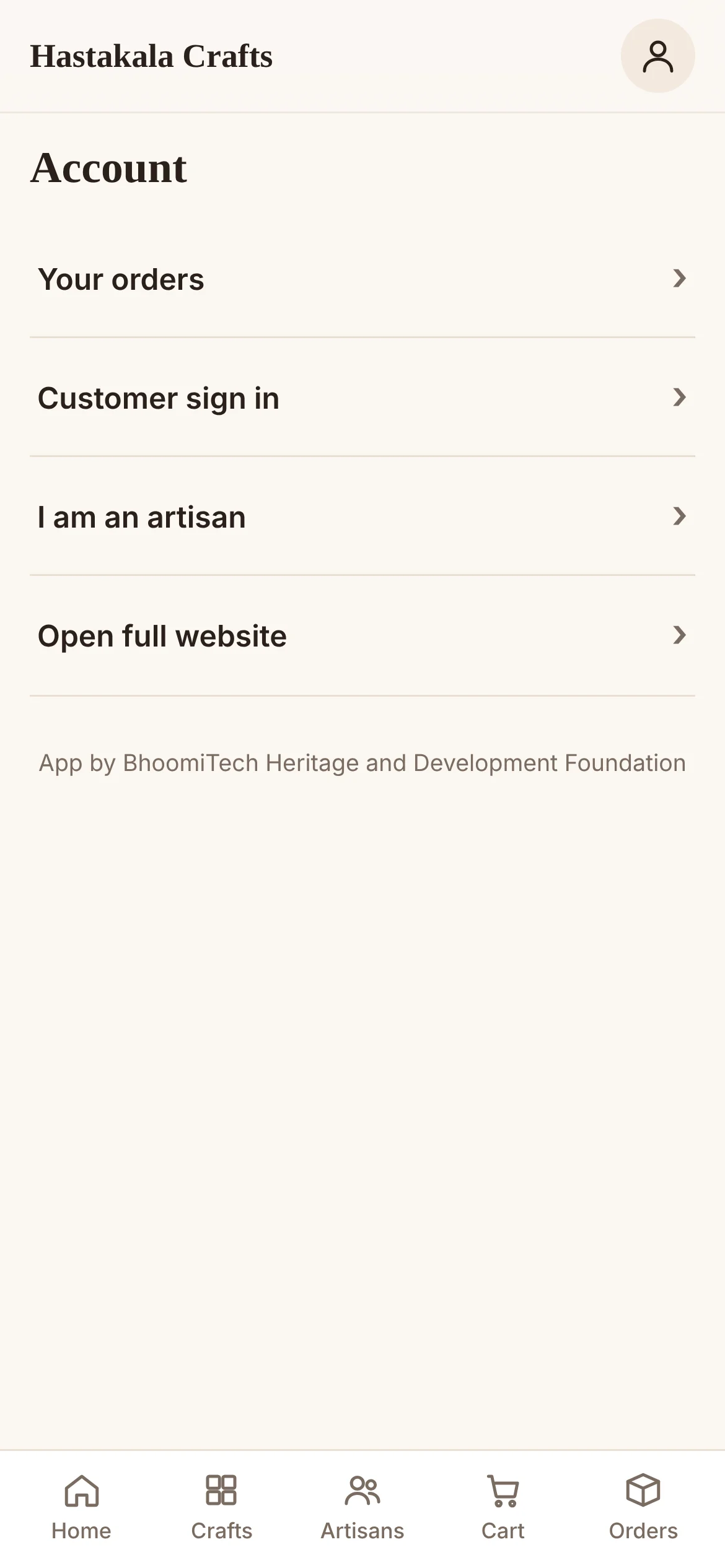
Orders
How orders work
Every order has an order status (where the parcel is) and a payment status (where the money is). Who moves it along depends on how the artisan sells.
The two ways an artisan sells
| The website ships | The artisan ships | |
|---|---|---|
| Customer pays | the shop’s UPI ID, or cash on delivery | the artisan’s own UPI ID (UPI only) |
| Confirms the payment | Store staff | Artisan in the app (staff can do it for them) |
| Packs and ships | Store staff | Artisan in the app (staff can do it for them) |
| Money between them | the shop pays the artisan their share once delivered (a payout) | the artisan pays the shop its commission once shipped (a commission payment) |
| In the example | Rupa Kalita, Dipali Das | Hemanta Pal, Bikash Deka |
An order, step by step
Customer
Customer
Staff or artisan
Staff or artisan
Staff or artisan
Staff or artisan
Staff or artisan
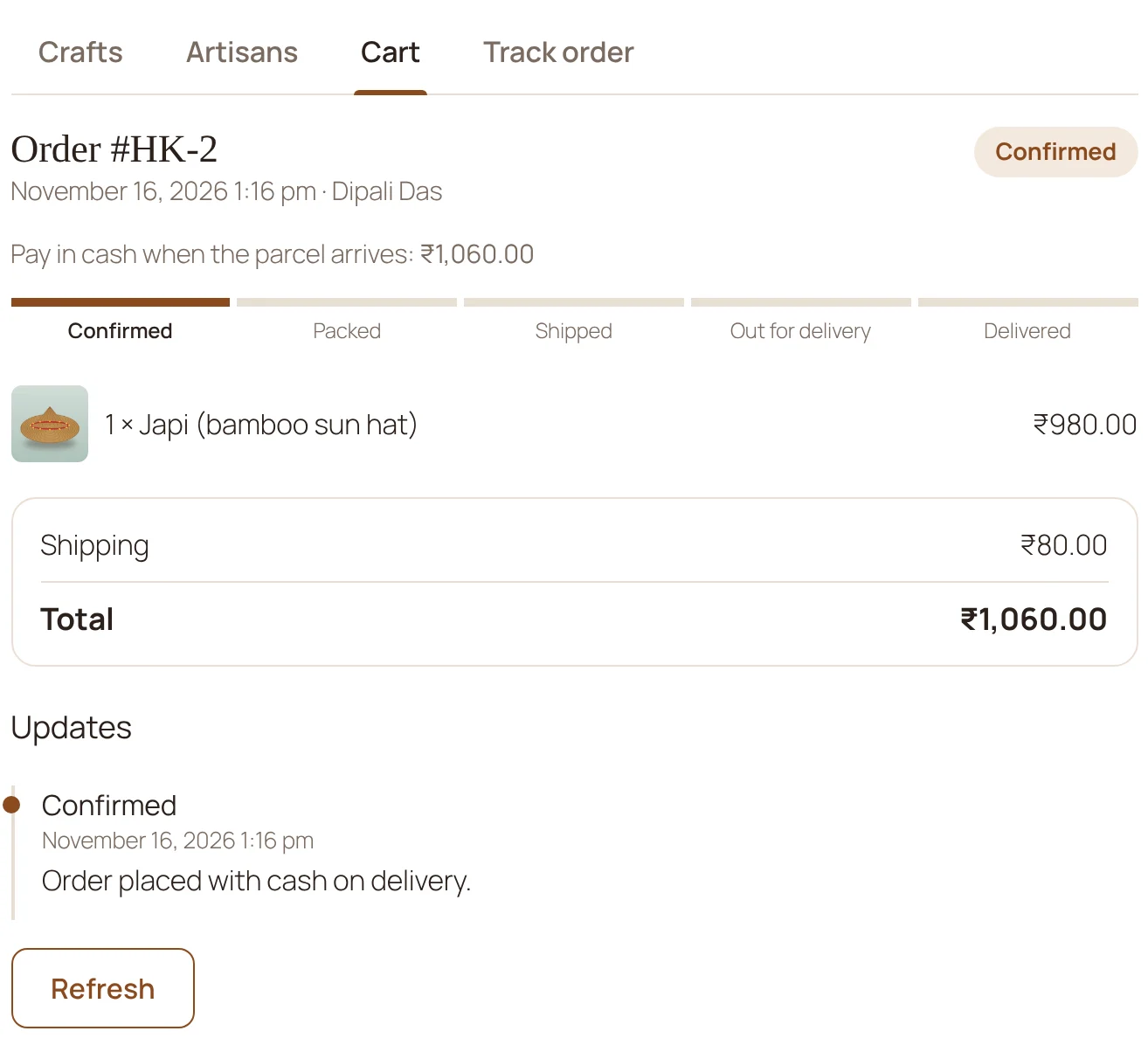
A cash-on-delivery order starts at Confirmed and becomes Paid when it is delivered.
Order statuses
| Status | Meaning | Can move to |
|---|---|---|
| Awaiting payment | Placed; UPI not yet confirmed. | Confirmed (by confirming the payment), Cancelled |
| Confirmed | Paid, or a COD order. | Packed, Shipped, Cancelled |
| Packed | Ready to go. | Shipped, Cancelled |
| Shipped | Handed to the courier. A courier must be chosen. | In transit, Out for delivery, Delivered, Returned |
| In transit, Out for delivery | Updates on the way, each with an optional location. | Each other, Delivered, Returned |
| Delivered | Done. | Returned |
| Cancelled, Returned | Closed. | — |
Payment statuses
| Status | Meaning |
|---|---|
| Not paid | No reference yet (or a COD order not yet delivered). |
| Payment to verify | The customer gave a reference; the payee must check their bank. |
| Paid | The payee confirmed it, or a COD order was delivered. |
| Refund due | Cancelled after payment (or after a reference was given): the payee must refund the customer by UPI. |
| Refunded | The refund reference has been recorded. |
Cancelling and refunds
- Customers can cancel online only while the order is unpaid and has no reference.
- Staff, and artisans who ship (“I cannot make this order”), can cancel until the parcel ships, giving a reason the customer sees.
- The stock comes back. If money was paid, the payment becomes Refund due: whoever received it refunds the customer by UPI and records the refund UTR.
- A settlement that was due on a cancelled or returned order is dropped.
Who did what
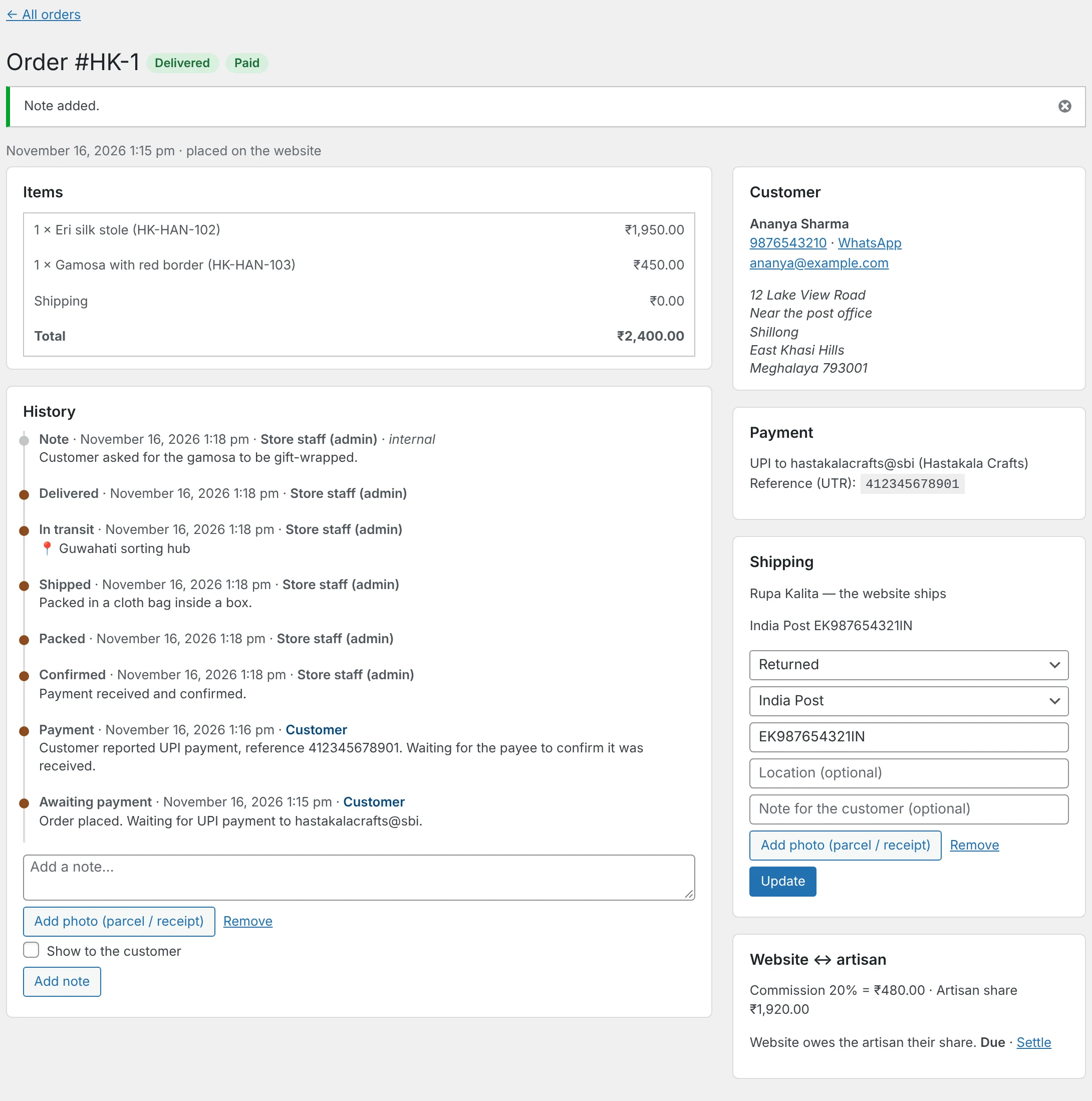
Every step is recorded in the order’s history with the time and who did it: Customer, Artisan, Store staff, Automatic, or Store staff for the artisan when staff act on an artisan-shipped order on the artisan’s behalf.
Orders
Running orders (staff)
The store team works from the dashboard: see what needs doing, open the order, take the next step. Staff with the Store staff role can do everything in this chapter.
The dashboard
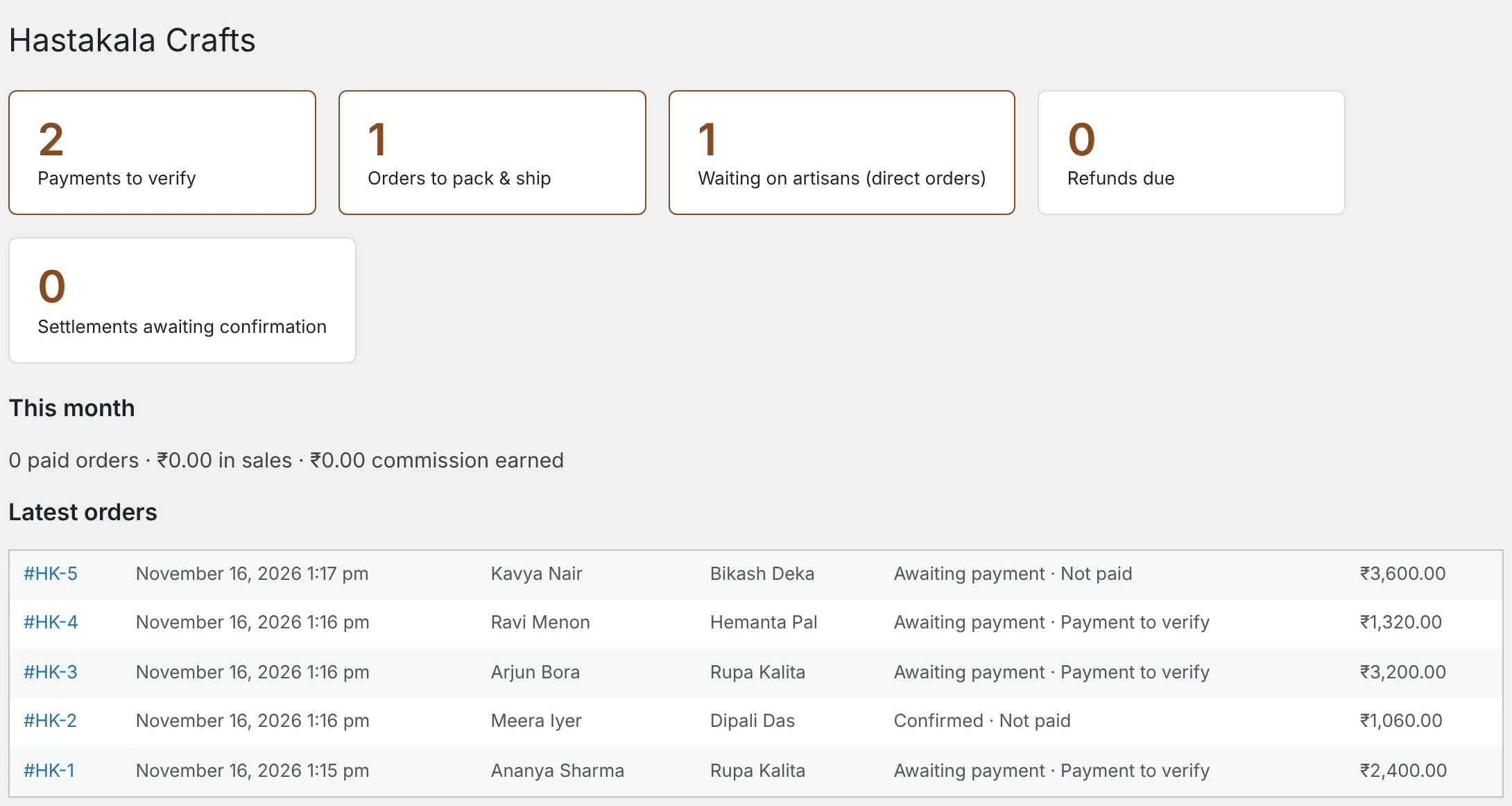
Artisan Outlet → Dashboard counts what is waiting: payments to verify, orders to pack & ship, orders waiting on artisans (artisan-shipped orders not yet done), refunds due and settlements awaiting confirmation. Click a number to see those orders. Below are this month’s paid orders, sales and commission, and the latest orders.
The order list
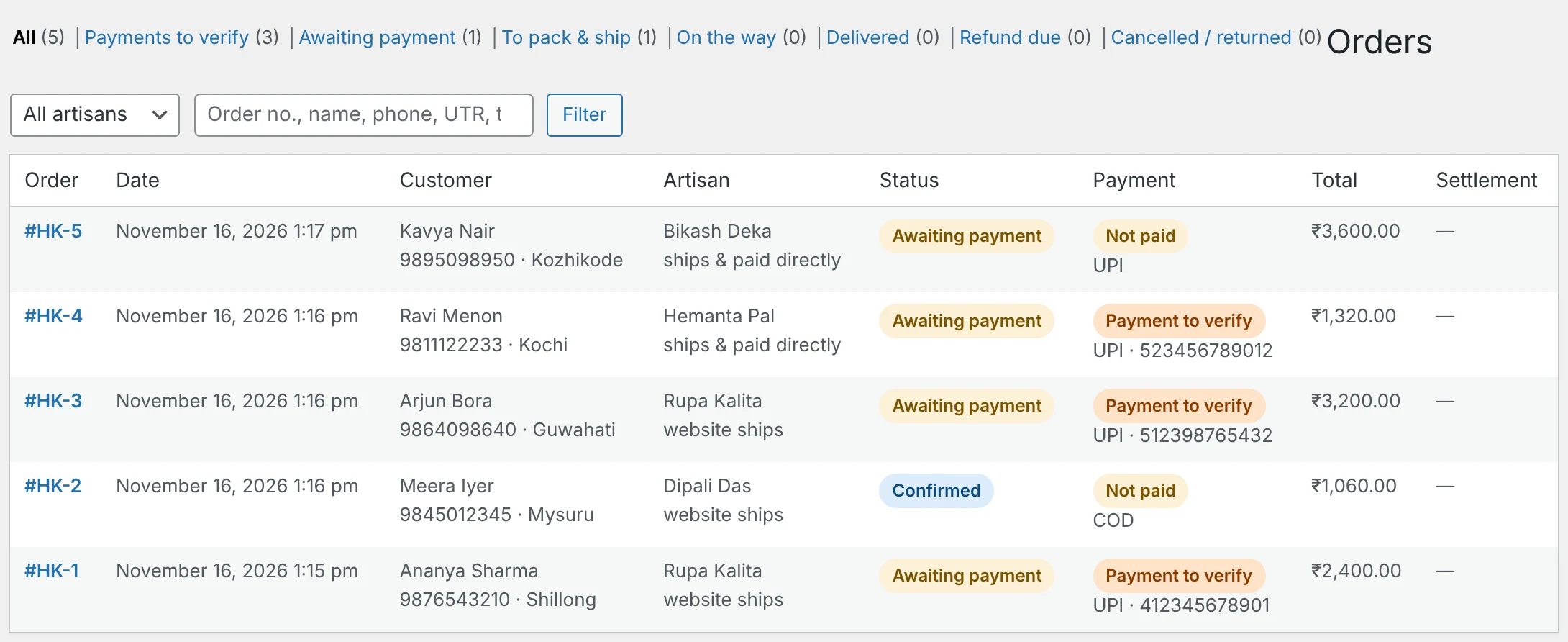
- Filters: Payments to verify, Awaiting payment, To pack & ship, On the way, Delivered, Refund due, Cancelled / returned, and one artisan.
- Search by order number, name, phone, UTR or tracking number.
- Each row shows whether the artisan’s orders are website ships or ships & paid directly, the payment method and reference, and the settlement.
An order
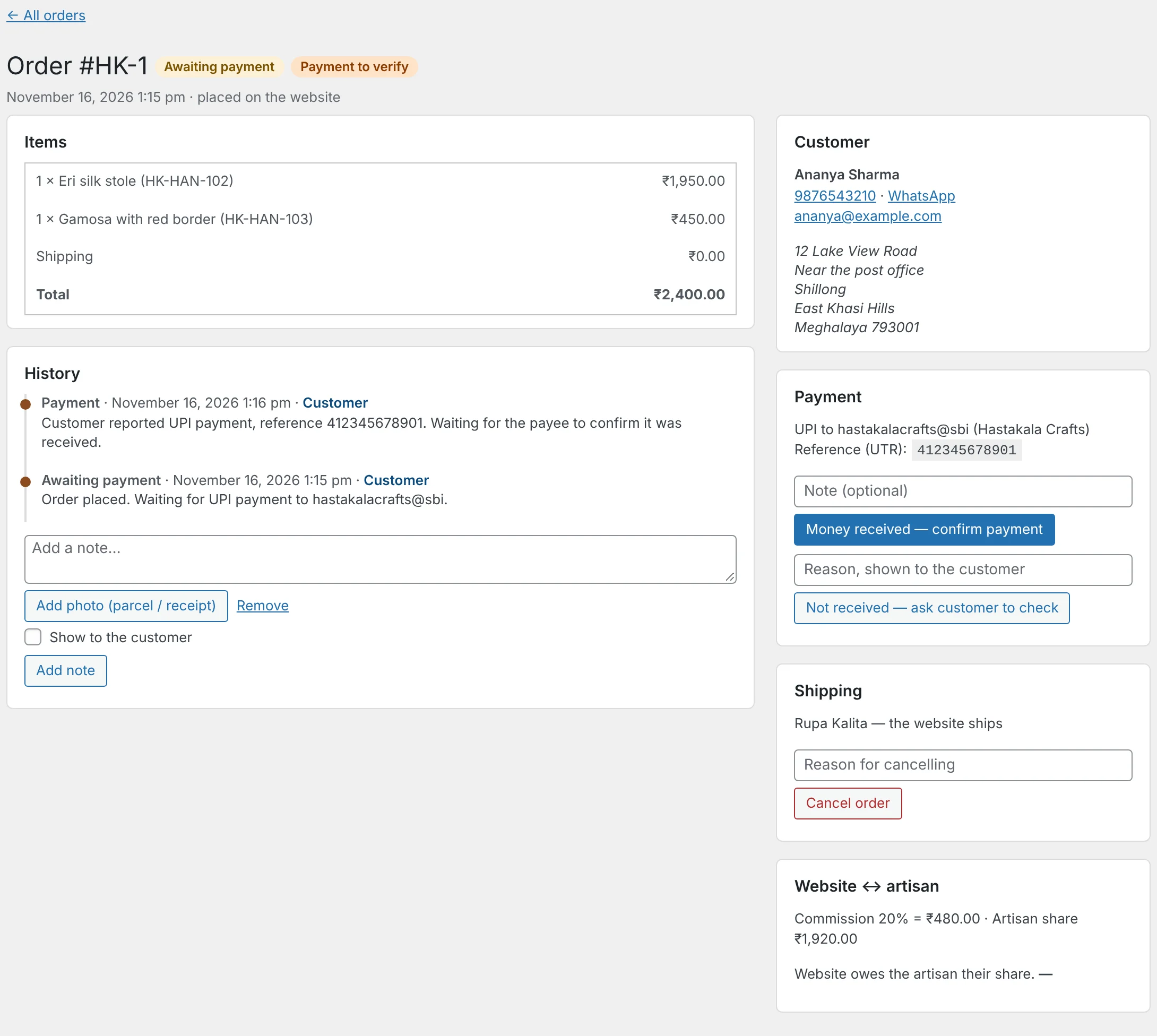
- Order number and statuses, and where it was placed (website or app).
- Items with item codes, shipping and total.
- History and notes.
- Customer, with call and WhatsApp links and the address.
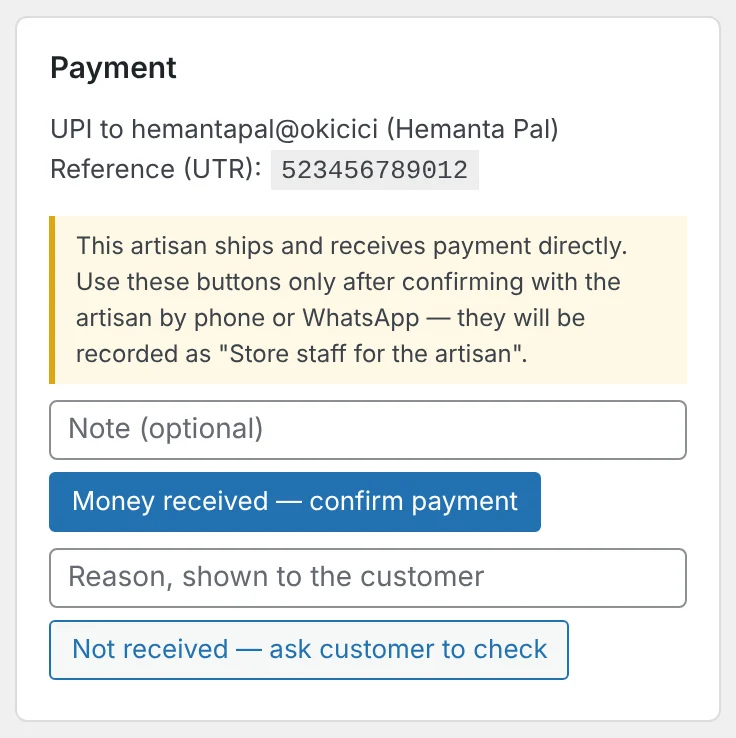
- Payment: confirm, or not received.
- Shipping: who ships, updates, cancel.
- Website ↔ artisan: the commission and the artisan’s share.
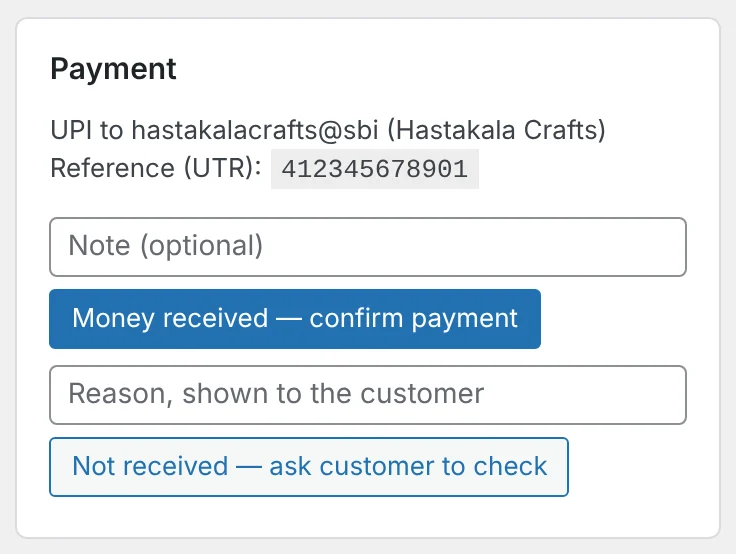
Confirming a payment
- Open your bank or UPI app and look for the amount and the reference shown.
- Found it: Money received — confirm payment (with an optional note). The order becomes Confirmed · Paid and the customer is emailed.
- Not there: type a reason for the customer and click Not received — ask customer to check. They see the reason and can enter the reference again.
Packing and shipping
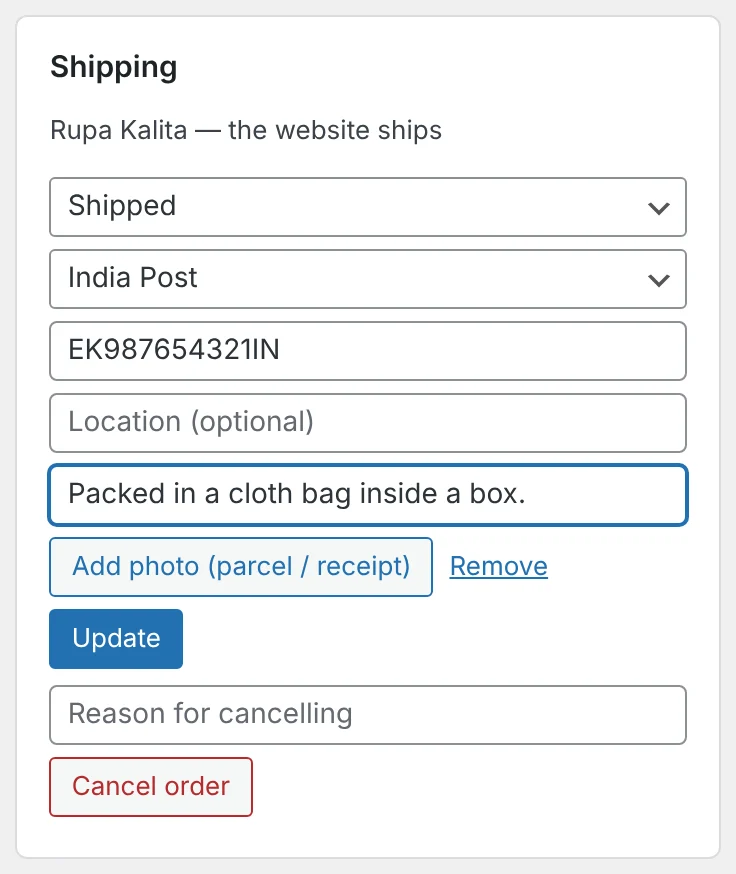
In the Shipping box choose the next status and click Update:
- Packed (optional).
- Shipped: choose the courier (required) and enter the tracking number.
- In transit and Out for delivery, each with an optional location, as often as you like.
- Delivered, or Returned.
Each update can carry a note for the customer and a photo of the parcel or receipt.
Notes
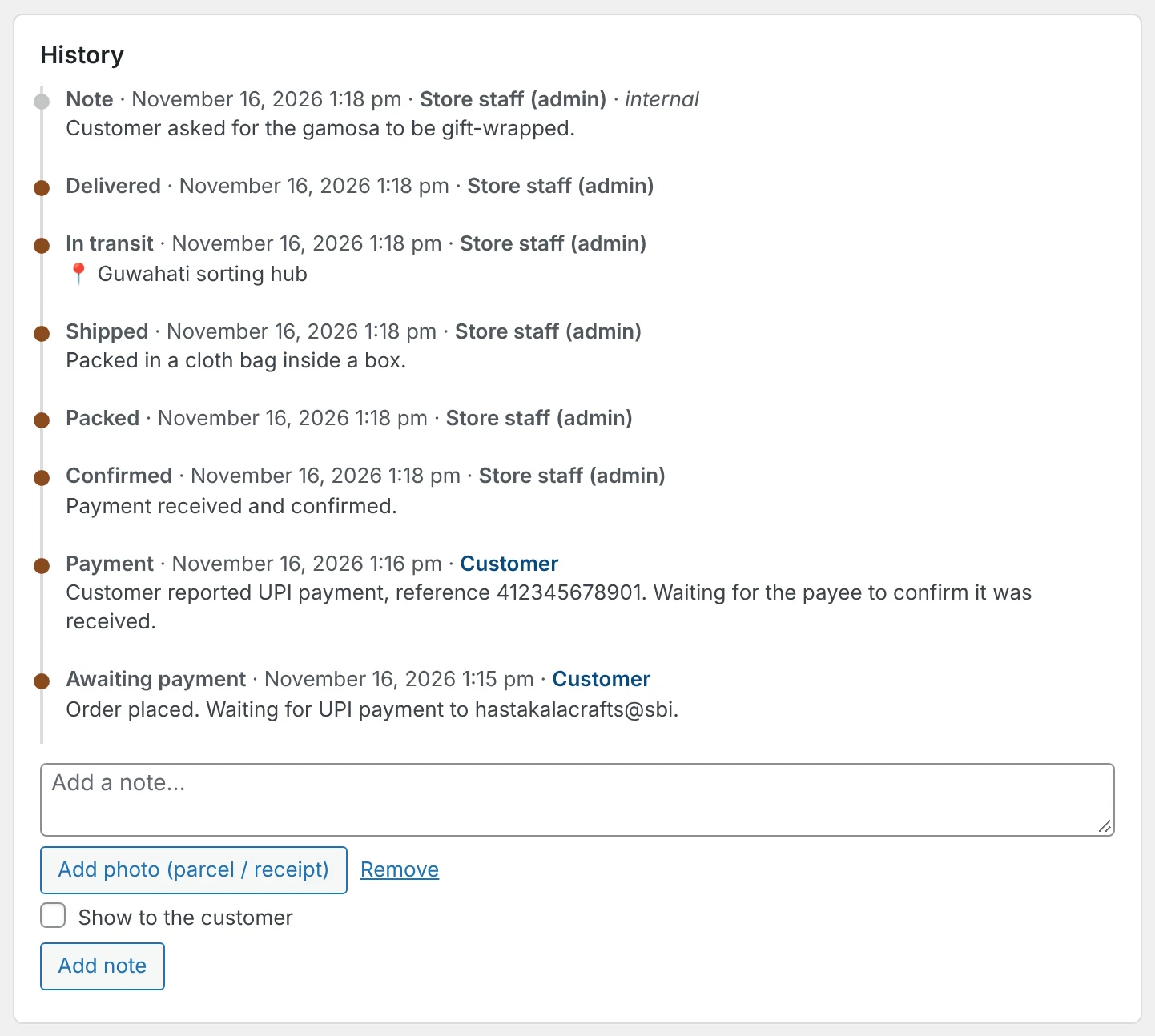
Under the history, type a note and click Add note. Notes are internal unless Show to the customer is ticked. A note can include a photo.
Cancelling and refunding
In the Shipping box, type a reason (the customer sees it) and click Cancel order; this is possible until the order ships. If it was paid, the Payment box then asks you to refund the customer by UPI, then record the reference: enter the Refund UTR and click Record refund.
Orders an artisan ships
The artisan normally does every step in the app, and staff just watch. The same buttons are there in case the artisan can’t use the app, but use them only after confirming with the artisan by phone or WhatsApp. They are recorded as “Store staff for the artisan”.
For refunds on these orders, the artisan refunds from their own UPI account and records the reference.
Emails staff get
At the address in Settings → Store: new orders, payments to verify, an artisan cancelling an order, and settlements.
Orders
The artisan section of the app
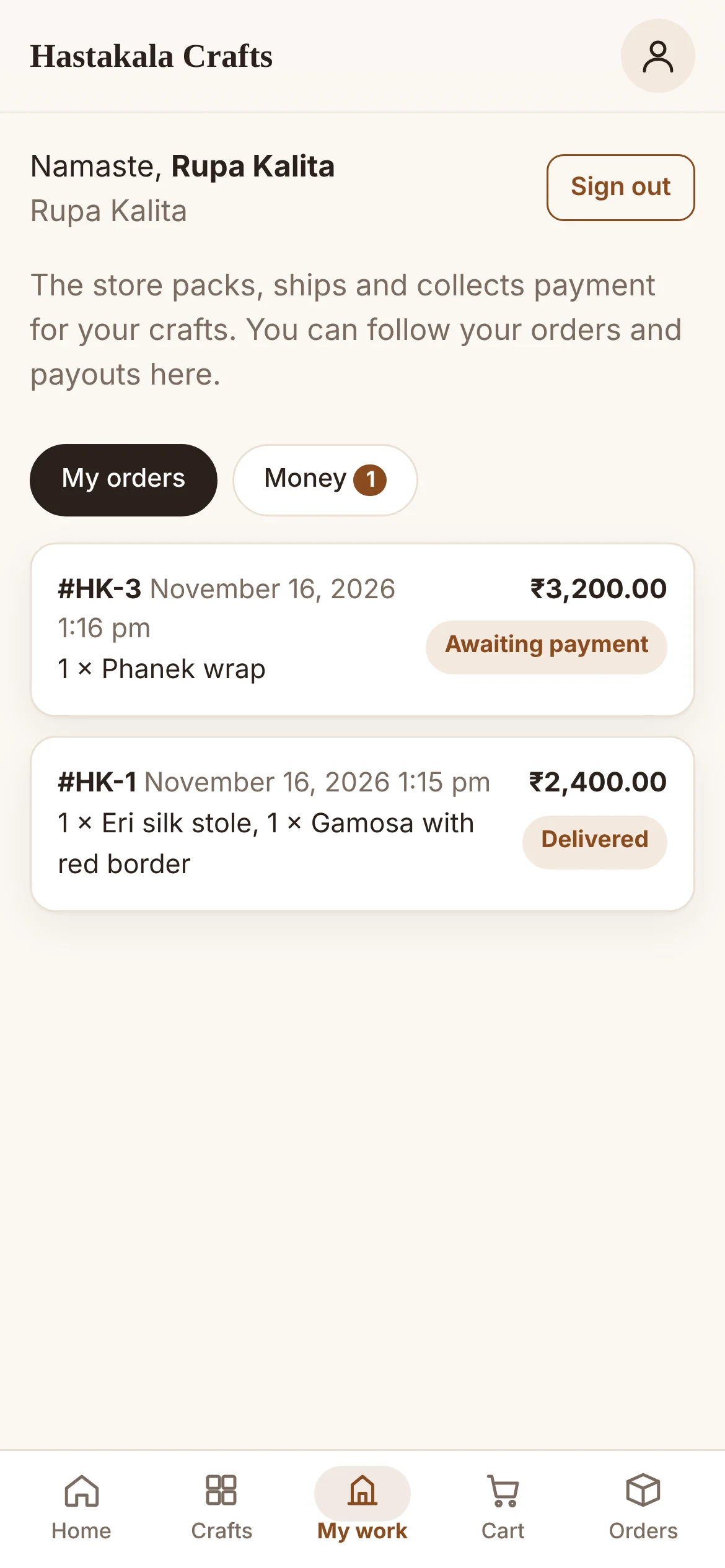
Artisans sign in to the phone app with their mobile number and PIN. Those who ship themselves run their orders here, from checking the payment to delivery, and settle up with the shop. Everything is a few large buttons, in the order the work happens.
Signing in
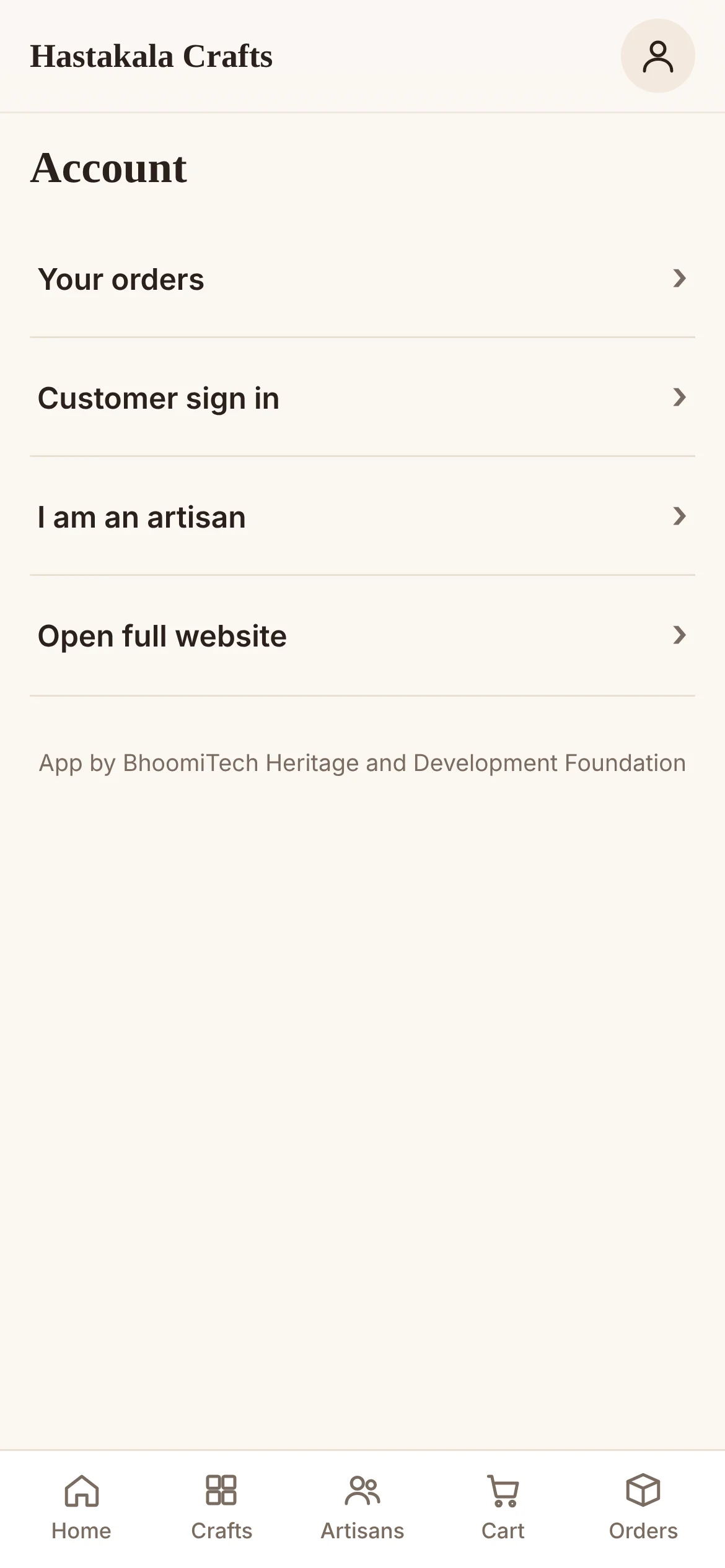
/craft-app/#/ap.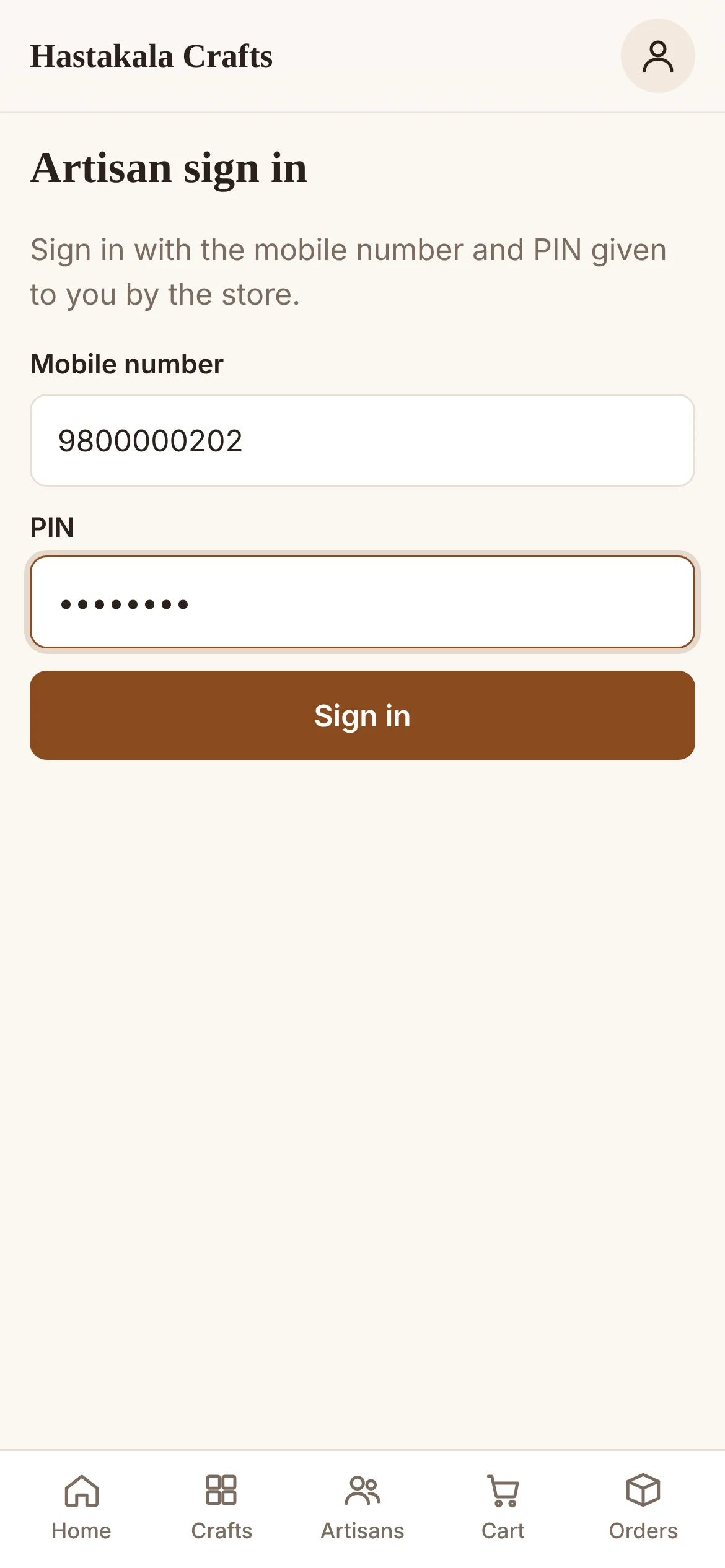
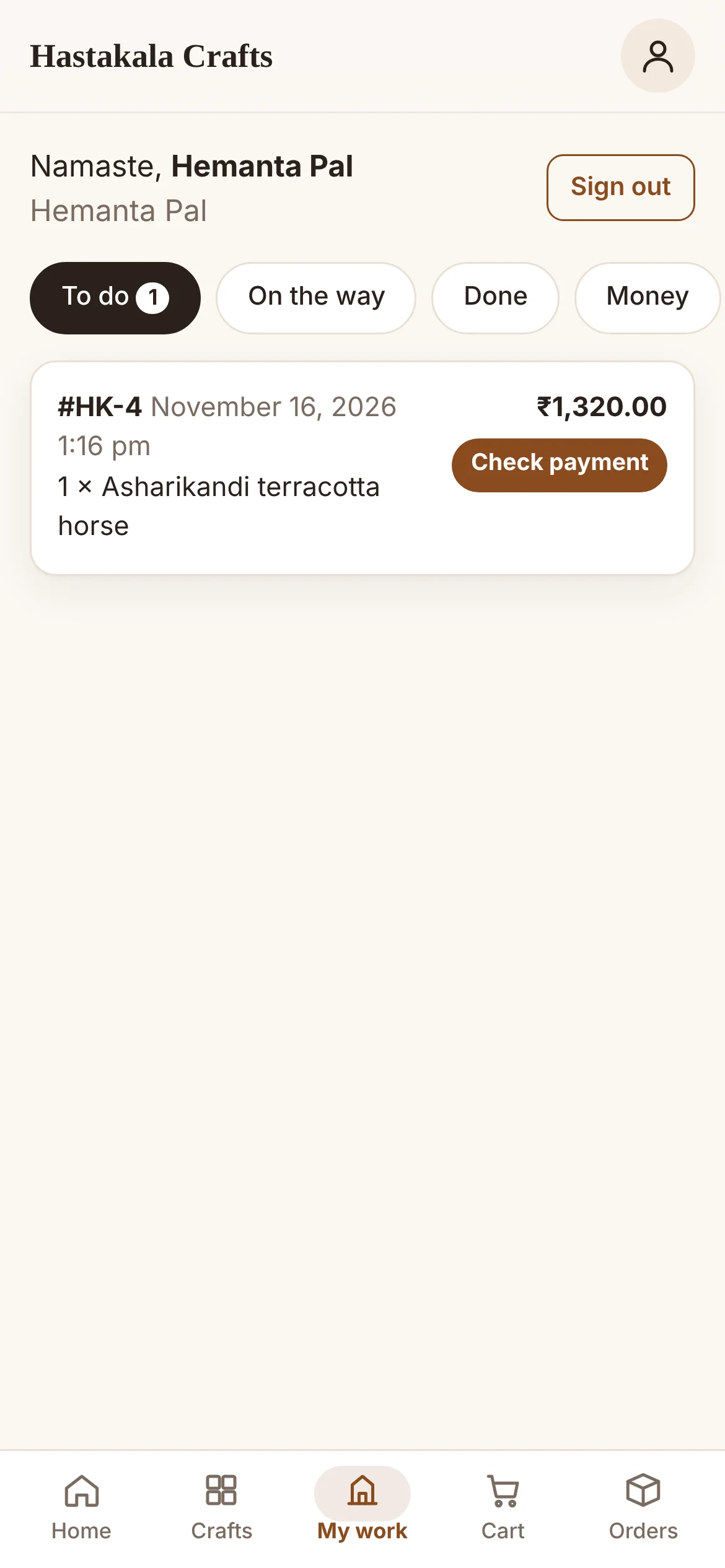
The tabs are To do, On the way, Done and Money. The bottom bar gains My work.
Working an order
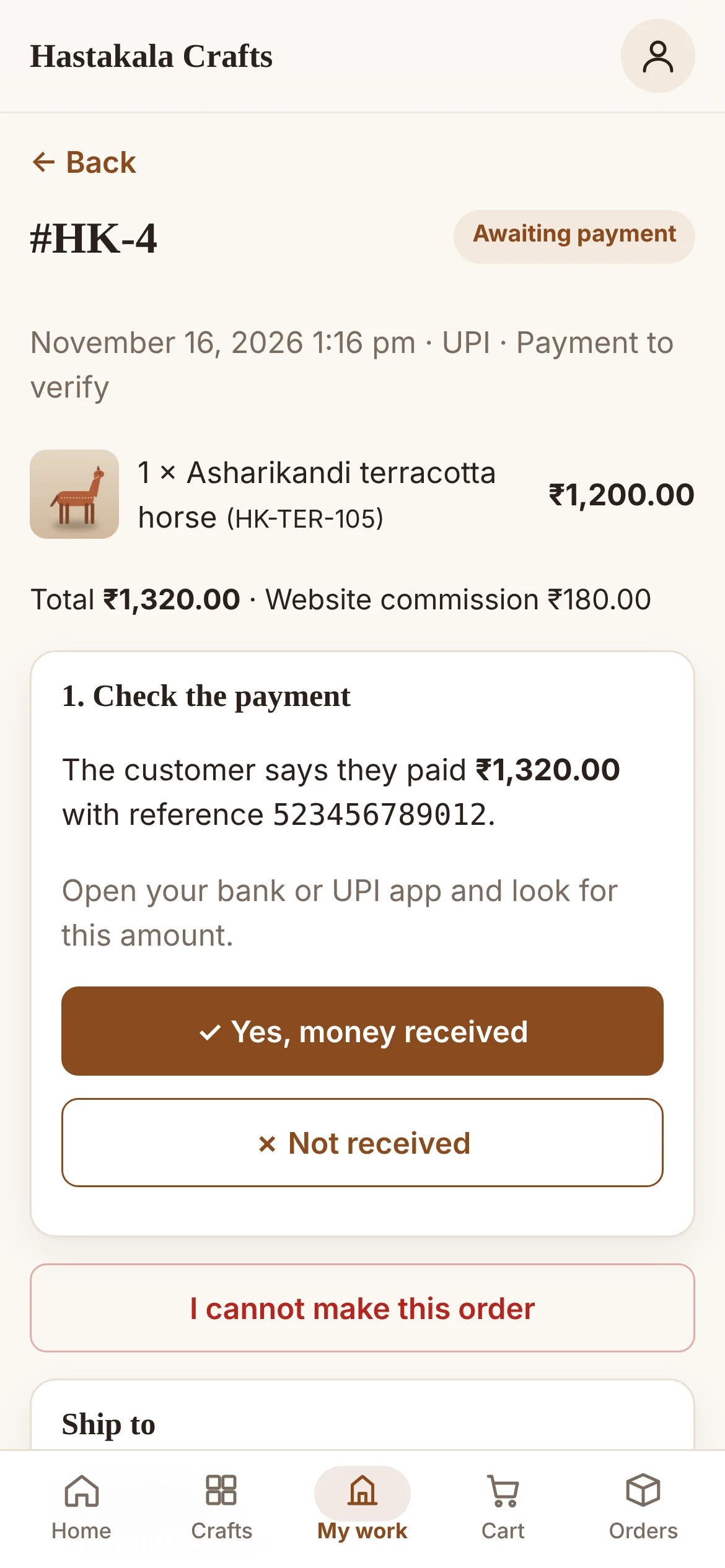
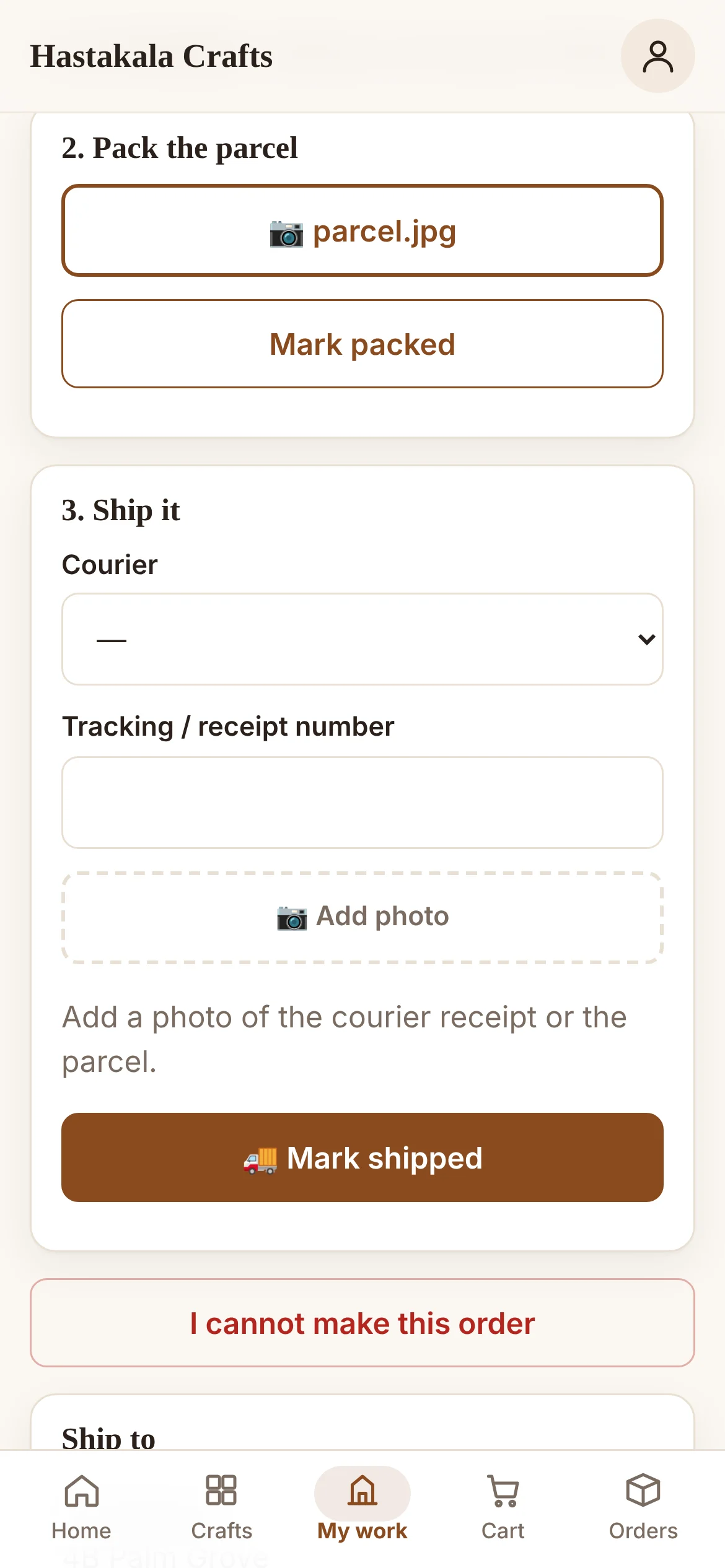
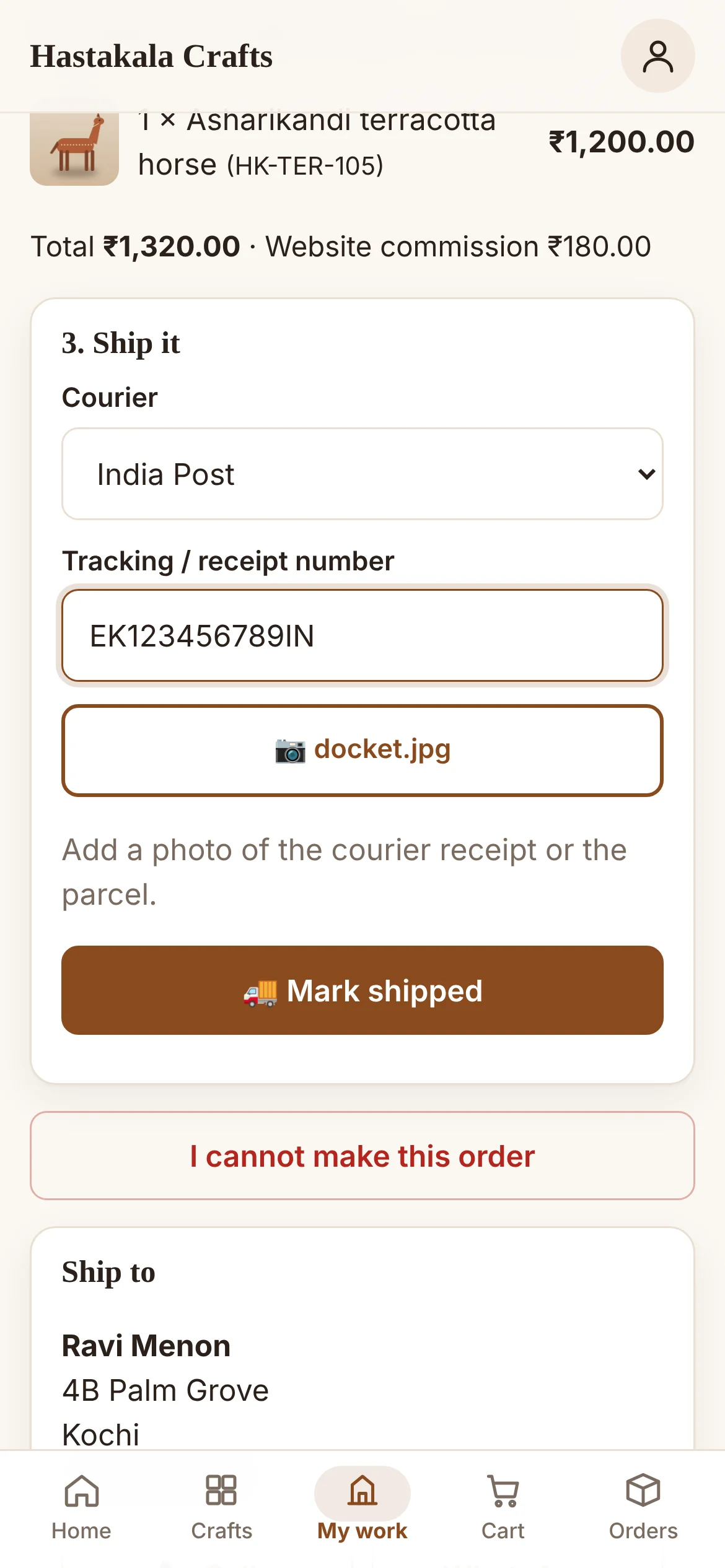
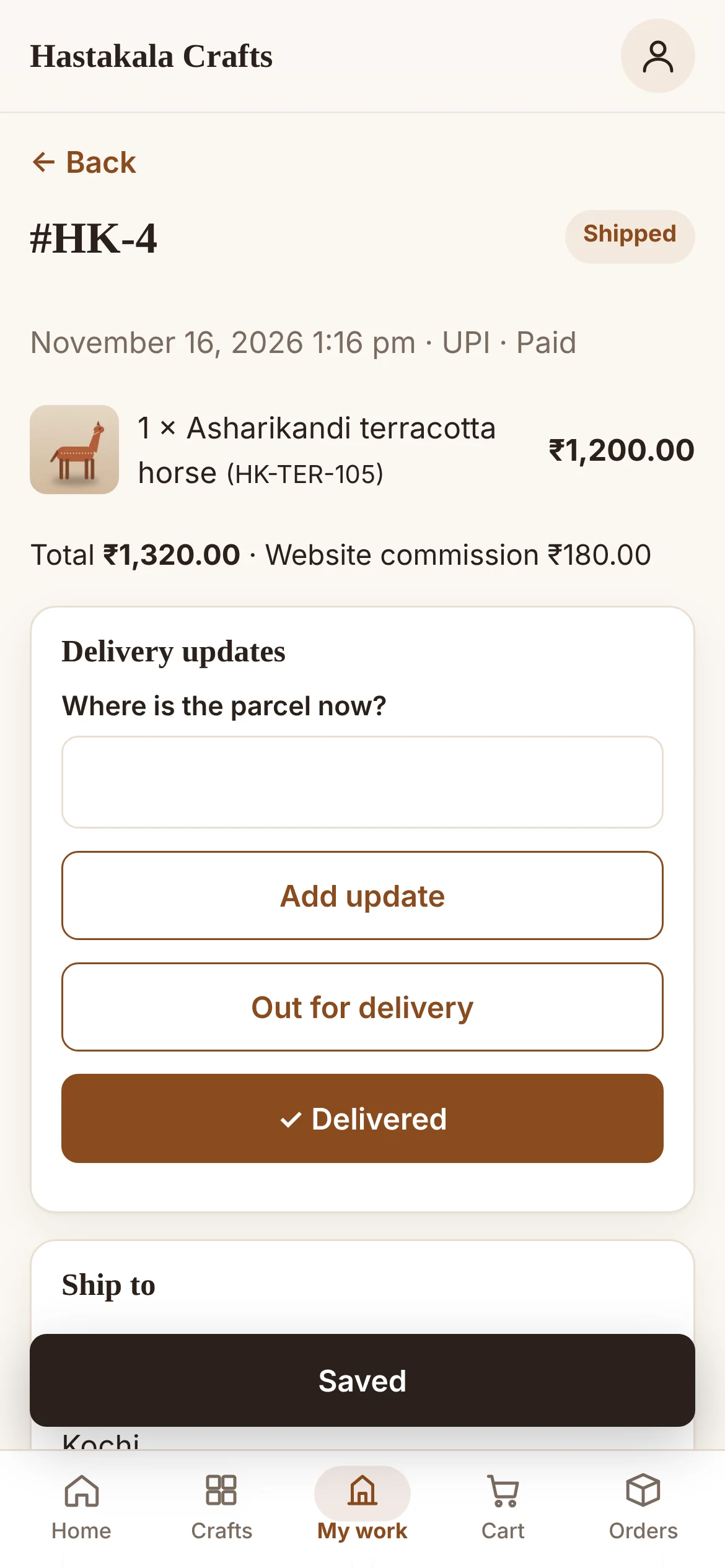
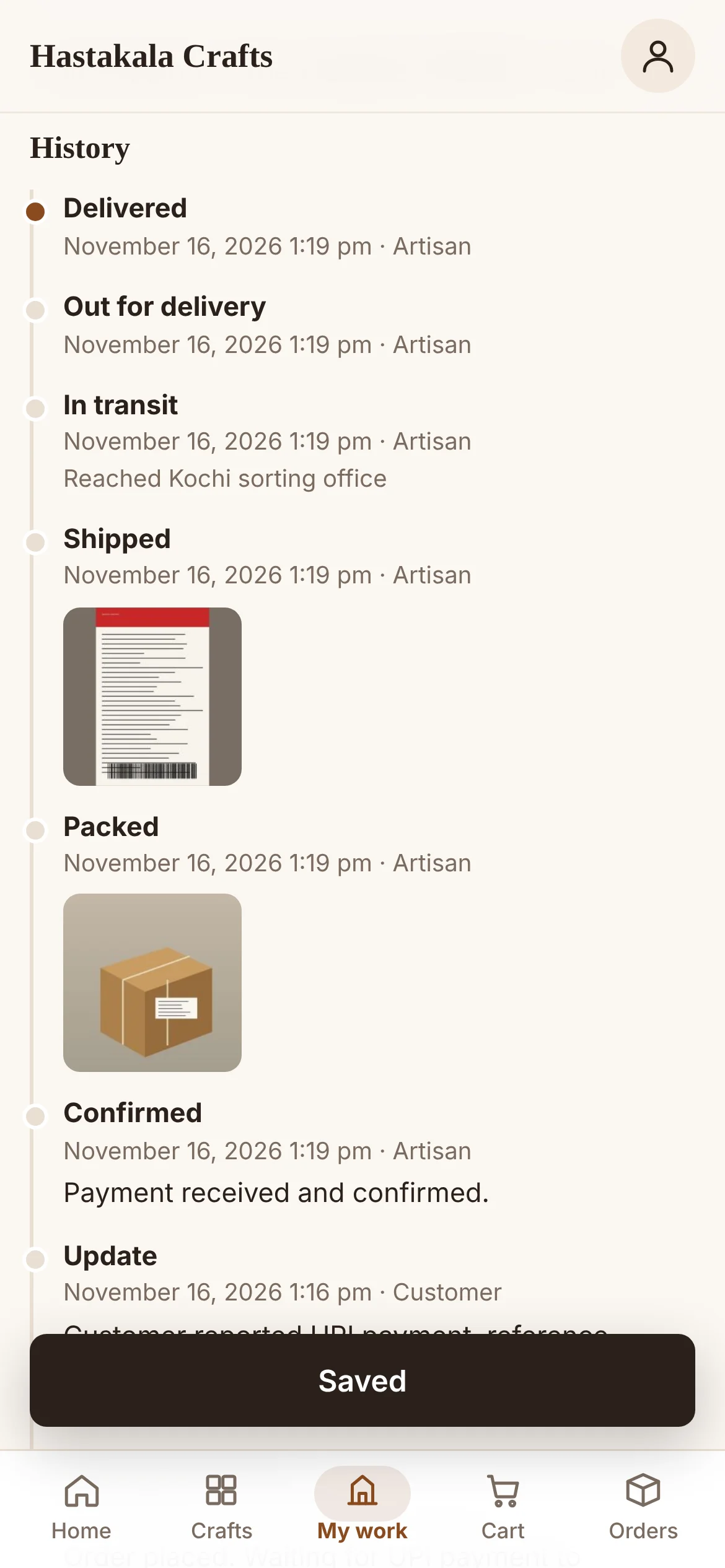
- The order shows the customer’s address with Call and WhatsApp buttons, the total and the website commission.
- I cannot make this order cancels it with a reason the customer sees. If it was paid, the artisan refunds by UPI and enters the refund UTR.
- Photo buttons appear only for the steps switched on in Settings → Artisan app.
Money
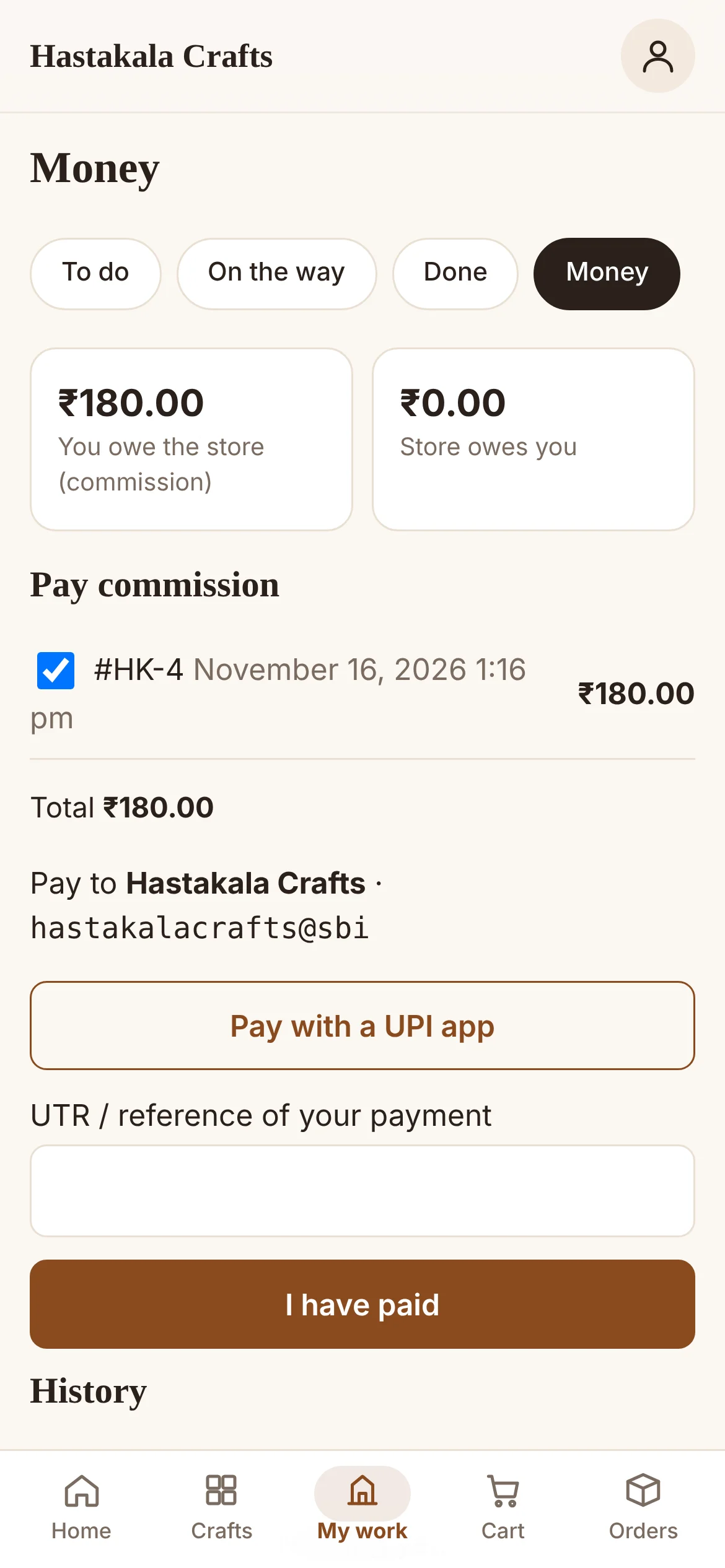
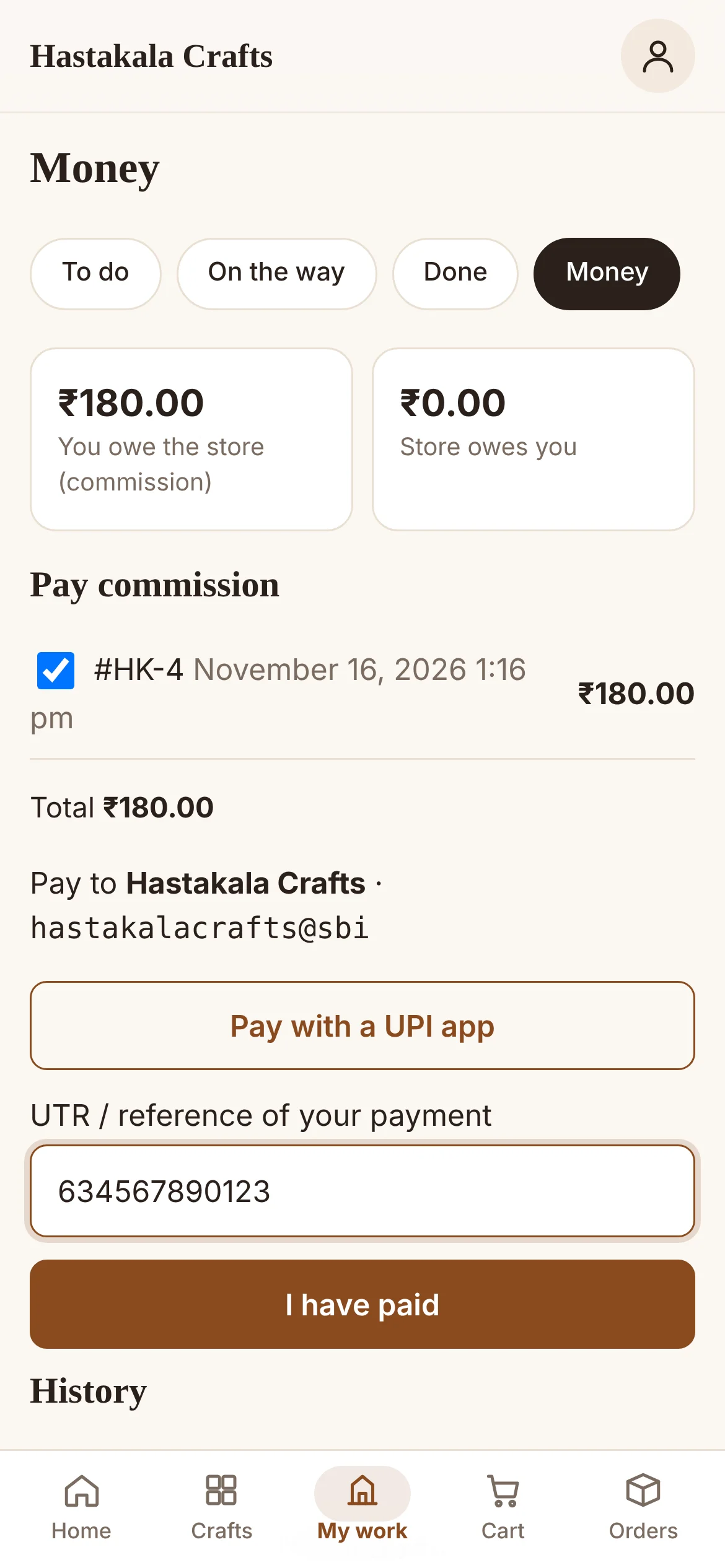
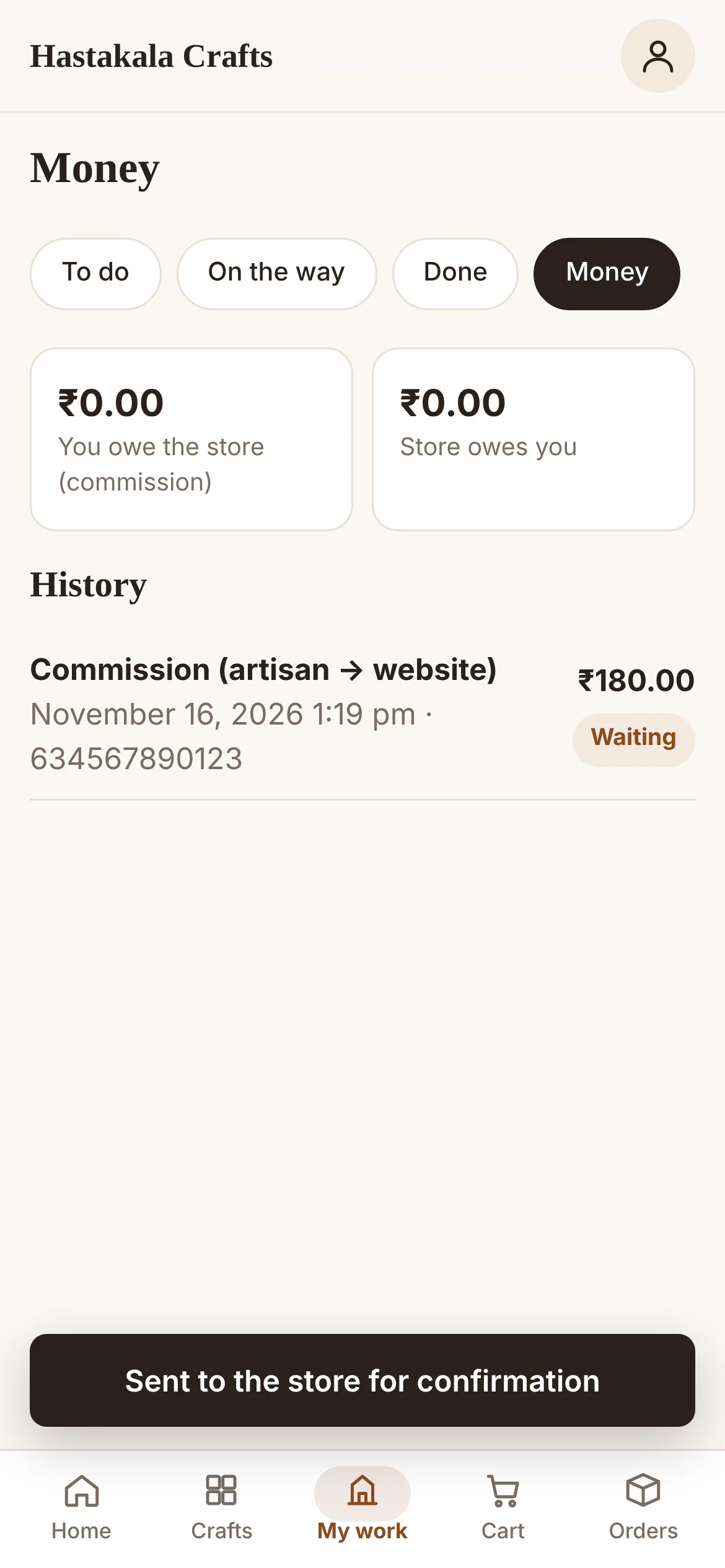
Artisans the website ships for
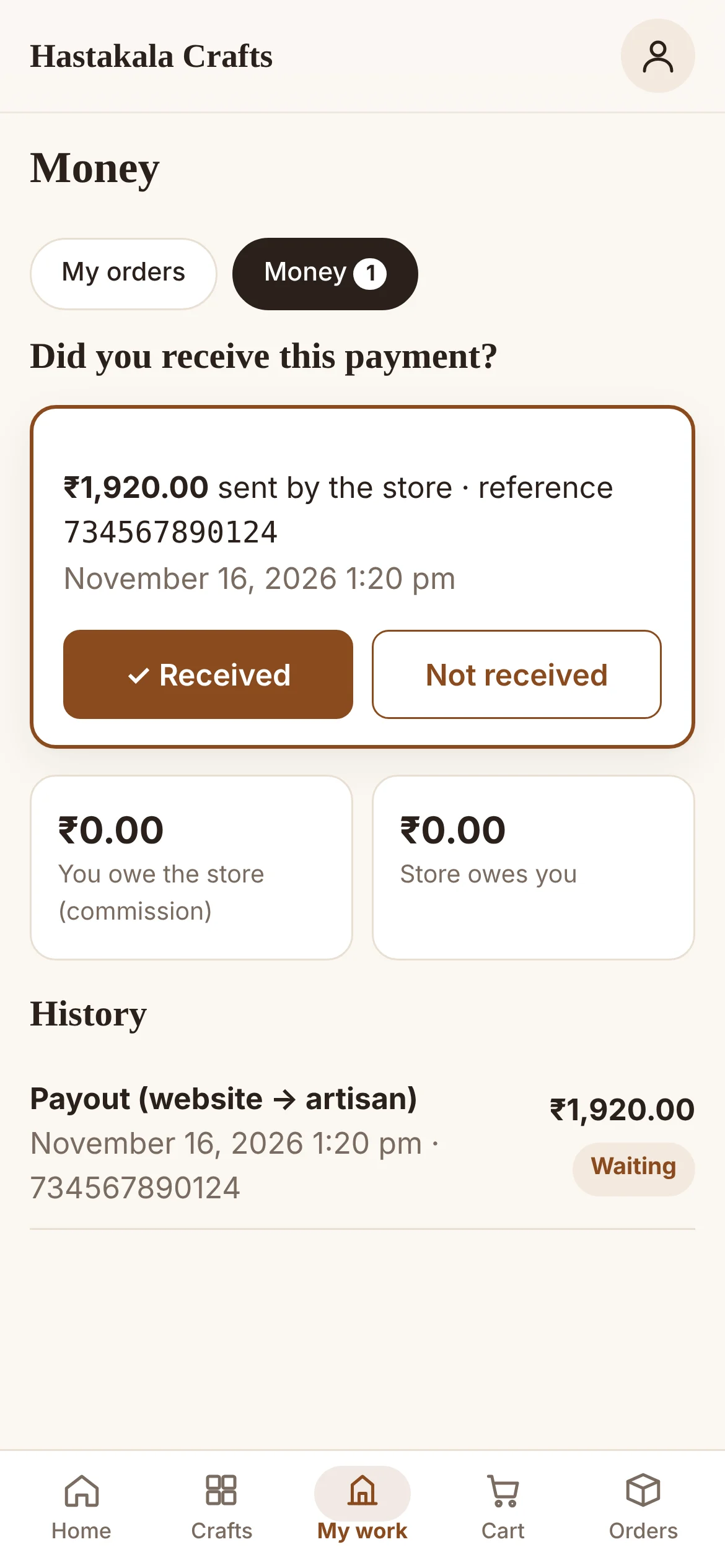
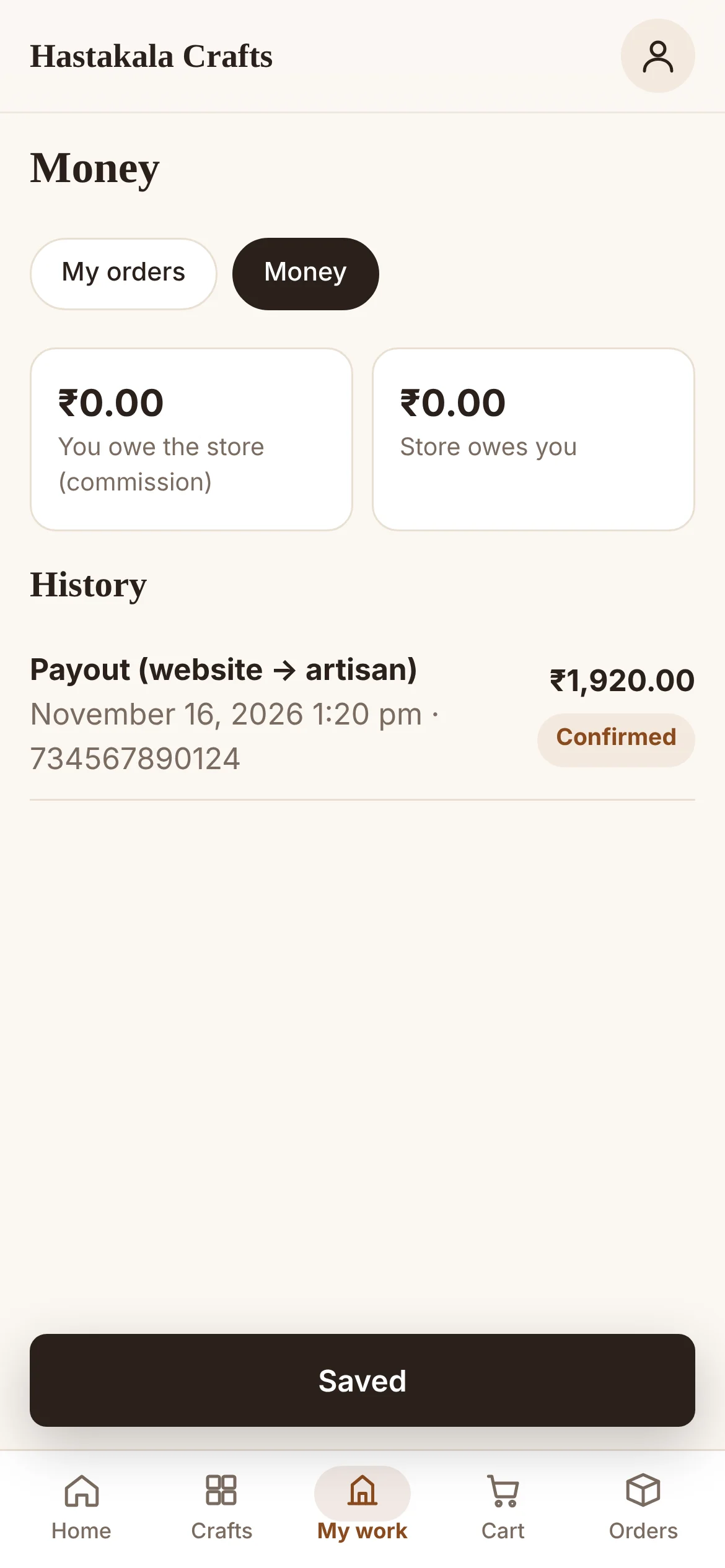
Artisans with an email on their login also get emails for new orders, payments to verify and payouts to confirm.
Money
Settling up with artisans
Each order fixes, at the moment it is placed, the shop’s commission and the artisan’s share. Settling up means one side paying the other and the receiving side confirming it. Nothing counts as settled until the person who got the money says so.
The amounts
Commission is a percentage of the items total, not counting shipping. From the example orders:
| Order | Who ships | Items | Shipping | Commission | Artisan’s share | Who owes whom |
|---|---|---|---|---|---|---|
| HK-1 (Rupa) | website | ₹2,400 | free | 20% = ₹480 | ₹1,920 | the shop pays Rupa ₹1,920 once delivered |
| HK-4 (Hemanta) | artisan | ₹1,200 | ₹120 | 15% = ₹180 | ₹1,020 | Hemanta (who was paid ₹1,320) pays the shop ₹180 once shipped |
The Settlements page
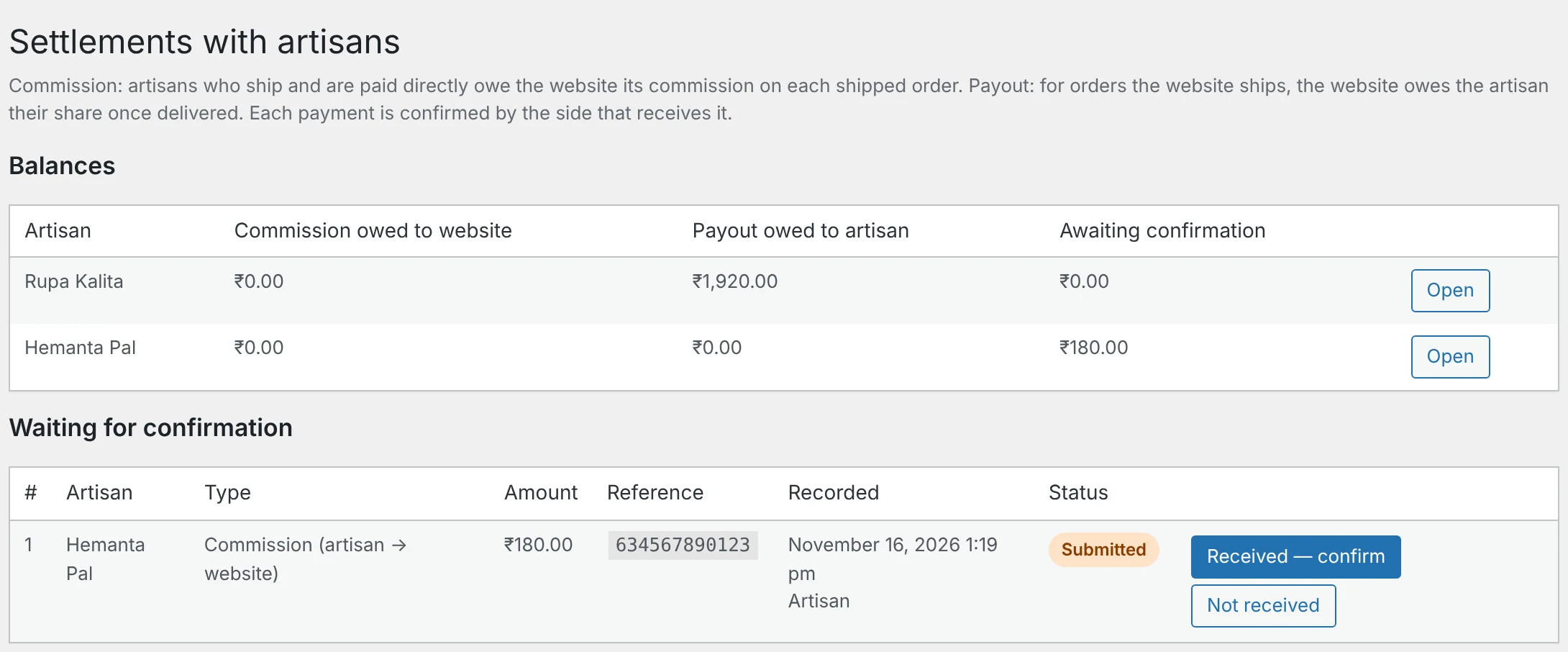
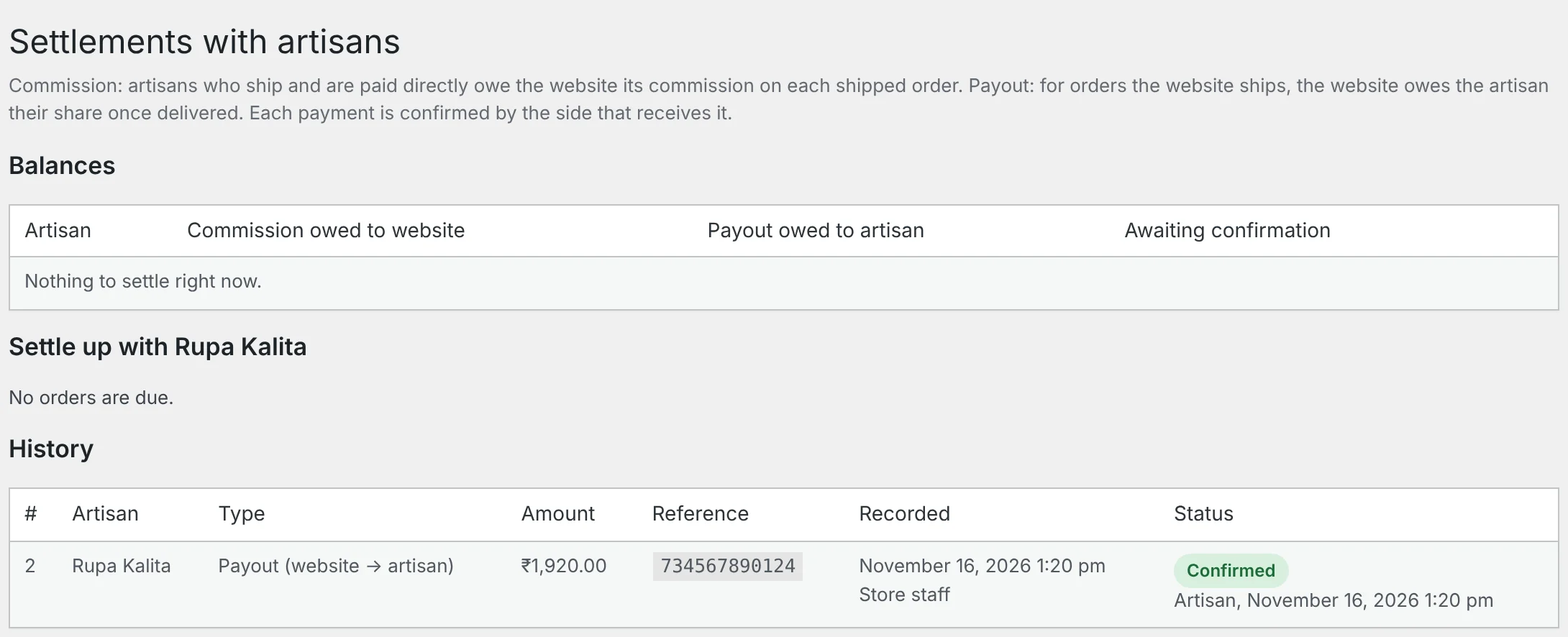
Artisan Outlet → Settlements shows each artisan’s balances (commission owed to the website, payout owed to the artisan, amounts awaiting confirmation) and the payments waiting for confirmation. Open shows one artisan, with their orders due and history.
Commission from an artisan who ships
- The artisan pays from the app (Money → Pay commission) and enters the UTR.
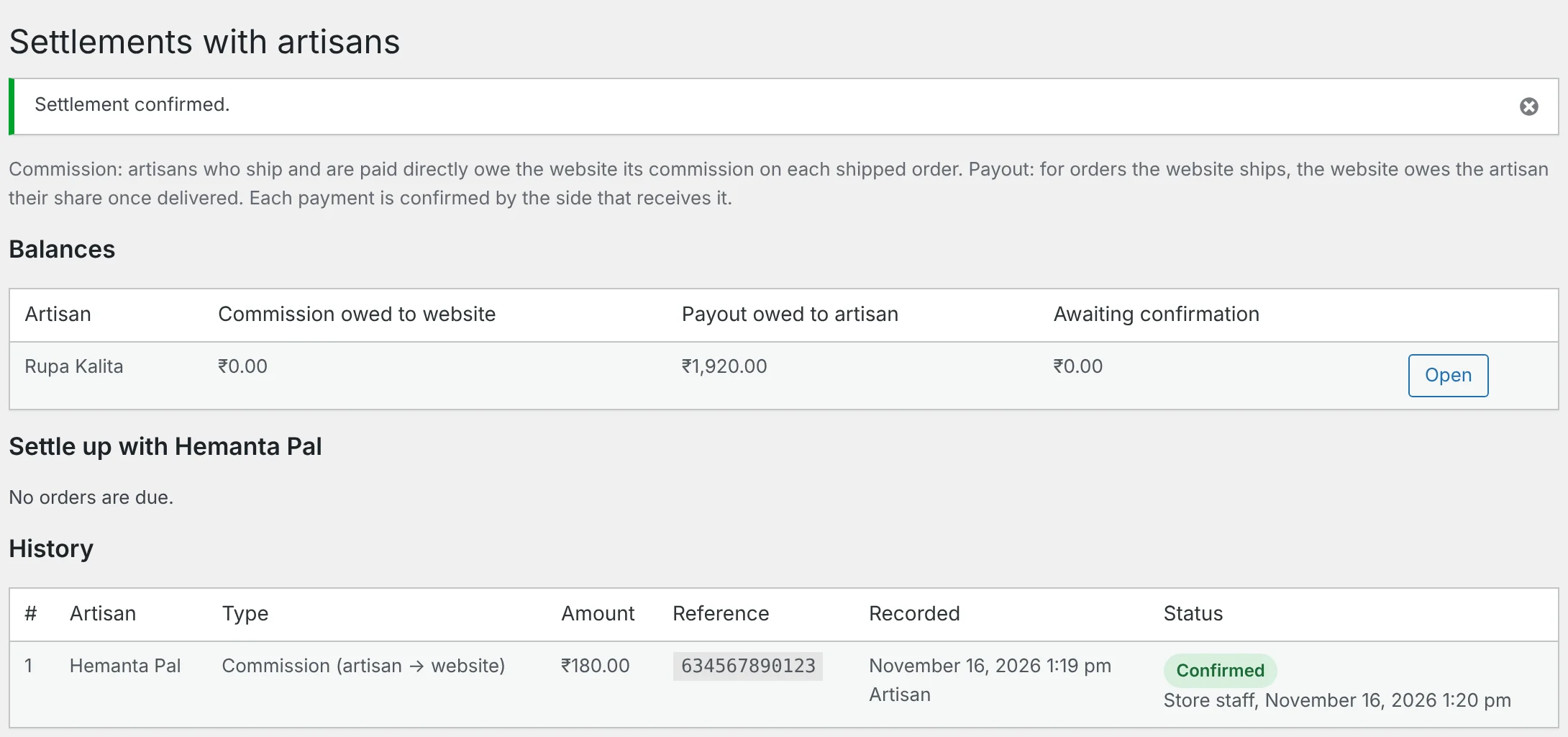
- Check your bank, then click Received — confirm, or Not received, which puts those orders back to due.
- If the artisan paid you some other way, open the artisan and use Record commission received instead.
Payout to an artisan the website ships for
- Open the artisan on the Settlements page (or Settle up on their page). The orders due are listed and ticked, with the total.
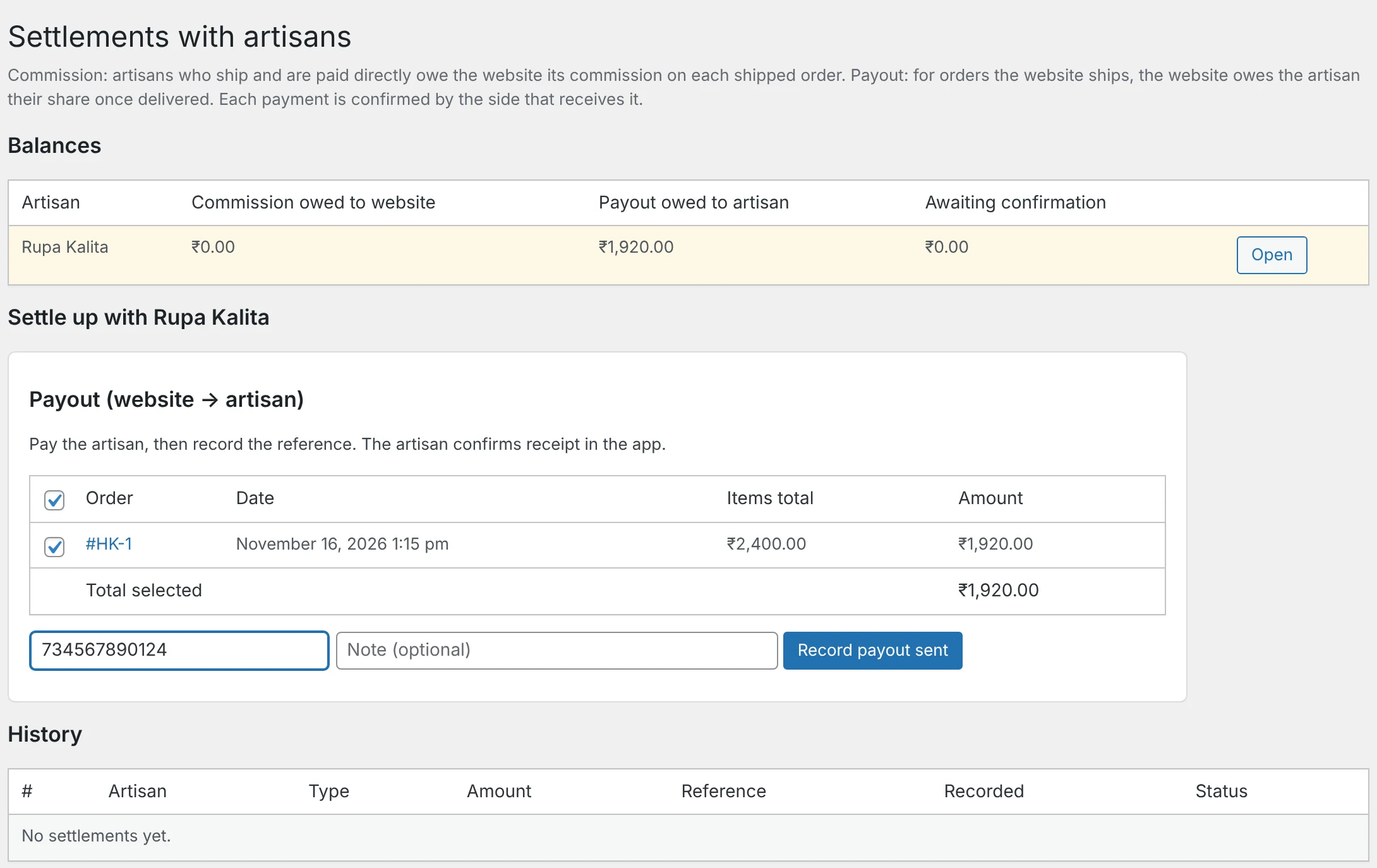
- Pay the artisan by UPI or bank transfer (if they have a UPI ID, it is shown).
- Enter the reference and click Record payout sent. It waits for the artisan.
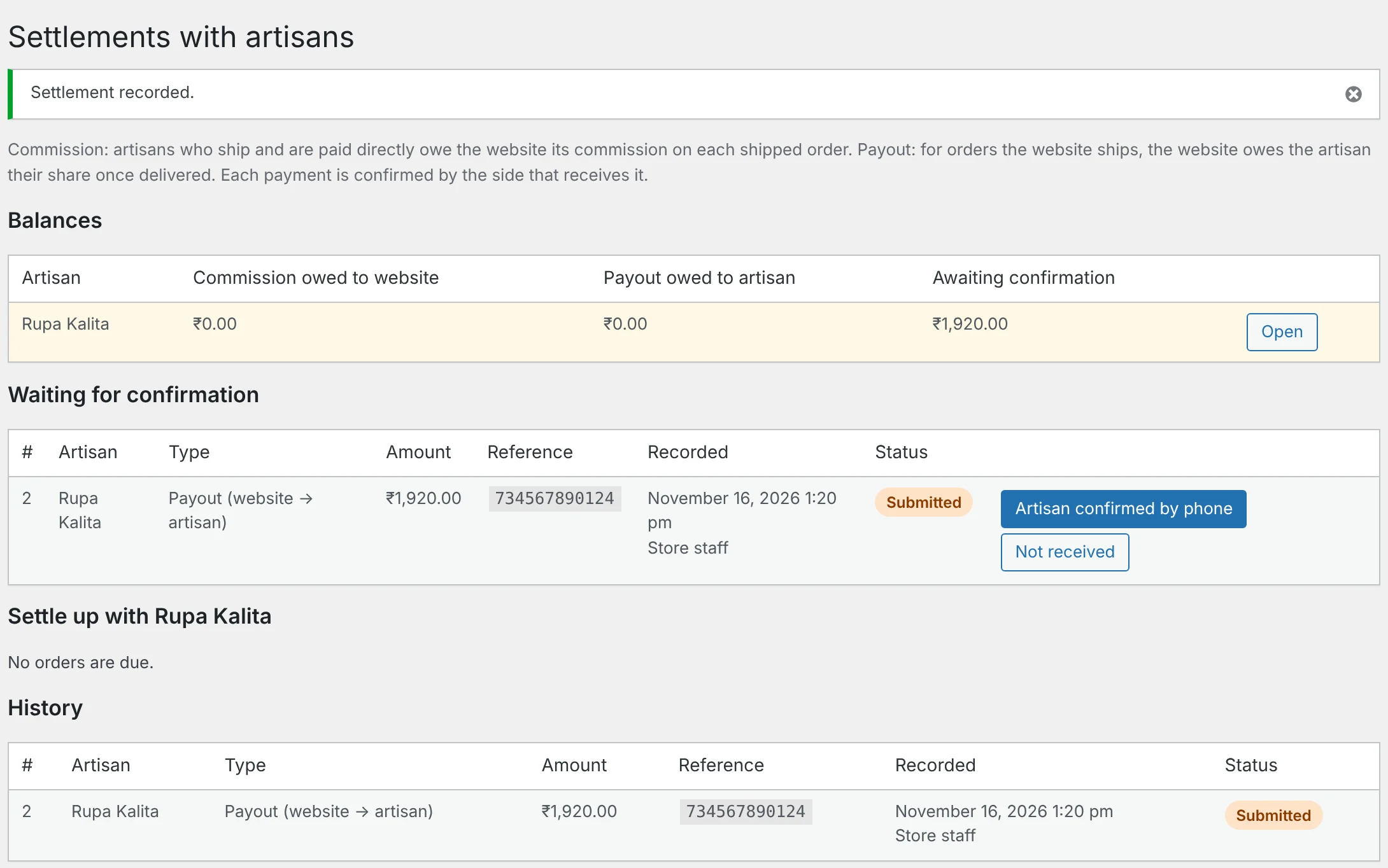
- The artisan confirms in the app (Received). If they can’t, and they confirm by phone, click Artisan confirmed by phone.
Sales report
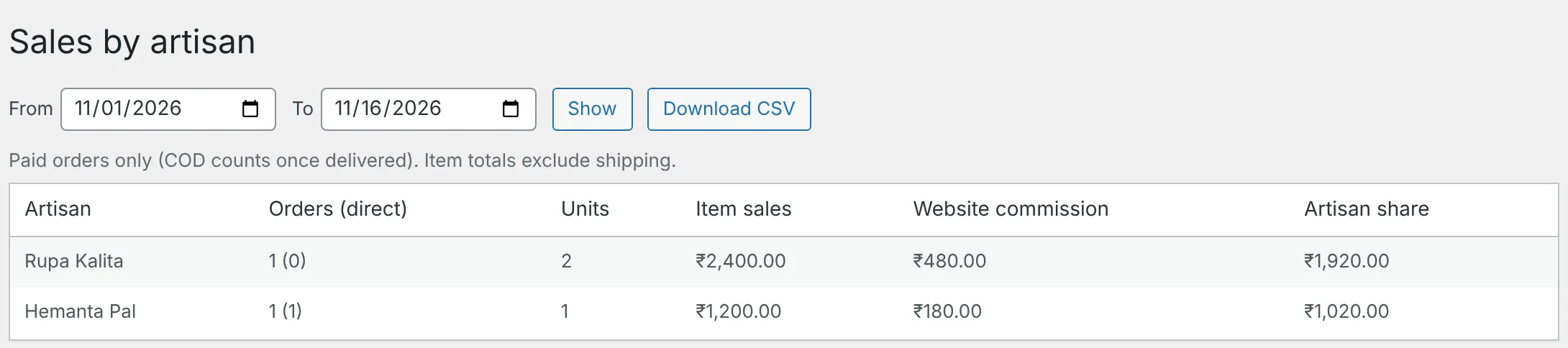
Artisan Outlet → Sales report: for any date range, per artisan, paid orders (with how many were direct), units, item sales, website commission and artisan share. COD orders count once delivered; totals exclude shipping. Download CSV for a spreadsheet.
Reference
For developers
Data
- Crafts and artisans are post types
ao_craftandao_artisan, with the taxonomyao_craft_type. Addresses:/craft/…,/artisan/…, archives/crafts/and/artisans/. - Orders live in their own tables:
ao_orders,ao_order_items,ao_order_events(each event records the actor and an optional photo) andao_settlements. - REST namespace
ao/v1; the full list of routes is at the top ofincludes/class-ao-rest.php.
Hooks
ao_notify | Send SMS or WhatsApp: receives $to_type, $order, $subject, $message, $context. Hook it to your provider. |
ao_payment_methods | Add an automatic payment gateway; call AO_Orders::confirm_payment() from its webhook. |
ao_order_created, ao_order_event, ao_settlement_created, ao_settlement_updated | Actions after these happen. |
ao_craft_data, ao_order_export, ao_order_view_url, ao_order_rate_limit | Filters for craft data, order data, the order page address and the order rate limit. |
ao_contact_icon, ao_contact_types | Replace the contact icons (for example with official brand icons; receives $html and $type), or add and change link types. |
ao_search_text | Change what the search finds for a craft or artisan: receives the indexed $text and the $post. Call AO_Search::build_all() after changing it, to re-index everything. |
aom_app_slug | Change craft-app in the app address. |
ao_use_block_editor | Use the block editor for crafts and artisans. |
Translation
All text is translatable (artisan-outlet, artisan-outlet-mobile). One translation, for example Hindi or Assamese, covers the website, the app and the artisan section. The QR code library is qrcode-generator by Kazuhiko Arase (MIT).
Help
Troubleshooting and questions
The app or the craft pages show “Page not found”
Pretty permalinks are off, or WordPress hasn’t refreshed its addresses. Open Settings → Permalinks, choose any setting except “Plain”, and click Save Changes (saving refreshes them).
The UPI ID isn’t saved
It must look like name@bank: letters, digits, dots, hyphens or underscores, then @ and the bank handle. The page says “The UPI ID does not look right” and keeps the old one.
Cash on delivery isn’t offered
- The artisan ships their own orders (COD is never offered for them).
- COD is switched off, or the order is over the COD maximum order value (Settings → Payments).
“This transaction reference is already used on another order”
Each UTR can be used once. The customer has probably copied an old reference; ask them to check their UPI app for the payment to this order.
An order cancelled itself
UPI orders with no payment reference are cancelled after the hours set in Payments (48 by default), counted from when they were placed, and their stock is released. Set it to 0 to never cancel automatically.
An artisan forgot the PIN or can’t sign in
On the artisan’s page, App login tab: tick new PIN and click Update. Give them the new PIN shown. The mobile number must be the one shown there.
No photo button in the artisan section
Packing and docket photos are off by default: switch them on in Settings → Artisan app.
“Choose the courier before marking the order shipped”
Pick a courier in the list. To add your own couriers, edit the list in Settings → Shipping & commission.
Questions
Do customers need an account?
No. Orders are found by number plus the mobile number or email used at checkout. The app also remembers orders placed on that phone.
Can one order contain crafts from two artisans?
No. Each order goes from one artisan, so the customer places one order per artisan.
Does changing an artisan’s commission change old orders?
No. Commission and shipping are fixed on each order when it is placed.
Can staff act for an artisan who has no smartphone?
Yes: the order page has every button the artisan has. Confirm with the artisan by phone first; the history records it as “Store staff for the artisan”.
Help
What’s new
Core 2.8.0 · Mobile 2.6.0
- Search as you type in the website shop and in the app: results update while typing, without reloading.
- Search now looks in every public field of a craft or artisan (materials, technique, steps, artisan’s name and village, languages, awards, family timeline…), not just the name and description. Every word must match.
- The shop shows how many crafts or artisans were found; the app’s home-screen search filters the home list itself.
- New
ao_search_textfilter for developers.
Core 2.7.0 · Mobile 2.5.0
- New Contact & social tab on the artisan screen: up to three public links (phone, WhatsApp, email, website, Facebook, Instagram, YouTube, X, LinkedIn).
- They appear as small icons on paired cards and artisan pages, on the website and in the app.
- New Shop display settings: contact icons on cards (on or off) and their size; shortcodes can override both.
Core 2.6.2
- New Help link in Settings → Store: a Help button at the right of the shop’s tabs opens your help page or user manual in a new browser tab. Its label can be changed, and
[ao_outlet help="…"]hides it or changes the address on one page.
Core 2.6.1 · Mobile 2.4.1
- Names with “&” or an apostrophe now show correctly everywhere: craft types such as “Cane & bamboo” and titles such as “Rupa’s stole” used to show HTML codes in the phone app, the website cart and payment pages, SMS or WhatsApp messages sent through
ao_notify, and the sales-report CSV. Orders placed earlier display correctly too. - The UPI payment link no longer carries such codes in the payee’s name.
- The Feature on the home screen tick box on the craft screen is a normal tick box again.
- Mobile: when no app name is saved, the app and its home-screen label show the site title correctly even if it contains “&” or quotes.
Core 2.6.0 · Mobile 2.4.0
- New Artisan app settings tab: packing photos and courier docket photos as separate switches, both off by default.
- Order photos are shrunk on the server (1280 px, 75% quality by default), keep only two small copies, and can be deleted automatically a set number of days after the order is finished. The tab shows the space used.
- Fixed: opening an artisan order directly from a link showed no courier list. The add-on now needs core 2.6.0.
Core 2.5.1
Fixed: craft and artisan pages showed “There has been a critical error” when their Excerpt was empty.
Core 2.5.0 · Mobile 2.3.1
New colour setting Photo placeholder, set by each colour theme.
Core 2.4.0 · Mobile 2.3.0
Settings in tabs; six card templates; six colour themes and eleven colours with a live preview, shared by the website and the app; tabbed details boxes for crafts and artisans; redesigned craft and artisan pages; faster app with loading placeholders and instant Back.
Core 2.3.0 · Mobile 2.2.0
Shop display settings shared by website and app; display attributes on [ao_outlet] and [ao_crafts]; Add to cart on cards; featured crafts first.
Core 2.2.0 · Mobile 2.1.0, and 2.1.0 · 2.0.1
A new app home page of paired cards; [ao_outlet] (2.1.0), mode="app" filling the content width, align, and height in screen units.
Core 2.0.0 · Mobile 2.0.0
Rebuilt without WooCommerce: own catalogue, cart, checkout, orders, shipping and tracking; UPI and COD; one artisan per order; the artisan section; settlements. (1.0.0 was built on WooCommerce.)